
Twilio Setup (Voice & Phone Numbers)
Connect Twilio to Helios for voice calls and phone numbers: save credentials once, link a number, and let Helios configure the webhooks.
Objective
Connect Twilio to Helios so your AI agents can answer phone calls. You save your Twilio Account SID and Auth Token once in Integrations; Helios then reuses them for voice numbers and call recording. If you would rather not manage a Twilio account at all, Helios can provision a phone number for you directly (see Helios-provisioned numbers).
Twilio is used for voice and phone numbers only. WhatsApp no longer connects through Twilio: WhatsApp numbers are connected exclusively through Meta with the Connect with WhatsApp button. See WhatsApp and WhatsApp via Meta Cloud API.
Access
- Sidebar -> Integrations; Route: /app/{tenant}/integrations (Twilio (Voice) card, under the Communication category)
- Sidebar -> Voice Agents; Route: /app/{tenant}/voice-agents (Create Voice Agent -> phone step)
- Sidebar -> Phone Numbers; Route: /app/{tenant}/phone-numbers (buy a Helios number)
Roles
| Area | Who can use it |
|---|---|
| Save or disconnect Twilio credentials (Integrations) | Owner and Admin only, with a verified email. |
| Create / edit Voice Agents | Any team member. Voice must be included in your plan or added as the Voice add-on. |
| Buy, rename, or release Helios phone numbers | Owner and Admin only. Purchasing also requires a verified email. |
Prerequisites
- Only if you bring your own number: an active Twilio account with access to the Twilio Console, your Account SID (starts with
AC, 34 characters) and Auth Token (32 characters), and a Twilio number with Voice capability. None of this is needed for a Helios number. - Voice included in your plan, or the Voice add-on.
- A verified email on your Helios account.
Two ways to get a voice number
Helios supports two models. You can mix them.
| Model | What you do | Best for |
|---|---|---|
| Bring your own Twilio | Save your Twilio credentials, then link an existing Twilio number to a voice agent. Helios configures the number's webhooks for you. | Teams that already run Twilio. |
| Helios-provisioned number | Buy a number inside Helios. No Twilio account, no webhooks, recording included. | Voice agents that just need a working phone number fast. |
Step 1 - Save your Twilio credentials
Do this once. The same credentials are reused everywhere Twilio is needed. Only owners and admins can save or disconnect them.
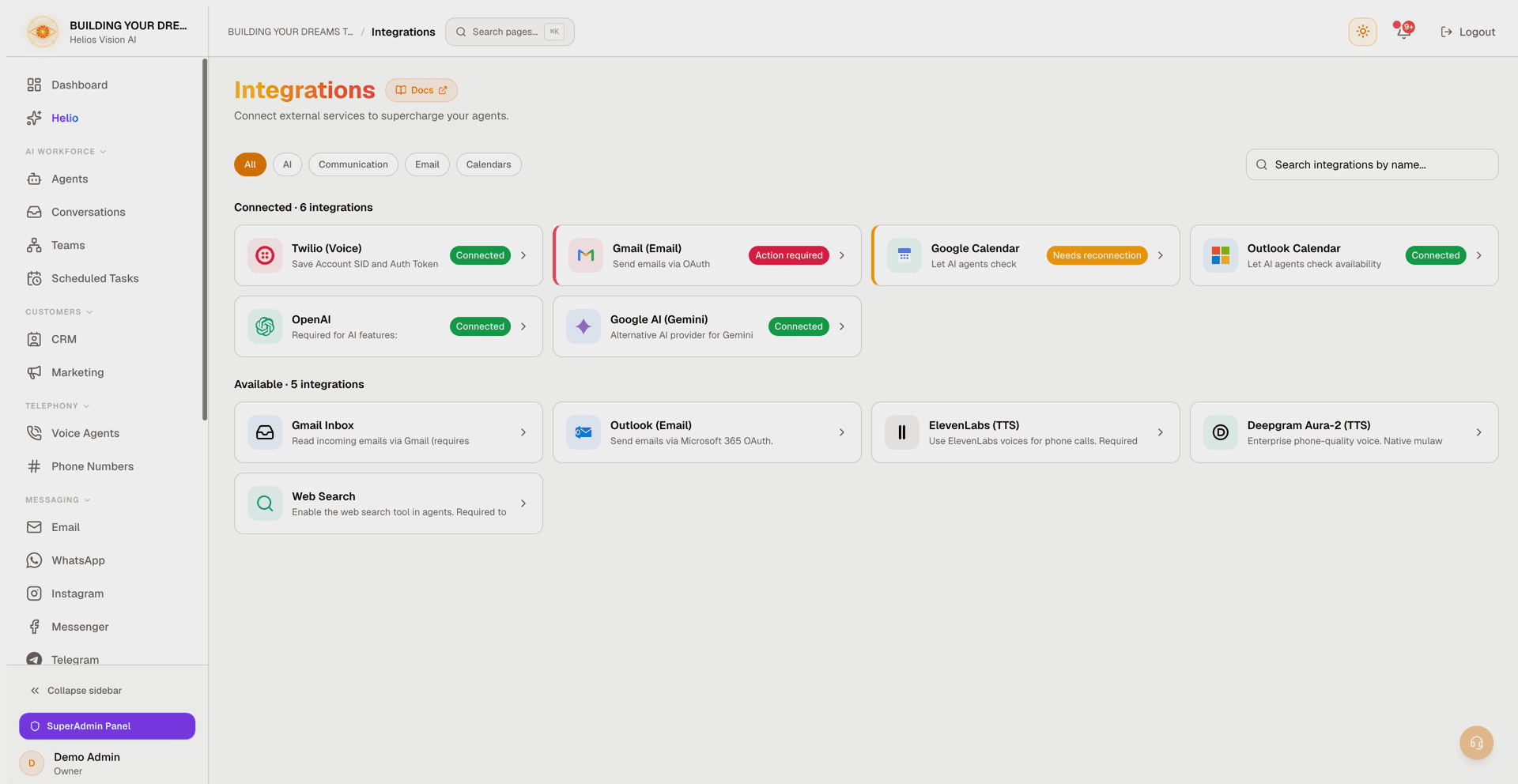
- Open /app/{tenant}/integrations and find the Twilio (Voice) card (search for it, or use the Communication filter). Click the card to open it.
- To find your credentials: log in at console.twilio.com, open the Account Info panel on the dashboard, and copy the Account SID and Auth Token.
- Paste both values into the form. Each field validates as you type and tells you when the value looks right.
- Click Save Twilio Credentials.
| Field | Rule |
|---|---|
| Twilio Account SID | Must start with AC and be exactly 34 characters. |
| Twilio Auth Token | Must be exactly 32 characters. |
Helios stores both values encrypted. The Auth Token (not an API Key) is required because Helios uses it to verify that incoming webhook requests really come from Twilio. To disconnect later, open the same card and click Disconnect Twilio.
Step 2 - Connect a number for Voice
- Open /app/{tenant}/voice-agents and start Create Voice Agent.
- On the phone step, choose how to connect a number. The choice appears when you own at least one Helios number; otherwise the step goes straight to the Twilio flow and links to Phone Numbers so you can buy a Helios number in minutes.
| Option | Description |
|---|---|
| Helios number (Recommended) | Use a number you bought through Helios. Fully managed, webhooks configured automatically, nothing to set up. |
| Your own Twilio number | Connect a Twilio account and point an existing Twilio number to Helios. |
- For Your own Twilio number: save Twilio in the Twilio Integration card (if not already connected), then use Select an existing Twilio number to pick one from your account (Refresh numbers reloads the list), or choose Enter manually and type the number in E.164 format (for example
+15551234567). - When your Twilio credentials are saved, Helios configures the number's voice webhooks in Twilio automatically when you save the voice agent. The modal still shows the Voice Webhook URL and Status Callback URL with copy buttons, so you can verify the values in Twilio or set them by hand.
Webhook configuration in Twilio (verification / manual setup)
- Go to Twilio Console > Active Numbers.
- Select the phone number you are connecting.
- In the Voice Configuration section, the values should be:
| Setting | Value |
|---|---|
| A call comes in | Webhook -> the Voice Webhook URL (ends in /api/voice/webhook). |
| HTTP method | HTTP POST. |
| Call status changes | The Status Callback URL (ends in /api/voice/status-callback). |
| Status callback method | HTTP POST. |
After that, incoming calls to the number are routed to your voice agent automatically. If the webhooks ever drift (for example, after changes made directly in Twilio), use the Repair connection button on the voice agent's card to re-sync them.
Call recordings
Enable Call Recording on the voice agent's behavior step to store audio recordings for later review.
- Helios number: recording is included. No Twilio credentials needed.
- Your own Twilio number: recording requires an active Twilio connection. If Twilio is not connected yet, the recording toggle shows a credentials form (Connect Twilio).
- Recordings appear on each call's detail page and are kept for 90 days.
- Helios stores the audio itself and removes the copy from your Twilio account once stored, so recordings do not accumulate Twilio storage charges.
Helios-provisioned numbers (no Twilio account)
If you do not want to run Twilio yourself, buy a number directly through Helios and assign it to a voice agent. Only owners and admins can manage phone numbers.
- Open /app/{tenant}/phone-numbers.
- Click Buy a number. The wizard has four steps: Choose a number, Emergency address, Confirm purchase, Number purchased.
- Search by Area code and/or Contains (both optional) and click Search. Only US numbers are available today; non-US area codes (like +1 809) return no results.
- Enter the Emergency address. US law requires an address on file for emergency (911) calls; it is used only for emergency dispatch and never shared with callers.
| Field | Notes |
|---|---|
| Business or full name | Who the address is registered to. |
| Street address | Street and unit only. City, state and ZIP go in their own fields. |
| City / State / ZIP code | State is picked from a list; ZIP is 5 digits. |
| Name for this number | Optional reference (defaults to "Helios number"). You can change it later. |
- Review the monthly price shown on the confirm step, accept the Phone Number Terms and Acceptable Use Policy, and click Purchase.
- Assign the new number to a voice agent (Assign it to a voice agent on the success step).
Managing your numbers:
- The list shows how many numbers you use out of your plan's maximum, each number's status (Active / Released), purchase date, and whether the emergency address is registered.
- Edit name renames a number. The name identifies it across the app — in voice agents and when connecting WhatsApp.
- A Helios number can also be used to connect WhatsApp; see WhatsApp.
- Release a number when you no longer need it. Releasing is immediate and cannot be undone; you would need to buy a new number to replace it. A number connected to WhatsApp cannot be released — disconnect it in the WhatsApp section first.
Notes:
- Searching is free for every plan. Purchasing requires an available slot from your plan's limit plus any Phone Number add-on; without one, the confirm step shows a View plans upgrade link instead of a purchase button.
- Numbers are for inbound voice AI only. No spam or robocalls.
- If a plan change leaves you with more Helios numbers than your plan includes (a downgrade, or a cancellation that moves the workspace to Free, which includes none), the extra numbers are not deleted: each is reserved for your workspace for 30 days at no charge and then released. A reserved number is not billed, does not answer calls, and WhatsApp connected to it receives and sends no messages. Choose a plan that includes the number within those 30 days to keep it. See Phone Numbers.
- If the page shows "Phone numbers are not available yet", the feature is not enabled on your environment. It is rolling out gradually; contact support if you need it.
Webhook URLs reference
Webhooks are configured automatically: at purchase time for Helios numbers, and when you save a voice agent for your own Twilio numbers (with credentials saved). For verification or manual setup, the path suffixes are:
| Purpose | Path suffix | Method |
|---|---|---|
| Voice inbound call | /api/voice/webhook | POST |
| Voice status callback | /api/voice/status-callback | POST |
Good practices
- Save Twilio once in Integrations; every voice flow reuses it.
- Use the Copy buttons for webhook URLs instead of typing them by hand.
- Keep the Account SID and Auth Token accurate. If you rotate the Auth Token in Twilio, update it in Helios, or webhook signature checks will start failing.
- Prefer a Helios number if you want zero setup and recording included.
- If you change a number's configuration directly in Twilio, use Repair connection on the voice agent card afterwards.
- Test with a real call after connecting a number.
Common errors
| Problem | Likely cause / fix |
|---|---|
| "Invalid Account SID" | The SID must start with AC and be 34 characters. |
| "Invalid Auth Token" | The token must be 32 characters. Paste it fresh from the Twilio Console. |
| Cannot save credentials | You are not an owner or admin, or your email is not verified. |
| No numbers listed when connecting | The credentials do not match a Twilio account with numbers, or the number is not in Twilio. Check credentials, or enter the number manually. |
| Calls do not arrive | The webhooks on the number are missing or wrong. Click Repair connection on the voice agent card, or verify the URLs in Twilio. |
| Recordings missing | For your own Twilio number, Twilio must be connected and the Status Callback URL set to /api/voice/status-callback with HTTP POST. |
| "Voice is not included in your current plan" | Upgrade your plan or add the Voice add-on to configure voice agents. |
| "Phone numbers are not available yet" | The Helios-provisioned numbers feature is rolling out gradually; contact support. |
| "This number is connected to WhatsApp" | Disconnect the number in the WhatsApp section first, then release it in Phone Numbers. |