
AI Agents
Create and configure AI agents: channels, tools, prologue, models and prompts, then test, monitor and manage them.
Objective
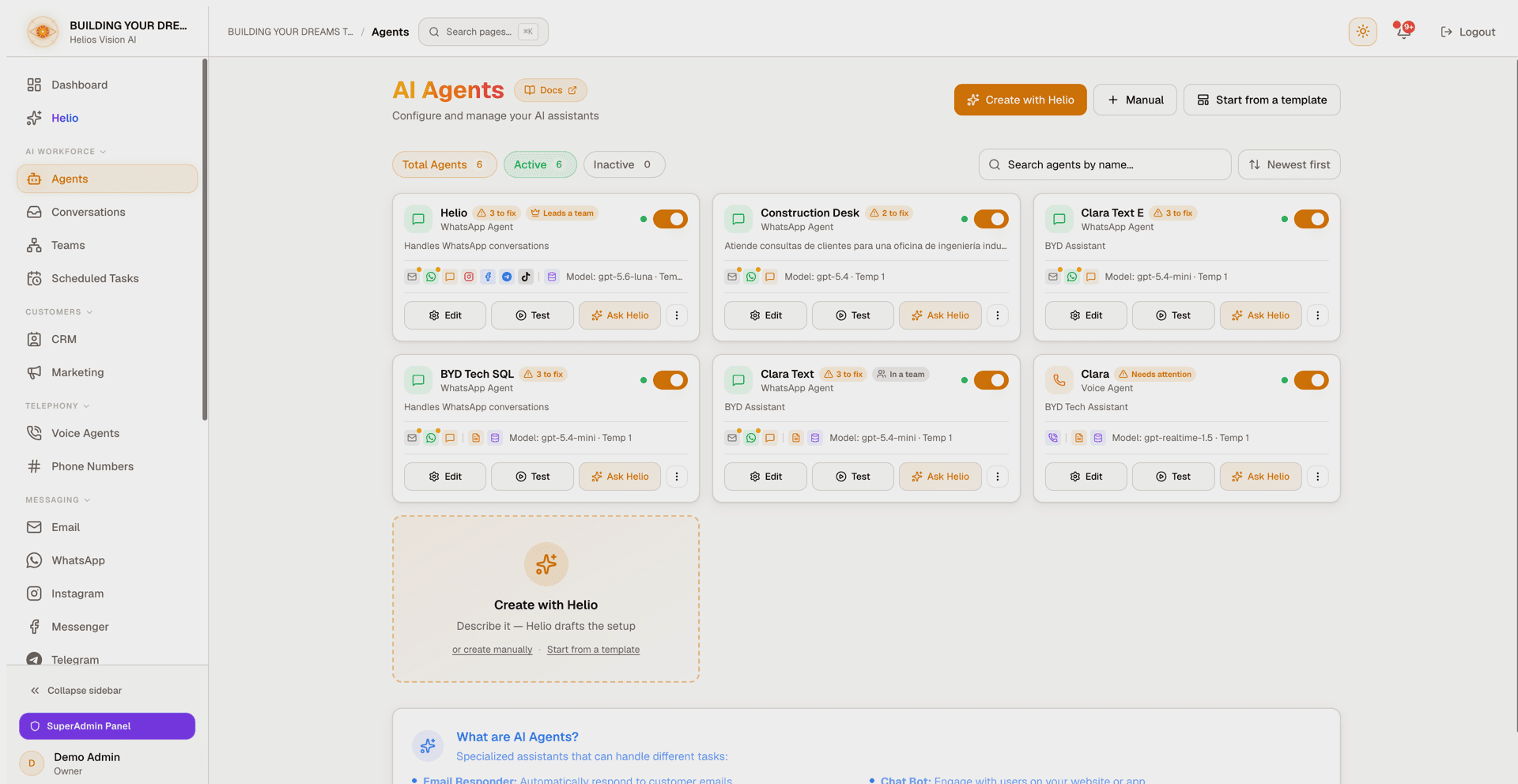
Create and configure AI agents that answer on Email, WhatsApp, Web Chat, Voice, Instagram, Messenger, Telegram and TikTok. Each agent declares the channels it may serve, the tools it can use (documents, data tables, web search, channel history, CRM, calendar, email sending, Google Sheets, webhooks), an AI model, and a system prompt. You can build an agent with Helio (conversational), from a ready-made template, or manually through a 5-step wizard — then test it in a console, review its failures in plain language, and manage everything from the agent list.
Ticking a channel on the agent answers one question: may this agent be picked there? Each channel page then offers, per account, only the agents that ticked that channel. Turning a channel on here never connects anything by itself.
Access
Sidebar -> AI Workforce -> Agents
Routes:
- List: /app/{tenant}/agents
- Edit: /app/{tenant}/agents/{id}/edit
- Test: /app/{tenant}/agents/{id}/test
- Failures: /app/{tenant}/agents/{id}/errors
Roles
- View, create, edit, test, and activate/deactivate agents: all roles (owner, admin, agent).
- Duplicate and Delete: owner and admin only.
- Change the Prologue: owner and admin only.
- Mark failures as resolved: owner and admin only.
Prerequisites
- Verified email and an active subscription (a restricted or suspended workspace cannot create agents).
- Under your plan's agent limit. The limit counts active agents; suspended agents do not consume a slot.
- A usable AI model: every plan includes Helios-managed AI billed in credits (on Free, 100 credits a month on the Agile AI profile), and you can also connect your own provider keys in Integrations. On managed AI you choose an AI profile; on your own key, which models appear depends on the providers you have connected.
- Create with Helio and the Prompt Wizard need AI generation: on managed AI credits (every plan, Free included) they work out of the box; a workspace that runs on its own key uses its OpenAI API key (you can add it inline during the flow).
- Capability-specific requirements (only if you enable that capability):
| Capability | Requires |
|---|---|
| Documents | At least one document. You can upload documents inline. |
| Data Tables | At least one data table (see Data Tables). |
| Web Search | A web search API key connected in Integrations (can be added inline). |
| Channel History | Nothing extra (email activity requires the Inbox module). |
| CRM | Nothing extra; uses your contacts. |
| Calendar | A connected calendar account (Google inline; Microsoft via Integrations). |
| Google Sheets | A Google Sheets connection with at least one spreadsheet handed over (you can connect and create one inline). |
| Email sending | A connected mailbox (Gmail or Outlook). |
Channel-specific requirements (ticking the channel on the agent is only the first half):
| Channel | Still needs |
|---|---|
| The Email tool turned on in the Tools tab, pointed at a connected mailbox. The Inbox module must be enabled for your workspace. | |
| A WhatsApp number pointed at this agent (WhatsApp module). | |
| Web Chat | A web chat widget pointed at this agent (Web Chat module). |
| Voice (Phone) | A phone number assigned to the agent (Phone Numbers and Voice Agents modules). |
| Instagram, Messenger, Telegram, TikTok | A connected account on that channel's own page, with this agent picked as the responder. |
Create an agent
Under Agents, you have three ways to start:
- Create with Helio: describe the agent in your own words and Helio drafts the setup for you.
- Manual: open the 5-step wizard blank.
- Start from a template: a guided flow that creates a ready-made agent — including its data tables and CRM fields — in three steps.
All three run the same validations and quota checks before the agent is saved.
Create with Helio
- Click Create with Helio.
- Describe what the agent should do and select the channels you want. This dialog offers Web Chat, WhatsApp, Email and Voice.
- Helio asks a follow-up question if it needs more detail, then proposes a draft: name, description, system prompt, recommended capabilities, and matching webhooks.
- Review the draft. Click Start over to redo it, or Continue to setup to open the wizard pre-filled.
- Adjust anything in the wizard and create the agent. The wizard's Channels step is where you tick Instagram, Messenger, Telegram or TikTok if you want them too.
On managed AI credits this works out of the box, on every plan. A workspace that runs on its own key uses its OpenAI API key; if none is connected, the dialog walks you through adding one inline. Voice is a separate kind of agent, so selecting Voice clears the text channels (and vice versa).
Start from a template
Click Start from a template. The flow has three steps:
- Choose a template: a gallery of ready-made agents (Customer Service, Lead Capture, Restaurant Reservations, Appointment Booking, E-commerce Order Support, Real Estate, Sales Concierge, Internal Helpdesk, Lawyer Assistant, Medical Assistant). Each card shows how many capabilities it enables, which data tables and CRM fields it creates, and its suggested channels.
- Customize your agent: Business name (required), Response language, Tone, and Channels (Web chat, WhatsApp, Email, Voice). Suggested channels are marked, but you can pick any.
- Review and create: a summary of everything that will be created (the agent, its data tables, its CRM fields). A "Still to connect" section lists channel setup that is still missing (for example a WhatsApp number or a mailbox), each with a Set up link — the agent is created either way and starts answering on each channel as soon as that channel is ready. Click Authorize and create.
If the template needs more agents or data tables than your plan allows, the flow shows the limit and an Upgrade plan option instead of failing at the end. After creation, the new agent opens for editing.
Create manually (5-step wizard)
Click Manual to open the wizard. The header shows the current step (1 to 5). Use Next and Back to move between steps. Closing requires the X or Cancel (an accidental click outside will not discard your work).
Step 1: Basic Information
| Field | Mandatory | Format | Note |
|---|---|---|---|
| Agent Name | Yes | free text | The agent's display name |
| Description | No | free text | A short summary of what the agent does |
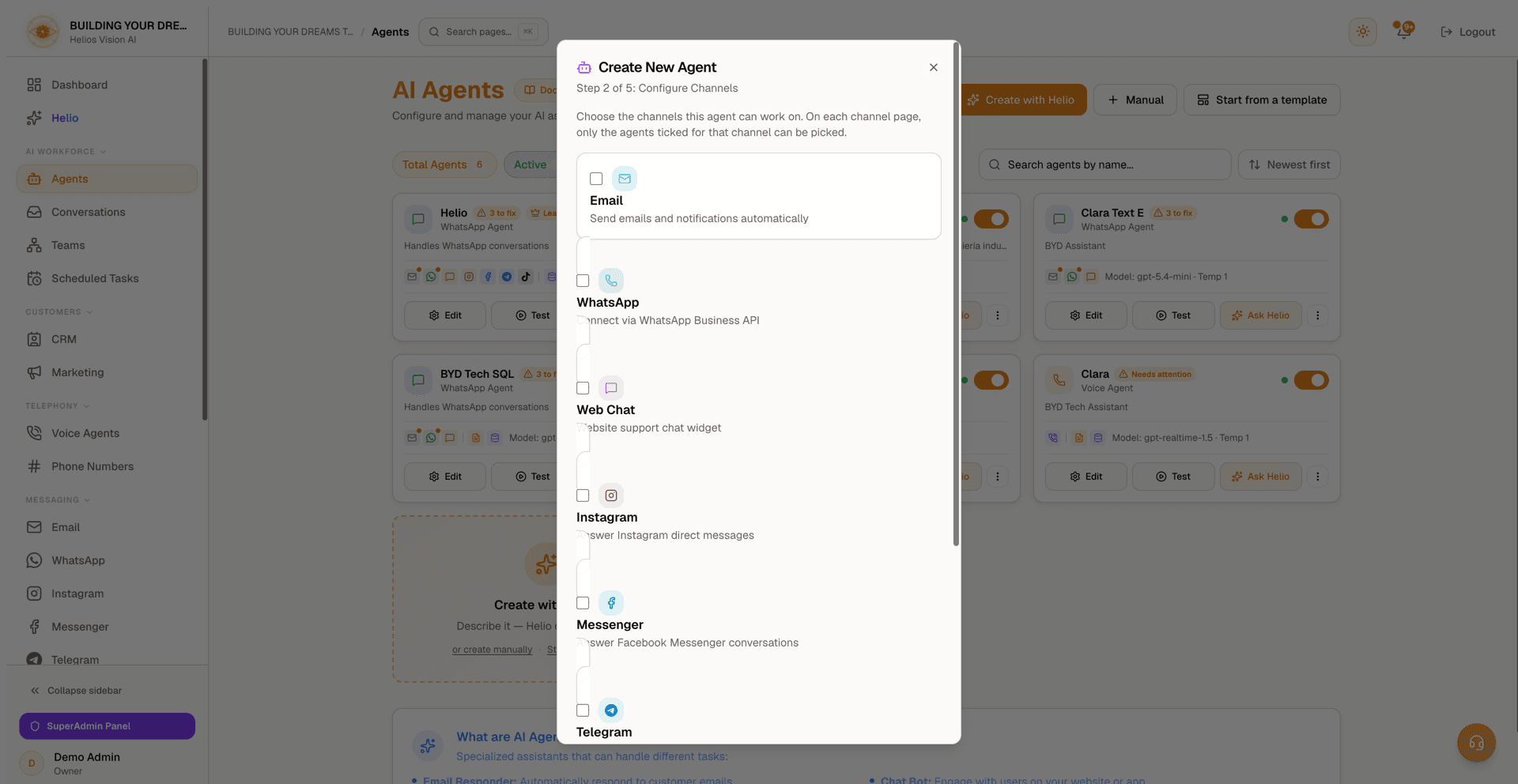
Step 2: Configure Channels
This step asks the same question of all eight channels: may this agent be picked there? Select one or more; at least one is required. Voice is mutually exclusive with the rest: enabling Voice clears the other seven, and enabling any of those clears Voice.
| Channel | Description |
|---|---|
| Send emails and notifications automatically. | |
| Connect via WhatsApp Business API. | |
| Web Chat | Website support chat widget. |
| Answer Instagram direct messages. | |
| Messenger | Answer Facebook Messenger conversations. |
| Telegram | Answer Telegram chats. |
| TikTok | Answer comments on your TikTok posts. |
| Voice (Phone) | Receive and make phone calls. |
Channels that carry direct messages expose a nested Accept attachments (images, voice notes, documents) switch once ticked. When it is off, that channel replies to text only and ignores any media the customer sends.
| Channel | Accept attachments |
|---|---|
| On by default | |
| Telegram | On by default |
| Web Chat | Off by default |
| Off by default | |
| Messenger | Off by default |
| TikTok, Email, Voice | No switch — TikTok has no direct messages, so there is no inbound media to accept |
Step 3: Agent Capabilities
Choose which capabilities this agent has. All are optional.
| Capability | What it does | Requires |
|---|---|---|
| Documents | Answer questions from your documents and knowledge bases. | At least one selected document. |
| SQL Database Access | Query your data tables using natural language. | At least one selected data table. |
| Web Search | Pull in real-time information from trusted sources. | A web search API key. |
| Channel History | Let the agent read its own recent activity across its channels to summarize or analyze it. | Nothing extra (email included only when the Inbox module is enabled). |
| CRM | Let the agent search, view, create, and update contacts. | Select the permitted actions. |
| Calendar | Let the agent list, create, update, and delete calendar events. | A connected calendar account. |
| Google Sheets | Read and update the spreadsheets you connect. The agent only sees the ones you hand over, never the rest of your Drive. | A Google Sheets connection. |
| Gmail | Let the agent send emails from a connected Gmail account. | A connected Gmail account. |
Capability details:
- Documents: select documents from the list or upload new ones with a document type preset (General, Legal, Technical, FAQ). Uploads here accept PDF, TXT, MD and DOCX files (the Documents page accepts more formats) up to the same per-file size limit as the Documents page, because the file goes straight to storage; the drop zone shows the formats and your plan's limit. No API key is needed to turn this on. Newly uploaded documents are auto-selected and are indexed in the background; you can continue while they finish. At least one document must be selected.
- SQL Database Access: pick the data tables the agent may use. For each selected table you choose the allowed operations — Read is always on; Insert, Update and Delete are available only if the table itself permits them.
- Web Search: if no key is connected, an inline field lets you add one.
- Channel History: covers the agent's activity on WhatsApp, voice, web chat, email, Instagram DM, Messenger, Telegram and TikTok (public video comments only — TikTok has no private messages). Email activity is included only when the Inbox module is enabled for your workspace. Summaries also flag conversations that were escalated to a human or had a reply held for review. The agent receives compact summaries, never raw records.
- CRM: choose from Search, View Details, Create, Update, Move between pipeline stages, List by stage, Tag, Task, Note, Assign owner, and Read history.
- Calendar: select the connected calendar account, then choose the allowed actions (list, create, update, delete). If no account is connected, connect a Google account inline (Microsoft calendars connect from Integrations). An account must be selected before you can continue.
- Google Sheets: connect Google Sheets inline if needed. Permissions default to reading only (See which are connected, Read rows); Add a row and Update a row are opt-in and show a warning, because they change your real spreadsheet. If the connection has no spreadsheet handed over yet, the card says so and lets you create one right there — otherwise the agent would have nothing to read.
- Gmail: select the connected Gmail account, or connect one inline.
Webhooks (same step): select the webhooks this agent can call. Only webhooks created in the Webhooks module appear here; each one can be expanded to view its parameters. Webhooks with expired or disconnected credentials are hidden with a note to reconnect them in Integrations.
Step 4: Craft Your Agent's Brain
This step builds the system prompt — the instructions that define the agent's personality, rules, and boundaries.
- Launch the Prompt Wizard to generate an optimized prompt, or choose to write the prompt manually (skip the wizard).
- The Prompt Wizard asks you to describe the agent, lets you upload reference files (PDF, TXT, MD, PNG, JPG, JPEG, WEBP; up to 5 files and 3 MB in total) to make the prompt more specific, and takes quick settings (industry, language, tone). It may ask a few follow-up questions. A PDF, TXT, or MD reference file can also go to your knowledge base: tick its Upload to KB box, and it is uploaded to Documents when you confirm.
- The review step shows the generated prompt plus suggested Data Tables and CRM custom fields derived from your description. You can edit their fields, toggle which ones get created, set the agent's permissions on them, or skip them entirely. Plan limits on data tables are shown before anything is created.
- Confirming creates the selected resources and inserts the prompt into the form.
After a prompt is generated you can edit it inline, regenerate it, or clear it. A character counter shows usage against the limit. You cannot move on to step 5 with an empty prompt — either use the wizard or skip it and write one yourself. On a workspace that runs on its own key, the wizard uses its OpenAI API key; add it inline if none is connected.
Step 5: AI Configuration
What this step asks for depends on your workspace's AI engine (see General settings).
On managed AI credits, a text agent gets an AI profile instead of a provider and model. Each option shows what it costs:
| AI profile | Best for | Cost |
|---|---|---|
| Agile, marked Recommended for most tasks | Quick responses for customer service, appointments and everyday tasks. Runs on GPT-6 Luna. | 1 credit per response |
| Advanced | Complex requests, analysis and tasks with several conditions. Runs on GPT-6 Sol. Available on every paid plan; on Free it is shown as unavailable, with an Upgrade plan link. | 10 credits per response |
A response costs the same however many steps the agent takes, and searching your knowledge base adds no credits. Each data table lookup uses 1 more credit. Each voice note transcription uses 1 credit per started 30 seconds of audio, minimum 1 credit. Each teammate the agent consults is charged as one more response at that teammate's profile price. If a workspace moves to Free, agents saved as Advanced keep answering on Agile, at the Agile price, and go back to Advanced when the workspace upgrades again. A voice agent on managed AI shows Voice AI instead: voice uses a separate real-time model, and text profiles do not change voice calls.
On your own key (BYOK), you choose the provider and model:
| Field | Mandatory | Format | Note |
|---|---|---|---|
| Provider | Yes | dropdown | OpenAI. Google Gemini models are not offered at the moment. |
| Model | Yes | dropdown | Filtered by provider and by voice compatibility. A recommended model is pre-selected. |
| Temperature | Yes | 0.0 - 1.0 | 0 = focused, 1 = creative. Some models are fixed at 1 (adjusted automatically). |
| Max Tokens | Yes | number | Between 100 and 2,000, capped by the model's maximum output. |
| Top P | Yes | 0.0 - 1.0 | Sampling control. |
| System Prompt | No | long text | Up to 8,000 characters (about 7,500 recommended for voice). |
| Reply language | Yes | dropdown | Match the user's language (recommended), Always English, or Always Spanish. |
In both cases, Temperature, Max Tokens and Top P are grouped in the collapsible Response settings section.
If no usable model is available (for example the OpenAI key is missing, rejected or out of quota), this step shows an inline field to fix the key. Click Create Agent to save.
Edit an agent
Route: /app/{tenant}/agents/{id}/edit
The edit form uses five tabs:
| Tab | Contains |
|---|---|
| Basic Info | Agent Name, Description |
| Channels | Email, Voice, WhatsApp, Web Chat, Instagram, Messenger, Telegram, TikTok (with Accept attachments where the channel carries direct messages) |
| Tools | Documents, Data Tables, Web Search, Channel History, CRM, Calendar, Email, Webhooks |
| Prologue | The conversation prologue (see below) |
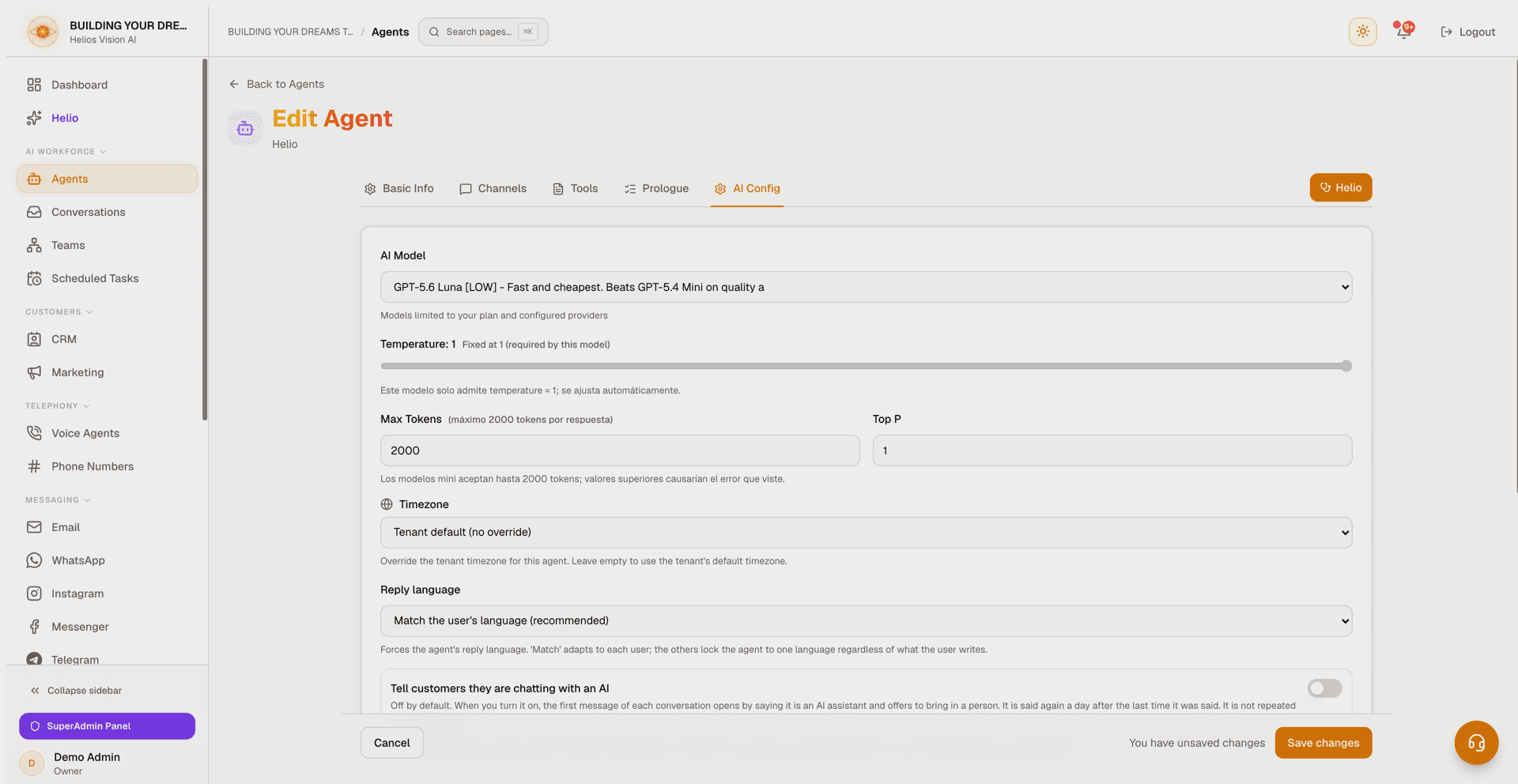
| AI Config | AI profile (managed AI) or Model (own key), Temperature, Max Tokens, Top P, Timezone, Reply language, AI disclosure, System Prompt, Human Escalation |
Channels tab
The same eight cards as the wizard's step 2, with the same rules: at least one channel, Voice exclusive with the other seven, and a nested Accept attachments switch on WhatsApp, Web Chat, Instagram, Messenger and Telegram. That switch is saved with the rest of the form by Save Changes, and it writes the same policy the channel's own page writes — set it in either place.
Tools tab
The Tools tab is a master/detail. The list on the left is the index: every capability, whether it is on, and a one-line status of what it is set to right now. The panel on the right configures the one you selected. A counter at the top of the index reads how many of the eight are on.
| Row | Status line reads |
|---|---|
| Documents | How many files are chosen and the first one by name, or "No files yet" / "No file chosen". |
| Data Tables | How many tables are chosen and the first one by name — or "No tables created yet" / "No table chosen". |
| Web Search | "Live results when asked", or "Needs a search key". |
| Channel History | "Reads its own recent activity". |
| CRM | How many permissions are ticked, or "No permissions chosen". |
| Calendar | The account and how many permissions — or "No calendar connected" / "No account chosen". |
| The mailbox address, or "No mailbox connected" / "No account chosen". | |
| Webhooks | How many are chosen and the first one by name, plus a note when some are hidden because their connection expired. |
Every row except Webhooks carries a switch. Turning a capability off is always possible. Documents needs no API key to turn on: a document that cannot be indexed says why on its own row in Documents.
Panel details:
- Documents: the heading "Files this agent can read" is followed by how many of your files are chosen, not how many exist. Every file stays listed — ticking one is how you grant it — and each row shows its description, type, date added, size, and processing status (Ready, Processing, Failed). A search box appears once there are more than four files. A drop zone accepts the same formats as the Documents page, up to your plan's per-file size limit (it shows the limit, and the file goes straight to storage), and four presets (General, Legal, Technical, FAQ) say what kind of file you are about to upload, which decides how it is prepared for search. Deleting a file asks for a second click.
- Data Tables: "Tables this agent can query", with the same "N of M chosen" counter, and a search box once there are more than four tables. Each row shows the display name and the physical table name. Ticking a table reveals its operation chips — Read is always on; Insert, Update and Delete are only selectable if the table itself permits them.
- Web Search: shows the key as connected, or an inline field to add one.
- Channel History: explains what the agent may read once it is on.
- CRM: the eleven permissions as individual ticks.
- Calendar: pick the connected account, then tick the allowed actions. If none is connected, a Connect Google Calendar button opens the flow.
- Email: pick the mailbox the agent sends from — Gmail or Outlook. If none is connected, Connect a mailbox opens Integrations.
- Webhooks: the per-webhook tick is the only thing that grants this agent a webhook. There is no control here that grants or revokes them all at once. A selected webhook can be expanded to read its fields, with required ones marked. Webhooks whose connection expired are hidden, with a warning and a Reconnect in Integrations link.
Google Sheets is currently configured in the create wizard's Capabilities step.
AI Config tab
AI Config-only fields:
- Timezone: override the tenant timezone for this agent. Leave empty to use the tenant's default.
- Tell customers they are chatting with an AI: off by default. When on, the first message of each conversation says it is an AI assistant and offers to bring in a person; it is said again a day after the last time it was said, never on every message. You can write your own wording (up to 200 characters) or leave it empty to use the built-in text, which comes out in the customer's language automatically. Applies to WhatsApp, Instagram, Messenger, Telegram and web chat; email carries it as a line at the end. Phone calls and TikTok replies do not carry it. Independently of this setting, if a customer asks straight out whether they are talking to a person, the agent always answers honestly — that never changes and cannot be turned off.
- Human Escalation — Detect escalation requests: on by default; when a customer asks for a human or shows frustration, the conversation is flagged for your team while the agent keeps answering according to your system prompt.
The Helio button (top-right) opens the agent copilot to diagnose, fix, and manage the agent. It requires an OpenAI key and a system prompt. When you make changes, a badge indicates Helio can review them. The Helio menu next to the system prompt also offers the Guided prompt builder, a What went wrong shortcut to the agent's failure page (no API key needed), and targeted diagnostics (Runtime, Data Quality, Integration Health, Performance, Compliance).
A sticky bar appears when you have unsaved changes. Click Save Changes to save, or navigate back to Agents to discard.
Prologue
The Prologue tab defines a short, fixed sequence every conversation goes through before the agent takes over — accept a policy, pick an area, give a reference. The agent then continues already knowing the answers. It runs on WhatsApp, Instagram, Messenger, Telegram and web chat; it does not run on email or voice.
The tab is laid out in three columns:
- Steps (left): the sequence, up to 6. Drag a row to reorder it, or move it with the up and down arrow keys. Each row shows its type, its text, a short secondary label (the document name, the option count, or the field the answer is remembered as) and, once you have traffic, how many conversations stopped there. Add step is at the bottom. While the prologue is still empty, Use a template offers ready-made prologues — a template never overwrites steps you already wrote.
- The step being edited (middle): a segmented control picks the type — Consent, Choice or Question. Below it, "What the customer is asked", with three insertable chips (business name, customer name, agent name) that write a placeholder at the cursor; a placeholder that has no value simply disappears. Then the fields that belong to the chosen type, and "Remember the answer as" for all of them. Save this step and Cancel are at the bottom, with Delete step on the right.
- Preview (right): the real thread as the customer will receive it, updating as you type, with earlier steps already answered. A chip switches the preview between WhatsApp, Instagram and Web chat, which do not deliver the same shape.
Per step type:
- Consent: accept or decline. You can attach an https link to a PDF and give it a name — WhatsApp attaches it to the message; Instagram, Messenger, Telegram and web chat send the link in the text. A consent step must fill "Remember the answer as", so the acceptance is recorded and auditable.
- Choice: options are chips. Type one and press Enter, drag to reorder, remove one with its x or with Backspace on an empty input; each chip carries its position. Up to 10 options. Under the field, a strip states the delivery rule actually in force: up to three short labels arrive as tappable buttons, a fourth turns them into a menu, and a single label over 20 characters degrades every channel to a numbered list. Web chat always numbers them — its widget has no buttons.
- Question: a free answer, with an optional Expected answer format (Any answer, an email address, a phone number, a number, a date).
"Remember the answer as" takes lowercase letters, numbers and underscores. It is optional except on consent, and the editor suggests a key derived from your question — offered, never filled in for you, because an empty key means the answer is not kept.
The arming toggle at the top right needs at least one step. Only owners and admins can change the prologue. Below the three columns, a stats band shows how many conversations reached it, got through, declined, or were sent to a person, plus notes for runs still being answered, runs stalled over 24 hours, and runs the platform closed.
Test an agent
Route: /app/{tenant}/agents/{id}/test
The test console lets you try the agent before or after activating it:
- Send test messages and read the agent's replies.
- Live execution shows the steps and tools of the latest turn, labeled by capability (Knowledge, Data Query, Web, Escalation, Integration) with success/error states.
- Enabled tools lists what the agent can use — Documents, Data Tables, Web search, Integrations — and the Documents and Data Tables rows expand to show exactly what the agent reads: which documents (or a warning that it reads every document in the workspace when none are assigned, or nothing at all), and which tables it can query, each with a Manage link.
- Session runs keeps the latest tests of the page.
- For voice agents, start a live voice session with selectable voice and language, an optional initial greeting, end-call behavior, and an inactivity timeout.
- Activate or deactivate the agent from the console.
If the model's provider key is missing, the console shows a warning so you can connect it first.
Agent failures
Route: /app/{tenant}/agents/{id}/errors
What went wrong lists the failures the agent logged in the last 30 days, grouped by cause and written in plain language — no API key or credits needed. You reach it from the dashboard's error alert or from the Helio menu in the editor.
- Each group shows What happened and What to do, how many times it occurred, when it was first and last seen, and a note when it has not happened again in days.
- Mark as resolved closes a group (owner and admin only). Resolved groups can be shown or hidden.
- Diagnose with Helio jumps to the editor with a runtime diagnostic ready to run.
Manage agents
The Agents list shows one card per agent with Total / Active / Inactive counts, plus search and sort (Newest first, Oldest first, Name A–Z, Name Z–A, Active first). A Docs button in the header opens this documentation.
Each card shows the agent's channels and capabilities as icons, its AI profile (on managed AI, for example "AI: Agile") or its model and temperature (on your own key), and a status toggle. The channel icons cover all eight channels, so the card and the Channels tab always agree. When Email, WhatsApp or Voice is enabled but cannot deliver yet — a voice channel without a phone number, WhatsApp without a number, email without a mailbox — its icon carries an amber dot that links straight to the module that completes the setup (Phone Numbers, WhatsApp, Integrations). That state is pending setup, not an error. Web Chat, Instagram, Messenger, Telegram and TikTok never carry the dot: on the agent, ticking the channel is the whole decision, and the connection lives on the channel's own page. A "needs attention" badge shows how many issues the agent has, and team badges appear when the agent leads or belongs to a team.
Card actions:
- Edit and Test (all roles).
- Ask Helio: open the Helio chat with this agent preselected.
- Status toggle: activate or deactivate the agent (activating counts toward your plan's agent limit).
- Duplicate and Delete (owner and admin only): both ask for confirmation. Duplicate creates a copy and opens it for editing; Delete permanently removes the agent and disconnects its channels.
Good practices
- Use a clear name per use case (Support, Sales, Collections).
- Tick only the channels you will actually operate, and remember the second half: go to that channel's page and point an account, number or widget at the agent.
- Use the amber dot on a card's channel icon to finish any pending Email, WhatsApp or Voice setup.
- For Documents, upload clean files with descriptive names and pick the matching type before uploading — it decides how the file is prepared for search.
- For Data Tables, Google Sheets and Webhooks, grant only what the agent truly needs; keep tables read-only unless writes are required, and tick webhooks one by one.
- Keep the system prompt within the limit, especially for voice agents.
- Keep option labels at 20 characters or fewer so a choice step stays real buttons instead of a numbered list.
- Test in the console and review the Live execution trace before activating.
- Check the What went wrong page when the dashboard reports agent errors — most causes come with a concrete fix.
Common errors
- No models appear: on managed AI credits you choose an AI profile instead of a model; on your own key, connect an OpenAI key in Integrations. An OpenAI key that is present but rejected or out of quota also hides its models — fix the key inline.
- Cannot turn Documents on: choose at least one file first (upload one, or tick an existing one). No API key is involved.
- Cannot turn Data Tables on: create at least one data table first, then choose it.
- Cannot enable Web Search: add a web search API key.
- Google Sheets shows "no spreadsheet handed over": the connection exists but the agent has nothing to read. Create a spreadsheet from the capability card or hand one over in Integrations.
- Cannot create an agent: you may have reached your plan's agent limit, or your email is unverified. The email channel additionally requires the Inbox module to be enabled for your workspace, which is a gradual rollout — contact support if you need it.
- A channel page says no agent is available: open the agent, go to its Channels tab and tick that channel. The picker only offers agents that declared the channel and are active.
- Cannot add more web chat widgets: some plans limit how many you can run at once. That limit applies where the widget is created, not to the Web Chat tick on the agent.
- The prologue will not turn on: it needs at least one step, and every consent step needs its "Remember the answer as" field filled in.
Related
Helio (AI assistant)
Chat with Helio, your AI co-worker: look up anything in your workspace, run checks, and apply reviewed changes to agents, channels, CRM, and more.
Teams
Connect a coordinator agent with specialists, start from an industry template, approve the plan, test it live, and assign it to channels.