
Scheduled Tasks
Give your agents recurring instructions that run on a schedule and deliver the result by WhatsApp or email, or just run their tools.
Objective
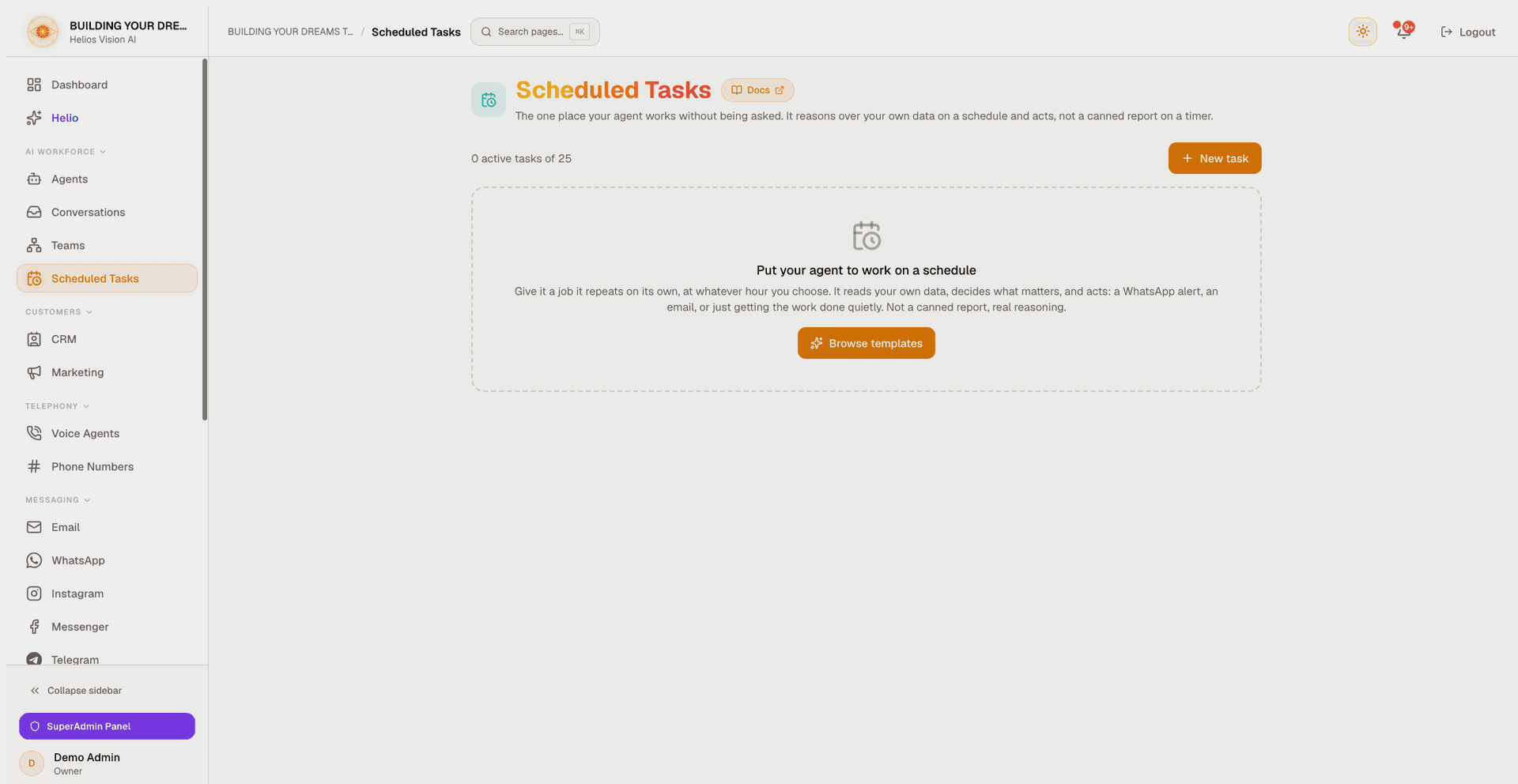
A scheduled task is a standing instruction one of your agents runs on its own, on a recurring schedule. Each time it fires, the agent carries out the instruction using its own tools and, if you want, delivers the result to a phone number by WhatsApp or to an inbox by email. Tasks you create here and tasks you set up by asking Helio in plain language land in the same list, so both always agree.
Typical uses: a daily appointments summary sent to your WhatsApp at 8:00, a weekly sales recap emailed every Monday, or a "tools only" task that just performs a calendar action each morning with nothing sent to anyone.
Helio can suggest the same starter templates you see below, and beyond creating a task it can edit, pause or resume, delete, or run one right now, all conversationally too — every change still shows an Apply card you confirm before it takes effect.
Not the same as Scheduled Reports: Reports -> Scheduled (see Analytics) emails you a fixed set of metrics, like conversation counts or average response time, on a schedule. A scheduled task is different: the agent reasons over your own data and, where it helps, acts on it, for example flagging the leads that went cold and creating a follow-up task for each one. Use Reports -> Scheduled for a fixed metrics email; use a scheduled task when you want the agent to judge, prioritize, or act.
Access
Sidebar -> Scheduled Tasks Route: /app/{tenant}/scheduled-tasks
Roles
- owner, admin: create, edit, pause or resume, run now, and delete tasks.
- agent: can open the page and view tasks and their run history, but sees none of the management controls.
Availability and prerequisites
Scheduled Tasks is gated three ways. If you do not see it, one of these is the reason:
- Early access: Scheduled Tasks is rolling out gradually and is not general availability yet, so many workspaces will not see it. When it is not enabled, the item is hidden from the sidebar and the page redirects to your dashboard.
- Plan: your plan must include scheduled tasks. If it does not, or you have reached your limit of active tasks, a plan-limit dialog appears with an upgrade link.
- At least one agent: with no agents, the New task button is disabled — create an agent first.
To deliver over a channel, the selected agent must already be able to use it (see Delivery below). A "tools only" task needs no channel.
How a task runs
- A background scheduler checks every minute and runs each active task when its local time matches, within a 30-minute tolerance window after the time you set.
- Runs are de-duplicated by frequency, so a task fires roughly once per day, week, or month as configured — never twice for the same slot.
- The time you pick is local wall-clock time in the task's timezone (the workspace timezone by default).
- Only active tasks run. A paused task never fires and does not count toward your plan's active-task limit.
- If a run fails, the task records the error and simply waits for the next scheduled time. It does not retry in a loop.
- Pointing a task's agent at an approved team coordinator runs the whole team automatically on schedule.
Start from a template
New task (owner/admin) and the empty state's call to action open a template picker before the form. Ten templates across five categories give you a ready-to-edit starting point instead of a blank instruction box:
| Category | Template | What it does | Needs |
|---|---|---|---|
| Your own data | Low stock alert | Checks your inventory table and flags only the items that dropped below their reorder threshold. | Data tables |
| Your own data | Daily business digest | A morning read on yesterday's activity from your own data, not just totals. | Data tables |
| Your own data | Overdue invoices | Finds overdue invoices in your own table and tells you which ones to chase first. | Data tables |
| Pipeline hygiene | Hot leads with no follow-up | Finds high-intent leads nobody has followed up with, and creates a task for each one. | Contacts |
| Pipeline hygiene | Stalled pipeline | Finds contacts stuck in the same stage far longer than normal, and who should follow up. | Contacts |
| Pipeline hygiene | Weekly pipeline review | A reasoned weekly read on how your pipeline actually moved, not just a stage count. | Contacts |
| Anticipation | Morning briefing | Today's appointments, who each person is, and what you last talked about. | Calendar, Contacts |
| Anticipation | Tomorrow's appointments | A reminder of tomorrow's schedule, with a heads-up if the day looks unusual. | Calendar |
| AI trust | Agent quality review | A weekly look at what your agent escalated, held back, or got wrong, with what to fix. | Conversation history |
| Outside view | Market watch | A weekly scan of your competitors and market, with only what actually matters to you. | Web search |
Picking a card prefills the task name, instruction, frequency, time, and delivery channel; everything stays fully editable afterward, including the instruction text itself. Prefer a blank task instead? Start from scratch skips the picker and opens the same form empty.
If the agent is missing something a template needs: once you have picked a template and an agent, the form checks that agent's actual permissions against what the template needs — the specific sub-action and any connected account, not just whether the capability toggle is on. If something is missing, a warning names exactly what, for example "Contacts (create follow-up tasks)" or "Calendar (not connected yet)", with a link to turn it on for that agent. It never blocks saving: enable the missing permission on the agent, or pick a different agent that already has it.
If the template's delivery doesn't fit the agent: four of the ten templates suggest email and the rest suggest WhatsApp. When the selected agent cannot deliver on that suggestion (no connected WhatsApp number, or no connected send-capable email account), delivery falls back to No delivery (tools only) and the form says so, instead of leaving the task pointed at a channel it cannot use. Pick a channel once the account is connected.
Templates that read the agent's own channel activity, like Agent quality review, now draw on all eight channels the platform supports: WhatsApp, voice, web chat, email, Instagram, Messenger, Telegram, and TikTok (public video comments only — TikTok has no private messages). The same is true for any instruction you write yourself that asks the agent to summarize or review what came in.
Create a task
Pick a template above, or click Start from scratch, to reach this form (owner/admin only). It is instruction-first: you describe what the agent should do, then choose when and where the result goes.
| Field | Notes |
|---|---|
| What should the agent do? | The instruction the agent runs each time. Required, up to 1500 characters. |
| Task name | A short label for the list. Required, up to 80 characters. |
| Agent | Which agent performs the task. Inactive agents are marked "(inactive)". Read-only when editing. |
| Frequency | Daily, Weekly, or Monthly. |
| Time | The run time in 24-hour HH:MM, in the workspace timezone. |
| Day of the week | Weekly only: Sundays through Saturdays. |
| Day of the month | Monthly only: 1 to 28. |
| Deliver via | No delivery (tools only), WhatsApp, or Email. Only channels the agent can use are offered. |
| Send from | WhatsApp only, when the agent has more than one number: pick which number sends. |
| Deliver to | The destination phone number (WhatsApp, international format) or email address. Required unless "No delivery". |
Under the instruction, a This agent can use line shows the agent's enabled capabilities — Knowledge base, Data tables, Web search, Contacts, Calendar, and Send email — so you write instructions the agent can actually carry out. A Connected line lists the agent's WhatsApp, Email, and Voice accounts.
New tasks start active immediately.
Delivery
Delivery is guided so a task can only send where the agent is really able to:
- No delivery (tools only): the agent just runs its tools (for example, a calendar action). Nothing is sent to anyone.
- WhatsApp: offered only when the selected agent has an active WhatsApp number. If the agent has several numbers, you pick which one sends; with one, it is chosen automatically. If it has none, a Connect one link points to the WhatsApp module.
- Email: offered only when the agent has the send-email tool enabled with a connected account. The message is sent from that account. If it is not enabled, an Enable it link points to the agent's settings.
A channel the selected agent cannot use is never left selected — changing the agent resets delivery back to the safe "No delivery" default when needed. Applying a template runs through this same check before the form ever appears, and tells you when it had to fall back (see Start from a template above).
The task list
Each task appears as a card showing its name, an Active or Paused badge, the instruction, the agent, the schedule, and the delivery destination (or "No delivery (tools only)").
When a task has run, the card also shows Last run with a success or error marker, and, for active tasks, the predicted Next run time. After a failed run you see a note that it will try again at the next scheduled time.
The usage line at the top shows how many active tasks you have against your plan's limit.
Run history
Every task card has an expandable Run history section. Expand it to load the most recent runs (up to 10). Each entry shows:
| Column | Meaning |
|---|---|
| Status | Success or Error. |
| Date | When the run started. |
| Source | Scheduled (fired by the scheduler) or Manual (a "Run now"). |
| Duration | How long the run took, in seconds. |
| Error | A short preview of the error message, for failed runs. |
Manage a task
Owner/admin controls on each card:
- Run now: runs an active task immediately, outside its normal cadence. The run is synchronous and can take up to about 90 seconds; the button shows a running state and the result arrives as a notification. A manual run briefly holds off the next automatic run so a task cannot double-fire. You cannot start a run while one is already in progress.
- Pause / resume: the switch turns a task off or on. Paused tasks never run and do not count toward your plan limit; resuming one is re-checked against your plan.
- Edit: change the instruction, schedule, or delivery. The agent cannot be reassigned when editing — to move a task to another agent, recreate it.
- Delete: removes the task after a confirmation. A deleted task stops running and cannot be recovered.
Good practices
- Write the instruction so it only relies on tools the agent actually has — check the This agent can use chips before saving.
- Keep the destination current: WhatsApp needs a phone number in international format, email a valid address.
- Use Run now to confirm a task behaves as expected before relying on its schedule, then check Run history for the result.
- Pause a task instead of deleting it if you only want to stop it temporarily.
Common errors
- This task is already running: a run (scheduled or manual) is still in progress. Wait for it to finish before running it again.
- WhatsApp / Email unavailable: the selected agent has no connected WhatsApp number, or its send-email tool is off. Use the in-form link to configure it, or choose another agent or "No delivery".
- Plan limit reached: you are at your plan's number of active tasks. Pause or delete one, or upgrade your plan, then try again.
- Last run failed: open Run history to see the error preview. The task will try again at its next scheduled time on its own.