
Teams
Connect a coordinator agent with specialists, start from an industry template, approve the plan, test it live, and assign it to channels.
Objective
A team lets one assistant quietly ask another for help in the middle of a conversation, then reply to your customer as if it knew everything itself. One coordinator leads and talks to the customer; one or more specialists answer privately when asked. The customer sees a single, complete reply and never sees the delegation.
Access
Sidebar -> Teams Route: /app/{tenant}/teams
Roles
- owner, admin: create (manually or from a template), edit, approve, test, and disband teams.
- agent: can view the Teams page but sees none of the managing controls.
Prerequisites
Teams is gated three ways. If you do not see it, one of these is the reason:
- Early access: Teams is rolling out gradually and is not general availability yet, so many workspaces will not see it. Contact support if you want in.
- Plan: your plan must include Teams (otherwise you see a "Teams is not in your plan" panel with an upgrade link).
- Agents: building a team manually needs at least 2 existing agents; with fewer you see a "Create your first team" empty state. Starting from a template works even with no agents yet — the template creates them for you, within your plan's agent quota.
Teams run on text channels only: WhatsApp, Instagram, Messenger, Telegram, Email, and Web Chat. Voice-only agents cannot be added to a team.
How a team works
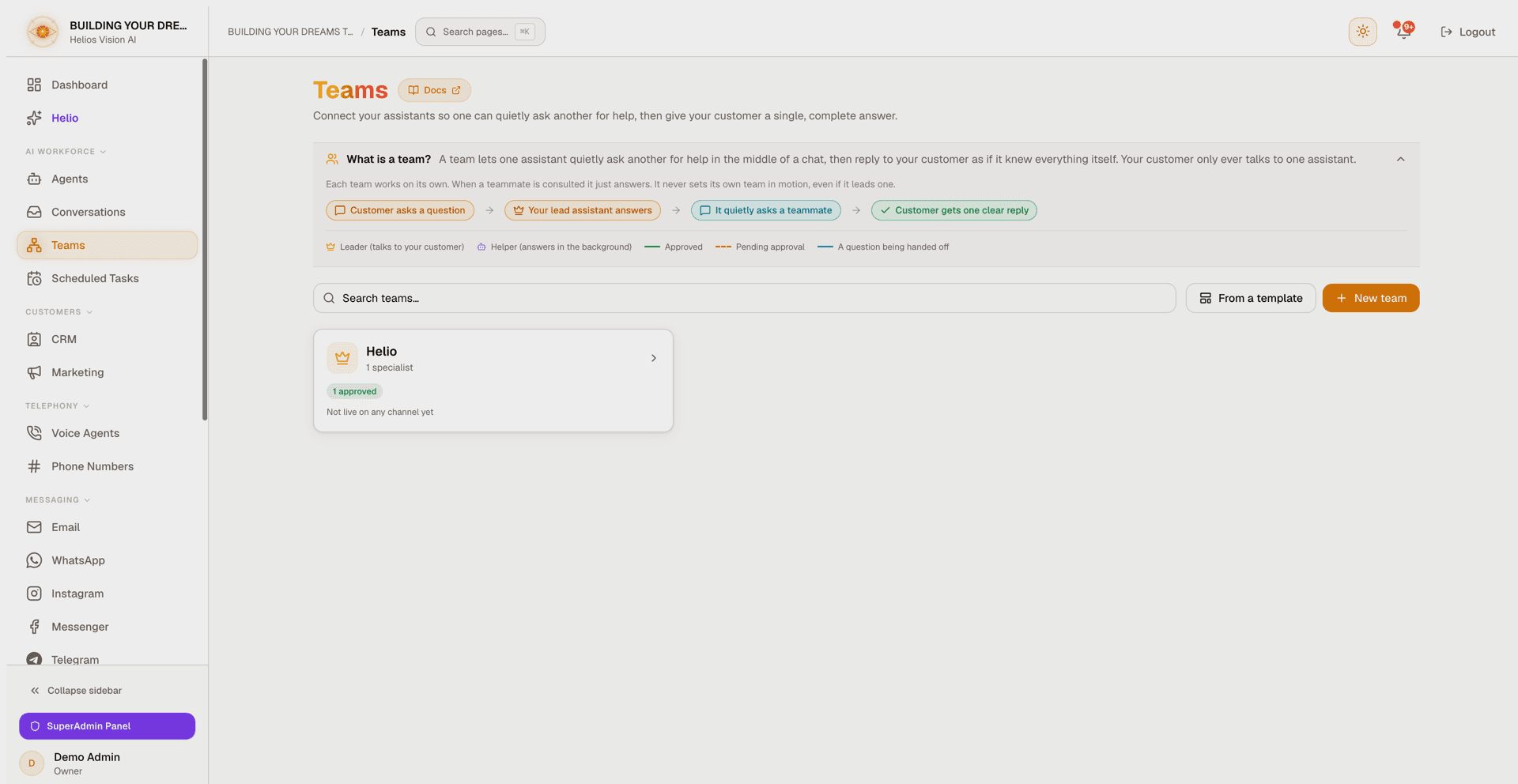
- A team is one coordinator (the leader, "Leads & replies") plus one or more specialists (helpers, "Answers when asked").
- During a single chat, email, or scheduled turn, the coordinator quietly consults the specialists it needs and composes one complete answer for the customer.
- Teams are flat and self-contained: when a specialist is consulted it just answers; it never starts its own team, even if it also leads one elsewhere (no chained delegation).
Start from an industry template (fastest path)
Click From a template in the library (or the empty-state link "Or start from a ready-made industry team"). Owner/admin only. One template creates the whole team — coordinator, specialists, their data tables and CRM fields, and the teammate connections — in one step. The only thing you type is your business name.
| Template | Agents created | Specialists |
|---|---|---|
| Dental / Medical Clinic | 3 | Billing specialist, new-patient intake |
| Customs Broker / Freight Forwarder | 4 | Shipment tracking, customs and tariffs desk, pickup scheduler |
| E-commerce Store | 3 | Returns specialist, pre-sale product advisor |
| Real Estate Agency | 3 | Financing FAQ specialist, showings scheduler |
| Restaurant | 3 | Private-events specialist, guest-feedback specialist |
| Professional Services / Legal | 4 | Billing specialist, consultation scheduler, new-client follow-up |
The picker has three steps:
- Choose an industry team — a gallery of the templates above, each showing what it creates.
- Name your team — one required field, Business name (up to 120 characters). It names every agent the template creates; you can rename any of them later.
- Review before you create — an exact preview: each agent, data table, and CRM field that will be created, plus how the total compares to your plan's agent limit. If it fits, click Create this team. If it does not, you see a "Not enough room on your plan" panel with an Upgrade plan link instead — nothing is created.
Notes:
- Templates never skip approval: the teammate connections land as pending, and you approve the plan exactly as with a manually built team. After creating, you land on the new team's org chart with the approval banner already visible.
- If creation stops partway, the dialog names the agents that already exist. Do not simply retry — rename or delete them from the Agents page, or keep them and add the rest of the team manually from the org chart.
Create a team manually
- Click New team (owner/admin only).
- In Choose the coordinator, pick the leader that talks to your customer and delegates.
- Only Teams-eligible agents appear, each with a compact summary of what it can use (documents, data tables, integrations, web search — or "General assistant"). An agent already coordinating a team cannot start a second one (one team per coordinator).
Add teammates
Open Add teammate to connect a specialist:
| Field | Purpose |
|---|---|
| Specialist agent | The agent to consult (shown with its capability summary). |
| Name the coordinator will use | A short role name, e.g. "Billing Specialist". Must be unique within the team. |
| When to ask this teammate (optional) | A hint that helps the coordinator pick the right teammate, e.g. "invoices, refunds, payment links". |
A coordinator can have up to 8 specialists.
Approve the plan (human-in-the-loop)
Adding a teammate — by hand or via a template — creates a pending connection that does nothing until an owner/admin approves it.
- The Review team plan box states the built-in guardrails: up to 5 consultations per conversation, no chained delegation, and no loops; each teammate answers privately and the coordinator writes the final reply.
- Click Approve N connections to build the team.
- Editing an approved teammate's name or hint sends it back to pending for re-approval. The same applies to re-enabling a teammate you disabled: Disable pauses it instantly, Enable puts it back through approval.
- After approving, a Team plan approved dialog offers one-click shortcuts to the channels where you can put the team live (or confirms it is already live there).
Go live: assign the team to a channel
Approving a plan only builds the team — it does not answer any customer yet. Until you assign it, the org chart shows a callout: "Your team is approved but not answering anywhere yet", with shortcuts to each channel. To make it live:
- Open a channel's settings (WhatsApp, Instagram, Messenger, Telegram, Web Chat, or Email when the Inbox module is enabled).
- In the responder dropdown, choose the team under the Teams group.
That channel now answers in team mode, and the Teams page shows "Live on: ..." on the team's card.
Test and preview
- Test & watch (owner/admin, once a team has at least one approved teammate): type a message a customer might send — or click Use an example — and click Run test. This runs the whole team for real, through the same engine that answers customers: the org chart lights up the actual delegation path, the coordinator's real reply appears under Coordinator's reply, and the run joins the Recent activity list, where you can replay any past delegation. It never reaches a real customer, but it does spend your AI tokens and is rate-limited to about 10 tests per minute.
- Watch it work: an animated, scripted illustration of a leader delegating to helpers and composing one reply. It never calls the AI or touches data and is safe to open anytime.
Manage a team
- Team name: give a team a custom display name (pencil edit); clearing it falls back to the coordinator's name.
- Teammates: edit, disable/enable, or delete any connection from the org chart.
- Inactive members: if the coordinator or an approved specialist is inactive, a "members inactive" warning appears both on the team's library card and inside the org chart — inactive members do not respond.
- Disband team: removes all teammate connections and the team name. No agents are deleted — the coordinator and specialists keep existing as agents; only the team links are removed, and you can rebuild anytime.
- On narrow screens the org chart switches to a vertical card list with the same data.
Safety guarantees
Enforced by construction, not just by prompt:
- At most 5 consultations per conversation.
- Delegations never chain and never loop.
- A wall-clock cap of about 90 seconds per run (slightly tighter on scheduled runs) and a token ceiling.
- Specialists answer privately; the customer only ever sees the coordinator's final answer.
Where teams show up elsewhere
- A Team-assisted badge on conversation detail views (Web Chat, WhatsApp, Instagram, Messenger, Telegram, and Email inbox messages) shows how many specialist consultations happened.
- Leads a team / In a team badges on the Agents page.
- A Team activity card on the Usage page (consultations, tokens, average duration this month).
- Scheduled Tasks: pointing a scheduled task's agent at an approved coordinator runs the whole team automatically on schedule.
- Helio can propose team connections conversationally, but a human always approves them in the Teams page.
Good practices
- Starting from an industry template is the fastest way to see Teams working end to end — you can rename agents and edit every connection afterwards.
- Give each specialist a clear name and a short "When to ask" hint so the coordinator delegates accurately.
- Keep the coordinator and approved specialists active; an inactive member shows a warning and weakens the team.
- Use Test & watch before going live to confirm the delegation path looks right.
Common errors
| Message | Cause and fix |
|---|---|
| "Teams is not in your plan" | Your subscription does not include Teams. Upgrade to use it. |
| "Not enough room on your plan" (template preview) | The template needs more agents or data tables than your plan allows. Upgrade, or free up quota and try again. |
| "This team wasn't fully created. These agents already exist..." | A template creation stopped partway. Keep or delete the named agents from the Agents page; do not blindly retry, or you will duplicate them. |
| "This coordinator already uses that name. Choose another." | Teammate names are unique per team. Pick a different short name. |
| "You've reached the maximum number of teammates for this coordinator." | The cap is 8 specialists. Remove one to add another. |
| "The lead assistant needs at least one text channel enabled before it can lead a team." | The coordinator only has Voice enabled. Enable a text channel on the agent first. |
| "Too many tests at once. Wait a moment and try again." | Test & watch allows about 10 tests per minute. Wait and retry. |
| "Couldn't run the test. Check that your AI key is set and the agents are active." | The test could not complete. Verify your AI key in Settings and that the team's agents are active. |