
Authentication & Access
Sign in, sign up, Google sign-in, email verification, password recovery and team invitations in Helios Vision AI.
Objective
Explain how to enter the portal: sign in, create a workspace, sign in with Google, verify your email, accept team invitations, and recover your password.
Access
Authentication pages are public (no session required). Routes:
- /login — sign in
- /signup?plan={plan} — create a workspace (reached from /pricing); an optional &code={code} pre-fills the Promo Code field
- /auth/complete?plan={plan} — finish a Google sign-up (also carries &code={code} if you entered a promo code)
- /auth/verified — email confirmed
- /auth/verify-failed?reason={reason} — verification link expired or invalid
- /forgot-password — request a reset link
- /reset-password — set a new password
- /invite/{token} — accept a team invitation
After a successful sign-in you land on your workspace dashboard at /app/{tenant}/dashboard.
Roles
- Self-service sign up creates the workspace owner.
- Team invitations assign one role: admin, agent, or viewer (chosen by the person who invites you).
- owner and admin can manage the workspace; agent and viewer have limited access.
Prerequisites
- To create a workspace: a plan chosen on /pricing (the sign-up form does not open without one).
- To sign in with Google: a Google account.
- To join an existing workspace: an invitation link sent by that workspace's owner or admin.
- To invite team members yourself: a verified email address (see Email verification).
Sign in
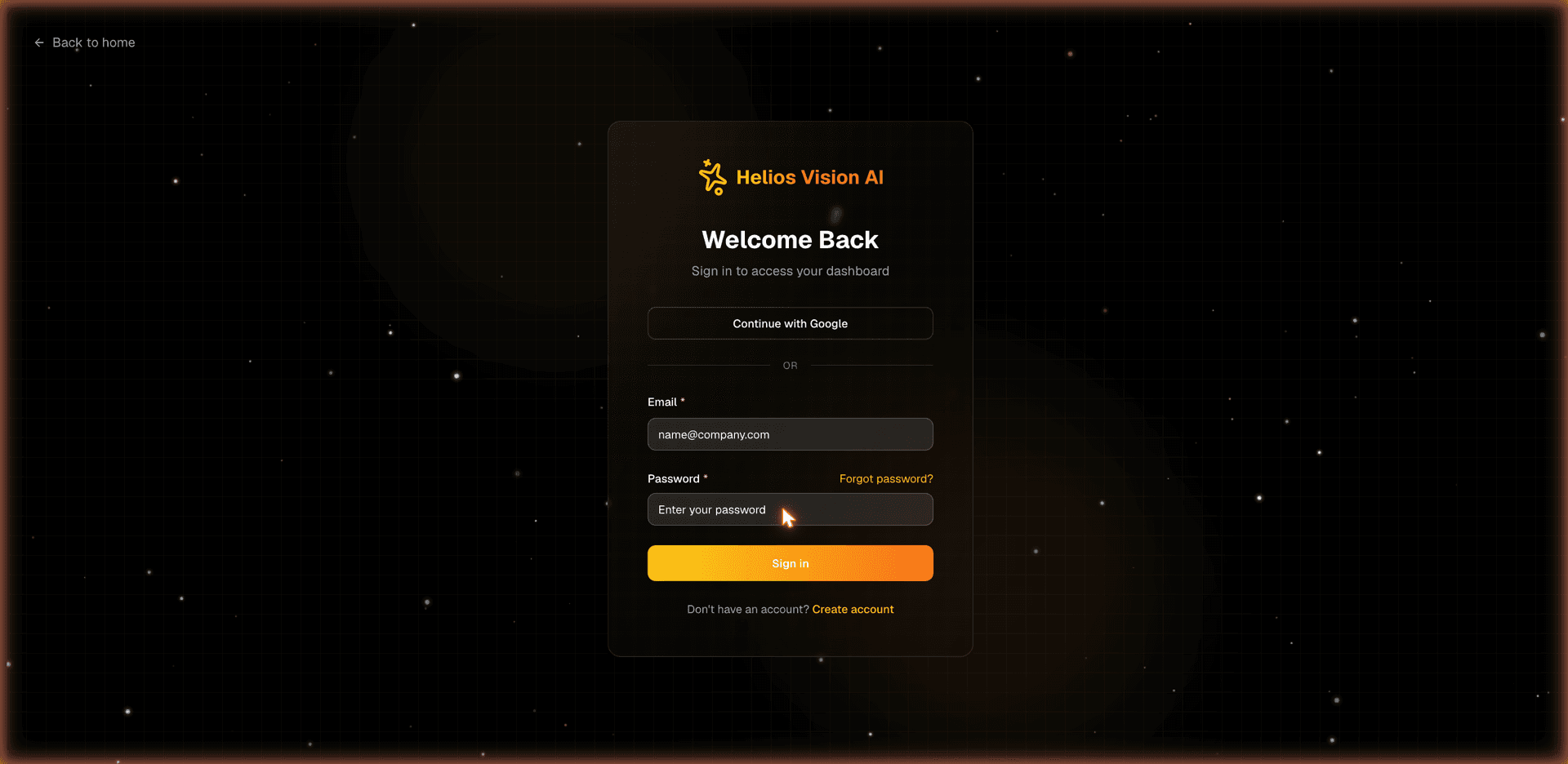
Go to /login and choose one option:
- Continue with Google — sign in with your Google account. Google's account chooser always appears so you pick the account deliberately.
- Email + Password — fill in the fields and press Sign in.
Fields:
| Field | Mandatory | Format | Example | Note |
|---|---|---|---|---|
| Yes | valid email | name@company.com | Used for authentication | |
| Password | Yes | your account password | ******** | - |
Notes:
- Use Forgot password? to start a reset.
- Create account takes you to /pricing to pick a plan first.
- Sign-in attempts are rate limited (up to 10 per 15 minutes). If you hit the limit, wait a few minutes and try again.
Already signed in
If you open /login while you still have an active session, the page does not silently reuse it. It first shows Checking your session..., then You are already signed in with your email and two choices:
- Continue as {name} — keep the current session. You are routed through /auth/complete, which sends you to your workspace dashboard — or to /pricing if your account still needs a plan.
- Use another account — sign out of this browser only (your other devices stay signed in) and show the sign-in form.
Create an account (sign up)
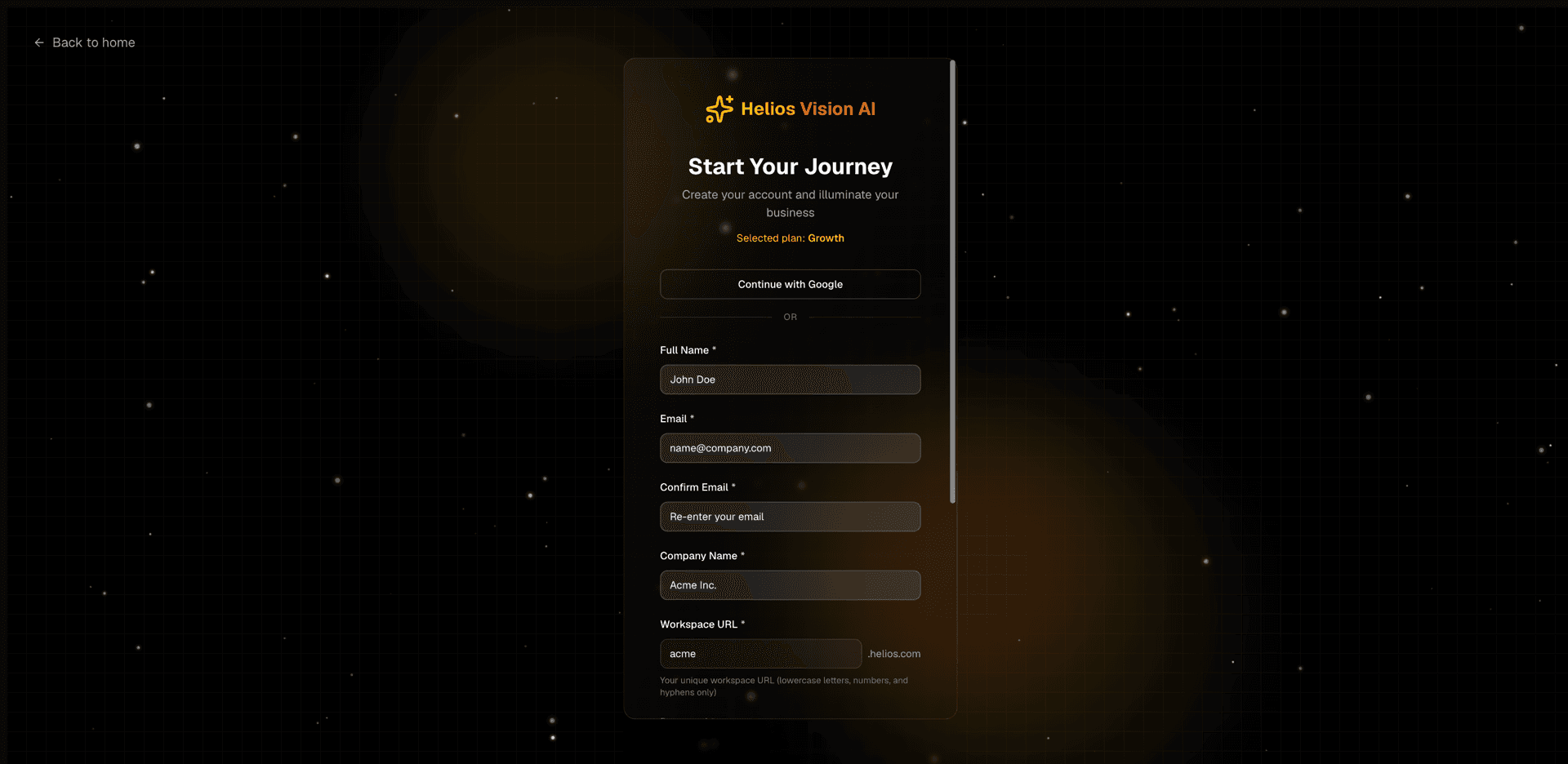
Sign up always starts from a selected plan. If you open /signup without a plan, you see Choose a plan to continue and a View plans button that sends you to /pricing. If you open /signup with a plan while already signed in, you are sent straight to /auth/complete to finish setup instead.
Steps:
- Go to /pricing and choose a plan.
- You are taken to /signup?plan={plan}.
- Either press Continue with Google (finishes on /auth/complete) or complete the form and press Create account.
Fields:
| Field | Mandatory | Format | Example | Note |
|---|---|---|---|---|
| Full Name | Yes | free text | John Doe | Initial owner name |
| Yes | valid email | name@company.com | Main email | |
| Confirm Email | Yes | equal to Email | name@company.com | Must match Email |
| Company Name | Yes | free text | Acme Inc. | Workspace name; auto-fills the Workspace URL |
| Workspace URL | Yes | lowercase letters, numbers and hyphens | acme | Your unique workspace address, shown with a .helios.com suffix |
| Password | Yes | minimum 8 characters | ******** | Show/hide toggle available |
| Confirm Password | Yes | equal to Password | ******** | Must match Password |
| Promo Code | No | text | LAUNCH30 | Optional discount code; pre-filled when you arrive with a &code= link |
Workspace URL rules:
- Lowercase letters, numbers and hyphens only.
- Between 3 and 63 characters; cannot start or end with a hyphen.
- Some names are reserved (for example www, api, admin, support) and cannot be used.
- Availability is checked as you type; you see available, already taken, or checking. The Create account button stays disabled while the name is taken, invalid, or still being checked.
After you submit:
- Free plan: your workspace opens immediately at /app/{tenant}/dashboard.
- Paid plan: you continue to a secure Stripe checkout with a 14-day free trial.
- Free workspaces bring your own OpenAI key (BYOK); managed AI credits are a paid benefit.
- A confirmation email is sent so you can verify your address (see Email verification).
- If you entered a Promo Code, it is validated before the account is created; an invalid code blocks the sign-up with an error.
- Enterprise plans are sales-assisted and cannot be created here.
- Sign-up attempts are rate limited (up to 5 per 15 minutes).
Complete your account (Google)
If you sign in with Google and do not have a workspace yet, you are sent to /auth/complete to finish setup. A plan must be selected; otherwise you are redirected to /pricing. If your account already has a workspace, this page simply forwards you to its dashboard.
Fields:
| Field | Mandatory | Format | Example | Note |
|---|---|---|---|---|
| Company Name | Yes | free text | Acme Inc. | Workspace name |
| Subdomain | Yes | lowercase letters, numbers and hyphens | acme | Same rules as Workspace URL, shown with a .helios.com suffix |
Press Finish setup. Free plans open the dashboard; paid plans continue to checkout (a promo code entered on the sign-up page carries over). Accounts created with Google are email-verified automatically.
Email verification
New email/password accounts receive a confirmation email from Helios Vision AI. The link is valid for 72 hours.
- Open the confirmation email.
- Click Confirm Account.
- You land on /auth/verified. If you are signed in, continue to your dashboard with Go to Dashboard; otherwise use Sign In to Continue.
Notes:
- Some actions stay restricted until you verify (for example, inviting team members).
- Google sign-ups are already verified and skip this step.
- If the link is expired or invalid, you are sent to /auth/verify-failed, where you can enter your email and press Send New Verification Email to receive a new link. For your privacy, the same confirmation is shown whether or not an account exists, and a new link cannot be requested more than once per minute.
Team invitations
Invitations are created by a workspace owner or admin and are valid for 7 days.
- Open the invitation link /invite/{token}.
- Review the workspace name, the role you will receive, and your invited email (which is fixed).
- Complete the form and press Accept Invitation and Create Account.
- Your account is created with the assigned role and your workspace dashboard opens.
Fields:
| Field | Mandatory | Format | Example | Note |
|---|---|---|---|---|
| Full Name | Yes | free text | John Smith | At least 2 characters |
| Password | Yes | minimum 8 characters | ******** | Show/hide toggle available |
| Confirm Password | Yes | equal to Password | ******** | Must match Password |
Note: if the invitation has expired, the page shows Invitation expired with the expiry date. Ask the workspace administrator for a new one.
Reset a forgotten password
- Go to /forgot-password.
- Enter your Email and press Send reset link.
- For your privacy, the page confirms that a link was sent if an account exists.
- Open the email and follow the link to /reset-password.
- Set the new password and press Update password. You are returned to /login.
Reset fields:
| Field | Mandatory | Format | Example | Note |
|---|---|---|---|---|
| New password | Yes | minimum 8 characters | ******** | - |
| Confirm new password | Yes | equal to New password | ******** | Must match |
Sign out
Use the user menu in the sidebar and choose Sign out. You are returned to /login.
Good practices
- Pick a short, memorable Workspace URL — it becomes your workspace address and cannot collide with another workspace.
- Use a strong password: at least 8 characters, mixing uppercase, lowercase and numbers.
- Verify your email soon after signing up to unlock all actions.
- On a shared computer, use Use another account or Sign out to avoid staying signed in.
Common errors
| Situation | What you see | What to do |
|---|---|---|
| Wrong email or password | Sign-in fails | Re-check your credentials or reset your password |
| Too many sign-in attempts | Rate-limit message | Wait a few minutes before trying again |
| Too many sign-up attempts | Rate-limit message | Wait a few minutes before trying again |
| Email already registered | Sign-up is rejected with a Go to login page link | Use a different email or go to the login page |
| Emails do not match | Confirm Email error | Re-enter the same address in both fields |
| Passwords do not match | Confirm Password error | Re-enter the same password in both fields |
| Weak password | Sign-up is rejected | Use at least 8 characters with a mix of letters and numbers |
| Workspace URL taken or invalid | "already taken" / format error | Choose another name that follows the rules above |
| Availability check throttled | "Too many checks" message | Pause a moment, then keep typing |
| Invalid promo code | Sign-up is rejected | Re-check the code or leave the field empty |
| Expired verification or invitation link | Failed / expired page | Request a new verification link, or ask your admin for a new invitation |
Related
- Team — invite members and manage the roles assigned by invitations.
- Billing & Usage — plans, Stripe checkout, trials and credits after sign-up.
- Dashboard — where you land after signing in.
- Settings — General — workspace name and profile after creation.