
Helio (AI assistant)
Chat with Helio, your AI co-worker: look up anything in your workspace, run checks, and apply reviewed changes to agents, channels, CRM, and more.
Objective
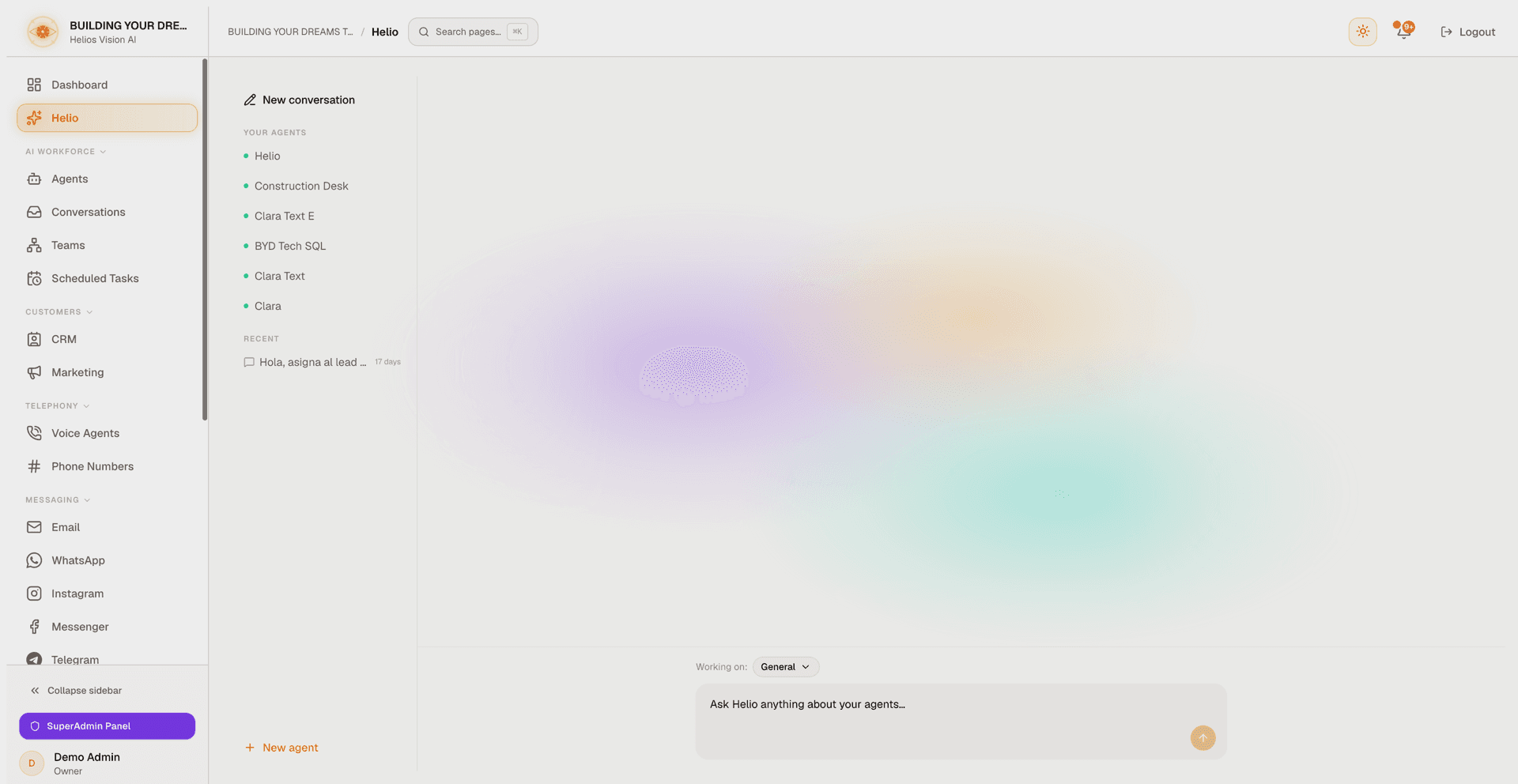
Helio is your AI co-worker for building and running your workspace. It is a full-screen chat, like a messaging app, where you talk in plain language and Helio helps you understand, diagnose, fix, and change things — your agents, but also your channels, conversations, CRM, notifications, campaigns, scheduled tasks, and human team. Every change Helio suggests is shown to you first as a card you review and apply — Helio never changes anything on its own.
Access
Sidebar -> Helio
Route: /app/{tenant}/helio
You can also reach Helio already focused on a specific agent:
- From the Agents list, use Ask Helio on an agent's card (opens /app/{tenant}/helio?agent={id}).
- From an agent's Edit screen, the Helio button (top-right) opens Helio beside the form, with shortcuts to the guided prompt builder, a plain-language view of recent failures, and each diagnostic check.
Roles
- Open and use Helio: all roles.
- Changes Helio applies follow the same permissions as doing them by hand. Actions restricted to owner and admin elsewhere stay restricted when requested through Helio.
- Two areas are admin/owner only end to end: seeing and managing the human team, and clearing all notifications at once. For anyone else, Helio declines politely instead of showing partial data.
Prerequisites
- A working AI setup. With your workspace on managed AI credits (available on every plan, Free included), Helio works out of the box — no key needed. On managed AI, Helio uses 1 credit for each model call it makes, so a request that takes several steps can use several credits. Workspaces that run on their own OpenAI key instead need a usable key: if none is connected, the chat opens with a short welcome and an inline field to add one, and the composer stays disabled until a usable key is saved.
- If your own key is present but rejected or out of balance, Helio stays blocked and tells you to fix the key or add funds to your OpenAI account.
- An active workspace. Creating an agent through Helio runs the same checks as the Agents module (verified email, active subscription, within your plan's agent limit).
The single chat and the "Working on" selector
Helio has one composer at the bottom that never changes. A Working on dropdown (and the left rail of agents) picks what Helio is focused on:
- General — your whole workspace: questions, and account-level changes.
- A specific agent — the copilot focused on that one agent.
- New agent — the inline creation flow.
Switching focus keeps your history; each thread is saved on its own.
Helio also recognizes a few shortcuts: a greeting gets a friendly reply; asking to "create a new agent" opens the creation flow; naming one of your agents ("open my Bookings agent") jumps straight to it.
Working account-wide in General
General is no longer read-only. With General selected, Helio can look up almost anything in your account and apply account-level changes — only agent configuration itself still needs that agent selected in Working on.
What Helio can look up
Most of these also work with an agent selected.
| Area | What Helio can tell you |
|---|---|
| Agents | Which agents need attention and why, in plain language. |
| Contacts (CRM) | Search by name, email, phone, or status; open one contact's full detail; report totals. |
| Conversations | A triage view: counts by channel, which conversations need attention, and whether the AI or a human is answering each one. |
| Notifications | Recent alerts with the exact unread count and how many are critical, filterable by module. Ask "what did I miss?". |
| Channel accounts | Every connected account across WhatsApp, Email, Web Chat, Voice, Instagram, Messenger, Telegram, and TikTok — label, active state, health, and which agent responds. |
| Campaigns | Status, schedule, and per-recipient outcomes, including why contacts were skipped. Only on accounts with the campaigns module enabled. |
| Report subscriptions | Your own scheduled reports — name, what it reports on, cadence, active state, and a masked delivery address. Each user sees only their own. |
| Inbound webhooks | Each webhook's bound agent, active state, and — crucially — its last delivery status and when it last fired, so "is my integration actually working?" gets a real answer. |
| Scheduled tasks | Every task across all your agents — owning agent, cadence, delivery channel, and last run. |
| Data tables | Every table, active or suspended, with row counts and which agents use it. |
| Documents | Every knowledge-base document, its processing status, and whether its structure has been read. |
| Segments | Your saved audience segments and what each one filters on. |
| Human team | Members with role, active state, and last login; pending invitations (emails partially masked); live seat usage against your plan. Admin/owner only. |
| AI credits | Where you stand. |
| AI teams | A teams overview, when Teams is enabled for your workspace. |
Helio never shows raw internals — no tokens, secrets, or full delivery addresses appear in the chat.
What you can change from General
Every change arrives as an Apply card you review first (see "Review and apply" below).
| Area | What an Apply card can do |
|---|---|
| Conversations | Pause the AI on a live conversation and take over as a human, hand it back to the AI, or switch who is answering. Always asks for an extra confirmation. |
| Contacts | Create or update contacts, add or complete contact tasks, add or edit custom CRM fields, and bulk-update status, owner, or tag for up to 100 contacts at once — you see the exact matched count before confirming. |
| Segments | Create or edit a saved segment. |
| Notifications | Mark one notification read, or clear all unread at once (admin/owner only; the card states exactly how many will be cleared and how many are critical). |
| Channel accounts | Turn an Instagram, Messenger, Telegram, or TikTok account on or off; change which agent responds on those channels — or on a WhatsApp number. Deactivating, or clearing the responder (which deactivates the account), asks for confirmation. |
| Web chat widgets | Activate or deactivate a widget, rename it, or change its responding agent. Appearance (colors, position, welcome message) stays on the Web Chat page — Helio hands you a link instead. |
| Report subscriptions | Enable, disable, or reschedule your own subscriptions (name, cadence, send time, timezone, delivery email). What a report covers can't be changed after creation — for a different report, Helio points you to the Reports page. |
| Inbound webhooks | Enable or disable one — always behind a confirmation, because external systems control when it fires. Creating one, renaming it, or regenerating its secret stays on the Webhooks page. |
| Campaigns | Pause, resume, or cancel a campaign (cancel is permanent). Only where the campaigns module is enabled. |
| Data tables | Reactivate a suspended table. |
| Documents | Refresh a document's structure (Refresh structure, the same action as on the Documents page). |
| Scheduled tasks | Pause/resume, edit, or delete any agent's task — the card always names the owning agent. Creating a new task, or running one right now, needs that agent selected first. |
| Human team | Change a member's role (admin, agent, or viewer — never owner) or activate/deactivate a member. Deactivating locks them out on their very next request; reactivating checks your plan's seats. Admin/owner only. Inviting new members stays on the Team page. |
Working on a specific agent
Pick an agent and Helio loads that agent's current setup so it can reason about the real configuration. Ask it anything about that agent — to explain a setting, investigate a problem, or make a change. Everything from the General tables above works here too.
Checks Helio can run
When it helps to investigate before answering, Helio runs a check and reads the result for you, explained in plain language.
| Check | Answers questions about |
|---|---|
| Performance | Usage trends, error rates, response times, and cost. |
| Integration health | Whether calendar, email, and webhooks actually work (not just that they are configured). |
| Data quality | Messy or inconsistent records in the agent's data tables. |
| Runtime behavior | Why the agent replied a certain way in real conversations. Limited to a few checks per hour; if it is momentarily unavailable, Helio says so instead of guessing. |
| Compliance | Personal-data exposure or policy risk in the prompt or data. |
For trends, ask for stats: Helio draws a chart right in the chat — conversations per day by channel, plus errors — over 7, 14, 30, or 90 days.
Changes Helio can propose
| Area | Examples |
|---|---|
| Agent basics | Rename or re-describe the agent, edit its instructions (system prompt), set the reply language and timezone, change the model or response length, activate/deactivate, or duplicate it. |
| Channels | Turn a channel (WhatsApp, Web Chat, Email, Voice) on or off. |
| Capabilities | Enable or disable documents, data tables, web search, CRM, calendar, email, and channel history; set which CRM actions the agent may take. |
| Documents | Assign or unassign documents, reprocess a document (a replacement file is limited to 4 MB), refresh its structure, or remove one from the knowledge base. You can also attach a document straight into the chat (PDF, DOCX, XLSX, PPTX, TXT, MD, CSV, JSON, HTML, PNG, JPEG, DOC, XLS, RTF, ODT) up to your plan's per-file size limit, the same as on Documents: the file goes straight to storage. |
| Data tables | Create or edit a table, assign/unassign it, change its allowed operations, and add, edit, delete, or de-duplicate rows. |
| CRM | Create or update contacts, add custom fields, and manage pipeline stages. |
| Webhooks | Create or edit a webhook tool and assign/unassign it. Any secret (token, key, password) is entered by you directly in the Apply card and encrypted — you never type it into the chat, and Helio never sees it. |
| Integrations | Guidance, and inline setup, to connect a missing integration or API key. |
| Voice | Update a voice agent's greeting, language, inactivity timeout, and recording/transcription/summary/sentiment options. |
| Scheduled tasks | Create, edit, pause or resume, delete, or run a task now. Not sure what to automate? Ask — Helio suggests starters from the same catalog as the Scheduled Tasks page, matched to this agent's real capabilities and data, and points you to a canned report subscription when one already covers the ask. Running a task now can take up to about a minute and a half. |
| Teams | Create a team, manage its specialists, and set responder mode. Gradual rollout and plan-gated — see Common notes. |
Review and apply
When you ask for a change, Helio shows an Apply card with exactly what will change. You review it and click Apply. Nothing is applied automatically, and you can always decline.
- Riskier changes ask for a second confirmation in a dialog after you click Apply.
- Cards carry plain badges where they matter: Sends a message, Recurring, Cannot be undone, Writes to an external system.
- Names on cards are verified server-side — a card that pauses a scheduled task or cancels a campaign names the real item (and its owning agent), never an invented one.
- If the underlying configuration changed after the card was proposed, Apply refuses with "The agent's configuration changed since this was proposed" — ask Helio again for a fresh card.
- Every change applied through Helio is recorded in your account's audit trail with a plain summary of what changed.
Quick choices, charts, and page links
- When a question has a short set of good answers ("pause or cancel?", "daily or weekly?"), Helio offers tappable chips — clicking one sends it as your reply.
- Stats requests render a real chart in the chat (see Checks above).
- When something is better finished on its own page — billing, team invitations, notification history, report creation, webhook secrets, connecting a new channel — Helio hands you a card with a button that takes you straight there. If the module behind a page isn't enabled for your account, Helio says so instead of showing a dead-end button.
Create a new agent inline
Choose New agent (left rail or the Working on dropdown) to build an agent without leaving Helio. The flow moves through four steps: Describe, Review, Data, Done. Describe what the agent should do and pick its channels (Web chat, WhatsApp, Email, Voice); Helio drafts a name, description, instructions, and recommended capabilities; you review and adjust, then create. Along the way you can wire a calendar or mailbox account, connect a web search key, and reuse or design data tables — and if your plan's table limit is full, Helio lays out your options (upgrade, free up a table, or create a limited version) instead of dead-ending. For the full agent-creation reference, see AI Agents.
Conversation history
Your Helio chats are saved automatically, per user (only you see your own).
- New conversation starts a fresh thread; your previous one is kept in history, not overwritten.
- Recent in the left rail lists your latest conversations (up to 30), newest first, each with a title and how long ago it was updated. Open one to continue it.
- Delete removes a conversation from your history (this can't be undone).
- Each conversation has a length limit of 20 messages. As you approach it, Helio warns you; at the limit it invites you to start a new conversation and keeps what you covered in history.
- Individual messages are limited to 16,000 characters.
- While Helio is replying you can press Stop generating to end the response early and keep what was written so far.
Good practices
- Use General for account-wide work — triage, CRM, channels, notifications, team. Pick a specific agent only when the change is to that agent's own configuration.
- Read each Apply card, including its badges, before applying — it shows exactly what will change.
- Let Helio investigate. Asking "why did my agent answer that?" or "is my webhook actually firing?" lets it run the matching check or lookup instead of guessing.
- Start the day with "what did I miss?" — Helio reads your notifications with exact counts.
- Enter webhook secrets only in the Apply card's secure field, never in the chat.
- Start a new conversation for a new topic; it keeps threads focused and within the length limit.
Common notes
- Composer disabled or "Connect your OpenAI key above to start": your workspace runs on its own OpenAI key — add a working one inline. Workspaces on managed AI credits never see this.
- Key connected but no balance: your OpenAI account is out of funds — add funds, then return.
- "This conversation has reached its length limit": start a new conversation. What you covered stays in your history.
- "This change needs confirmation first": click Apply again and confirm in the dialog.
- "The agent's configuration changed since this was proposed": the card went stale — ask Helio again for an up-to-date suggestion.
- Clearing all notifications, or managing team members, is refused: those are limited to admins and owners.
- A change area isn't offered (for example Campaigns, Teams, or TikTok): those are a gradual rollout and depend on your plan — contact support if you need them.