
Telegram
Connect a Telegram bot with a BotFather token and let an AI agent reply in private chats, with human takeover in the shared inbox.
Objective
Connect a Telegram bot so an AI agent answers your Telegram conversations. Telegram is the simplest channel to set up: it needs no app review and no OAuth — you create a bot with @BotFather and paste its token. The webhook is registered for you automatically, and tokens are stored encrypted and never shown again.
Access
Sidebar -> Messaging -> Telegram Routes:
- /app/{tenant}/telegram (connect and manage bots)
- Telegram conversations are read and answered in the shared inbox at /app/{tenant}/conversations, filtered to Telegram (see "Conversations" below).
Roles
- owner, admin: connect, edit, assign agents or teams, activate/deactivate, change the attachments setting, and disconnect bots.
- agent: can open the page and work Telegram conversations in the shared inbox, but cannot manage bot connections.
Prerequisites
- The Telegram module is enabled per workspace. When it is not enabled for yours, the page is not reachable and returns you to your dashboard.
- Your plan decides whether you can use Telegram and how many bots you can have. Extra bot slots can be added with the Social Accounts Pack.
- A Telegram bot created with @BotFather (free, takes a minute in the Telegram app).
- An agent that serves Telegram. Being active is no longer enough: this page only offers agents that are active and have Telegram ticked in their Channels tab (Agents -> open an agent -> Channels -> Telegram / "Answer Telegram chats"). That tab states it plainly: "Choose the channels this agent can work on. On each channel page, only the agents ticked for that channel can be picked." An agent that never declared Telegram is not offered here, however active it is.
- A verified email (an unverified workspace cannot connect a channel).
- Bots answer private chats only: messages in groups or channels are not imported, so add your bot where customers write to it directly.
Header indicators
When your plan includes Telegram, the top of the page shows compact stat chips:
- Needs you — conversations flagged for attention; click it to open Conversations already filtered to that queue.
- Conversations — total Telegram conversations; opens Conversations filtered to Telegram.
- bots — active bots in use; turns amber when you reach your plan's ceiling. It is the one chip without a link, because the bot list is right below it. Next to it, a plain line reads "of N bots in your plan" (or "unlimited in your plan").
If the counts cannot be read, the chips are hidden instead of showing misleading zeros. The View conversations button in the header opens the shared inbox filtered to Telegram.
Connect a bot
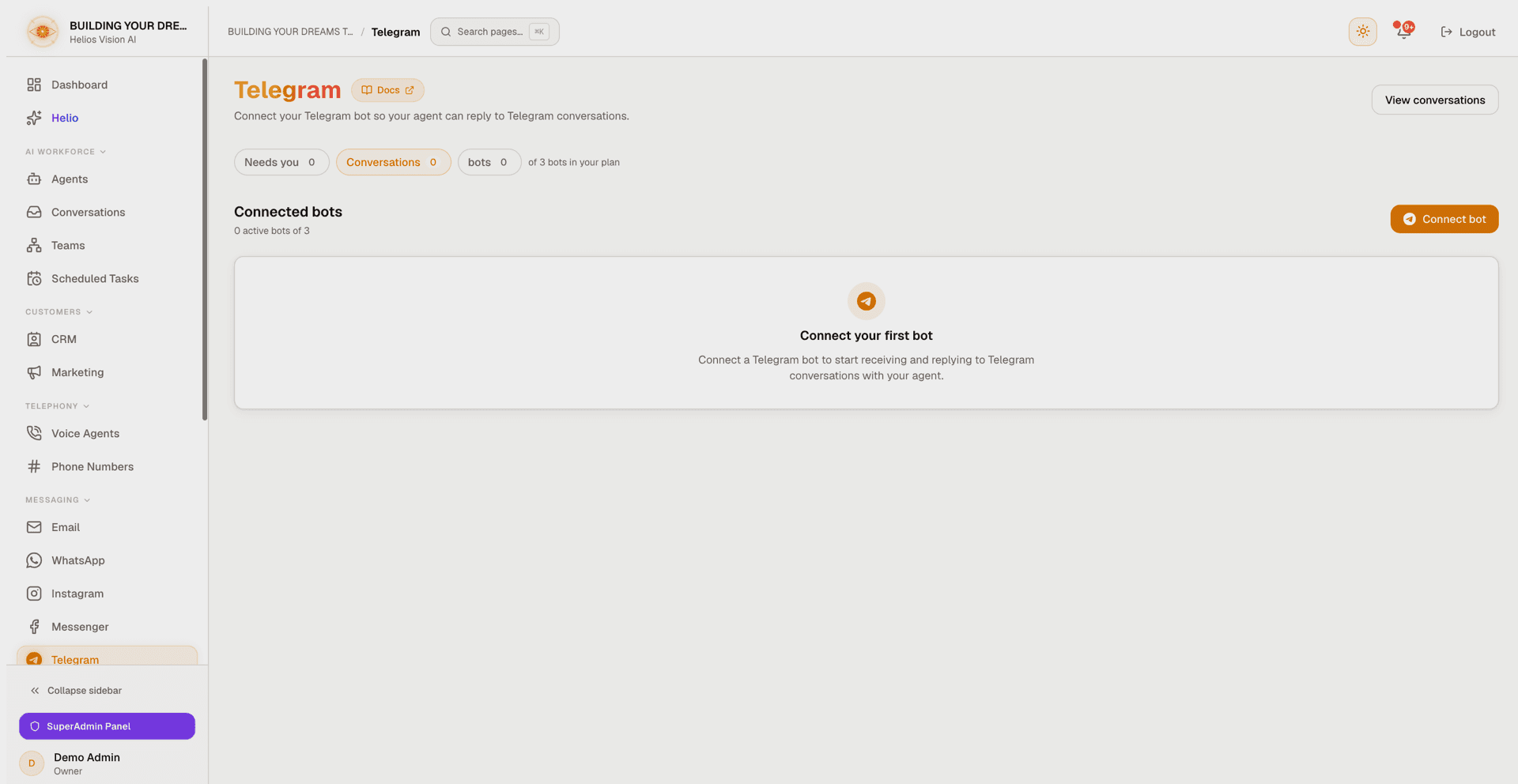
- In Telegram, open @BotFather, create a bot, and copy its token.
- In the Telegram module, click Connect bot.
- Fill in the modal (Connect Telegram bot — "Paste your bot token to connect."):
| Field | Notes |
|---|---|
| Bot token | Required. Paste the @BotFather token (e.g. 123456789:AA...). It is verified live against Telegram and stored encrypted. |
| Agent | Offers only the agents eligible for Telegram (active, with Telegram ticked on the agent). Choices are grouped as "Agents (answer alone)" and "Teams (can ask a specialist for help)"; the default entry is "No Agent Assigned". |
| Active (receive and reply to messages) | On by default. A bot cannot be active without a linked agent. |
| Accept attachments (images, voice notes, documents) | Belongs to the linked agent and is shared by every connection using that agent, so it stays disabled until you pick one. The checkbox shows the picked agent's stored policy and is only saved if you toggle it yourself. Telegram's default is ON for an agent that has never set it. |
- Click Connect. The token is validated, the bot's @username is read from Telegram, and the webhook is registered automatically. If the webhook step fails, the bot is saved with a Webhook pending badge and the message "The bot was saved but the webhook could not be registered. Save again to retry." — save again to retry.
Choosing an agent or a team
The same picker is used in the modal and inline on every bot row, and both apply the same rule: an agent shows up only if it declares Telegram.
- Teams are gated twice. The "Teams (can ask a specialist for help)" group appears only when your plan has teams enabled and at least one of the offered agents coordinates a team with an approved specialist. A coordinator that does not declare Telegram is not offered as a team here either.
- Each team option reads "Team: name (N specialists)". Once a team is selected, a line under the picker names it, states how many approved specialists it has, and offers a Manage link to the Teams page.
- The picker hint tells you exactly which state you are in when nothing qualifies:
| Hint | What it means and where to fix it |
|---|---|
| You have no active agents. Activate or create one first. | The workspace has no active agent at all. Create or reactivate one in Agents. |
| No agent is available for this channel yet. Open an agent, go to its Channels tab and turn this channel on — then it will show up here. | You do have active agents, but none of them declares Telegram. Tick Telegram on the agent you want. |
| The agent linked here cannot serve this channel. Open an agent, go to its Channels tab and tick this channel — or pick another agent. | This bot still points at an agent that no longer qualifies, and it is the only entry the picker can show. |
| Select an agent to start replying. | There are eligible agents, this bot just has none assigned yet. |
Manage connected bots
Each connected bot is one row in a single list: a status dot, the Telegram icon, its @username (with the numeric Bot ID underneath), status badges, an inline agent/team picker, the active/inactive toggle, and an overflow menu with Edit and Disconnect. Until an agent is assigned, the toggle is disabled with "Select an agent to start replying."
Secondary details are not hidden behind an expand control — they render in a strip directly beneath each row: the Accept attachments checkbox, the Bot ID, and, when the connection is unhealthy, the health message with a Reconnect button.
Status badges you may see: Solo or Team (with the specialist count), Webhook pending, Needs reconnection, Linked agent inactive, and Paused by plan limit.
Notes:
- The Accept attachments policy is stored on the linked agent, so it is per-agent, applies to every connection using that agent, and stays disabled until an agent is assigned.
- If the bot's current agent stops qualifying — deactivated, or with Telegram unticked — it is kept in the picker with a suffix naming which of the two it is: "(Linked agent inactive)" or "(This channel is off on the agent)". The two are fixed on different screens, and keeping the entry means a later save never clears an assignment you did not touch.
- Clearing the agent automatically deactivates the bot.
- Need another bot? Create it with @BotFather and connect it here with its token.
Edit and reconnect
- Edit opens the same modal titled "Edit Telegram bot". The bot token is optional here — "Leave blank to keep the current token." Save with Save.
- If a token is revoked, the bot shows Needs reconnection with "The bot token was revoked or is no longer valid. Paste a new token to reconnect." Click Reconnect in the strip below the row (it opens the Edit modal), paste a fresh @BotFather token, and click Save.
- Reconnecting works even when the linked agent no longer qualifies for Telegram: the modal retains that agent in the picker, so pasting a new token does not drop the assignment.
Disconnect
Disconnect asks to confirm (Disconnect bot): "Disconnect {name}? Your agent will stop replying to its Telegram conversations. This cannot be undone." It removes the webhook and permanently deletes the connection.
Plan limits
- A usage line under Connected bots shows how many active bots you use out of your plan's total (or "unlimited").
- Without the entitlement, the page shows "Telegram is not in your plan" with a View plans button.
- Limits are enforced when you connect and when you activate a bot; hitting a limit opens an upgrade dialog. At the ceiling the Connect bot button is disabled, with "You've reached your plan's Telegram bot limit." as its tooltip. The Social Accounts Pack adds one bot slot per unit, and the limit shown already includes it.
- If plan enforcement pauses a bot, it shows the Paused by plan limit badge until you upgrade or free a slot.
Conversations
Telegram conversations live in the shared inbox: View conversations (or any stat chip) opens /app/{tenant}/conversations filtered to Telegram, with search, message previews, the contact panel, and the needs-attention queue. Opening a conversation shows the Telegram detail view with human-in-the-loop Take over / Hand back to AI, a reply composer, and a Team-assisted badge when a team helped; the back arrow returns to Conversations filtered to Telegram.
Good practices
- Tick Telegram on the agent's Channels tab before you come here; otherwise the picker on this page will have nothing to offer.
- Assign the agent before activating the bot; an unassigned bot cannot go active.
- If a bot's picker shows its agent with "(This channel is off on the agent)", do not just pick someone else — decide whether that agent should serve Telegram and tick the box, or reassign deliberately.
- If replies stop, check for a Needs reconnection badge and paste a fresh token.
- Keep Accept attachments on if customers send photos or voice notes you want the agent to handle — and remember it applies to every connection using the same agent.
- Share your bot's direct @username link with customers; messages sent in groups or channels are not imported.
Common errors
| Message | What it means |
|---|---|
| That bot token is not valid. Copy it exactly as @BotFather sent it. | The token failed live validation against Telegram. |
| This Telegram bot is already connected to an account. | The same bot cannot be connected twice. |
| Active bots need an assigned agent. Select an agent or set it inactive. | You tried to save or activate a bot without an agent. |
| The selected agent is inactive. Activate it first or choose another. | The chosen agent is paused. |
| Telegram is not included in your plan. | The workspace plan has no Telegram entitlement. |
| You've reached your plan's Telegram bot limit. | Deactivate another bot or add a slot to activate this one. |
| The bot was saved but the webhook could not be registered. Save again to retry. | The connection exists but Telegram could not confirm the webhook; saving again retries it. |
| Please verify your email address before connecting this channel. | Confirm your workspace email first. |
| Assign an agent to this bot before changing its attachments setting. | The attachments policy belongs to the linked agent, so it needs one. |
| We could not verify your plan limits. Please try again. | A transient check failed; retry the action. |
Related
Connect WhatsApp with Meta
Connect a WhatsApp Business number in minutes with the guided Connect with WhatsApp flow — no Meta developer app, tokens, or webhooks needed.
Connect Instagram professional accounts to answer direct messages, with an AI agent or a fixed line, and turn post comments into conversations.