
Billing & Usage
Review your plan, usage meters, AI credits, invoices, and channel add-ons, change or cancel your plan in the app after seeing exactly what changes, and manage payment methods in Stripe.
Objective
See what your workspace is using against its plan limits, and manage the subscription: change or cancel the plan in the app (you see exactly what changes before you confirm), buy channel add-ons, top up AI credits, and open the Stripe billing portal for invoices, payment methods, and cancellation.
There are two related pages:
- Usage — a read-only snapshot of consumption and your current plan.
- Billing & Subscription — the full subscription control panel (plans, add-ons, credits, invoices).
Access
Sidebar -> Settings -> Plan & Billing (the Upgrade Plan button, or View details on Enterprise)
Routes:
- Billing: /app/{tenant}/settings/billing
- Usage: /app/{tenant}/usage (opened by its URL; it does not appear in the sidebar)
The short link /billing — without the workspace prefix — redirects to the Billing page of the workspace you belong to.
The Manage plan button on the Usage page points at the Billing page.
Roles
- Any workspace member can open both pages and see the meters.
- Everything that spends money or changes the subscription is restricted to owner and admin: plan checkout, plan changes (including confirming or cancelling an upgrade that is waiting for your bank), cancellation and undoing them, the Stripe billing portal, add-on purchases and quantity changes, and AI credit packs. Other roles get a clear refusal. On the Billing page they see the plan cards with Owner or admin only, and no Manage Billing button.
Prerequisites
- A verified email. Accounts still pending verification cannot buy add-ons or top up credits, and are asked to confirm their email first.
- A paid plan (with a Stripe customer) is required to buy add-ons and AI credit packs, and a Stripe customer to open the Stripe billing portal. Free workspaces choose a plan first. While a cancellation is scheduled, no new add-on can be added.
- Changing the plan needs a subscription in good standing. While a payment is pending, update the payment method in Manage Billing first.
- Credit packs are a paid-plan purchase. Free includes monthly AI credits but cannot buy packs. A plan whose credits are unlimited is refused too, because the pack could never be drawn down.
- Some meters and sections appear only when the matching feature is active for your workspace (for example AI Credits, the Email Inbox, or voice). Campaigns are still in gradual rollout; if the Campaign Messages meter is not available to you yet, contact support.
Usage page
The Usage page (Usage & Billing) is a read-only snapshot. It does not change your subscription.
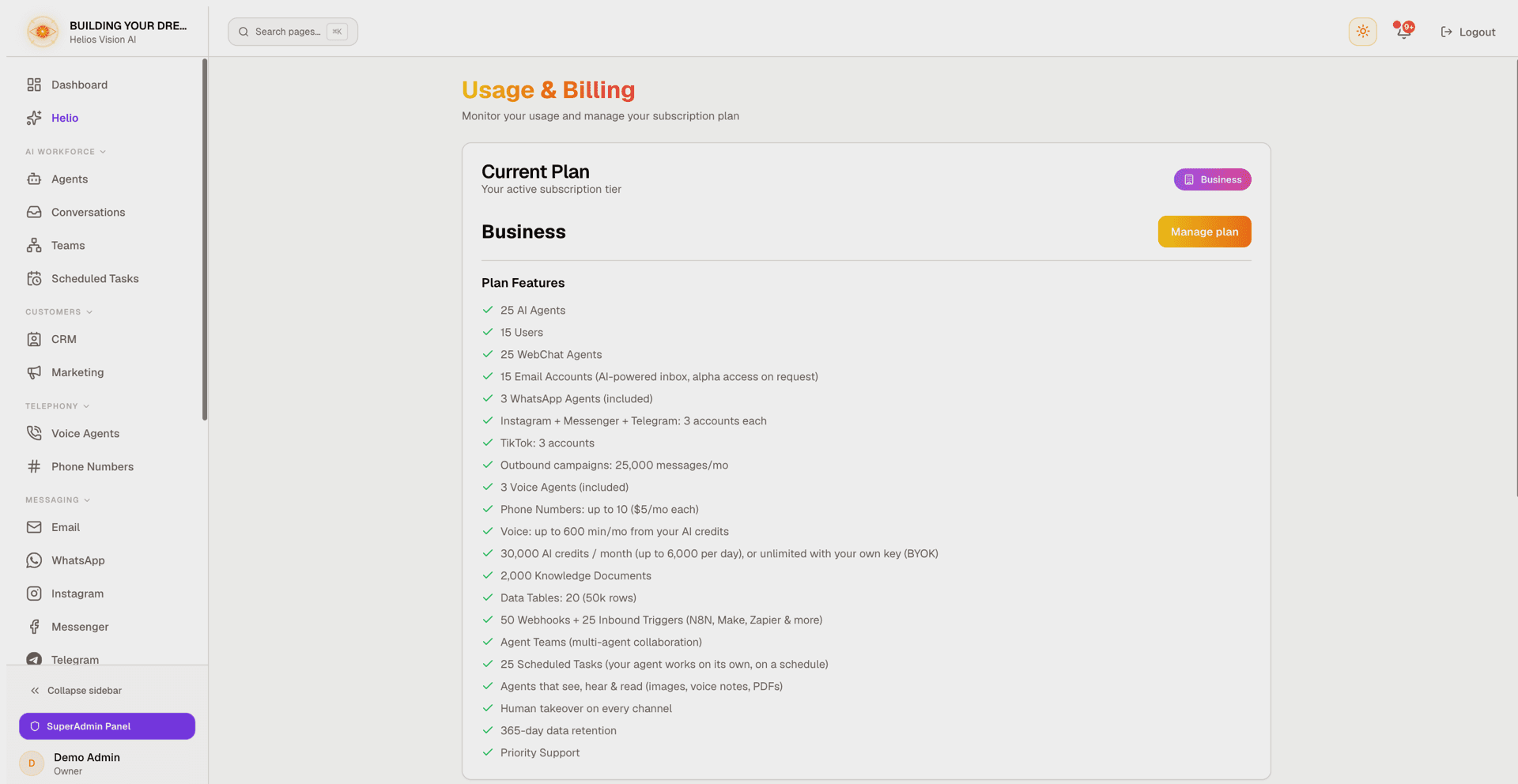
Current Plan
Shows your plan name and badge, a Manage plan button (opens Billing), and the Plan Features list. The feature list is the same one shown on the public pricing page, so what you see here matches what the plan advertises — including the AI credit allowance with its daily limit (on plans with managed voice, "phone calls excepted"), the voice-minute ceiling derived from those credits, the knowledge base in pages, and Scheduled Tasks.
Usage This Month
A card headed Usage This Month. Its subtitle states when your billing period ends and clarifies that not every meter resets: counts like agents and users are current totals, while the meters that do reset state their own period under the bar.
| Meter | What it counts | Period |
|---|---|---|
| AI Agents | Agents in your workspace | Current total (never resets) |
| Users | Team members in your workspace | Current total (never resets) |
| Messages | Messages counted against your plan's monthly message limit. AI replies and your team's replies both count, whichever AI engine the workspace uses. Only Free has a limit (200 a month) | Calendar month |
| AI Credits | Managed AI credits spent (shown only while your workspace is actually running on included credits) | Billing cycle, from your plan's credit grant. During a trial, the limit is the trial allowance and the meter's note reads "Trial allowance: 10% of the plan's monthly credits until your first subscription payment". On Free: calendar month, from the monthly credit grant |
| AI credits today | Today's credit spend against your plan's daily limit (shown only when a daily limit exists). Reaching it pauses managed AI until the daily reset. On plans with managed voice the meter adds that phone calls are not held to it, though a data-table lookup during a call is | Resets each day |
| Knowledge pages | Knowledge pages your documents use against your plan's limit. 1 knowledge page = 2,500 characters of text read from your documents | Current total (never resets) |
Each meter shows current / limit. A limit of Unlimited hides the bar. The number turns amber at 80% of the limit and red at 100%.
Team activity
Specialist consultations made by your coordinators this month: the number of Specialist consultations, Tokens used, and Average duration. With no team activity this month, the counters read zero and the average duration shows N/A.
Billing & Subscription page
The Billing page (Billing & Subscription) is where you change everything about your subscription. Its header carries a Back to Settings link and, for owners and admins once your workspace has a Stripe customer, a Manage Billing button. It opens the Stripe billing portal, where you update payment methods, see your invoices, edit billing details (email, address, phone, tax ID), and cancel the subscription.
The portal does not change plans. You change your plan in Compare Plans on this page, after seeing exactly what changes: see Changing or cancelling your plan. While an upgrade is waiting for your bank's confirmation, Manage Billing does not open the portal until you confirm or cancel that upgrade (see Upgrading with a card that asks your bank to confirm).
Current plan and usage this period
The current plan panel shows your plan name, badge, description, monthly price (or Custom for Enterprise), and status. It also shows Renews {date} for paid plans, Moves to the Free plan on {date} while a cancellation is scheduled, or No renewal required for the Free plan.
While a plan change or a cancellation is scheduled, the page also shows a banner that states it, with See what's affected and the button that undoes it (see Changing or cancelling your plan). An upgrade that is waiting for your bank has its own notice, with Confirm with my bank and Cancel upgrade (see Upgrading with a card that asks your bank to confirm).
Under Usage this period a compact bar appears for each resource you have. Only active resources count against your quota — a deactivated agent, widget, or number does not consume a slot. Depending on your plan and enabled channels the bars can include:
- AI Agents, Users, Knowledge Pages
- Messages (when your plan caps messages, as Free does)
- Email Accounts (when the Email Inbox is enabled)
- WebChat Agents, WhatsApp Numbers, Voice Agents (voice appears when your plan or an add-on grants it)
- Instagram Accounts, Messenger Pages, Telegram Bots, TikTok Accounts
- Campaign Messages (a per-cycle counter that resets monthly, shown when campaigns are available to your workspace)
Any capacity that comes from an add-on shows a small +N add-on badge next to the label. When agents, users, or knowledge pages reach 80% of their limit on a plan below Business, an upgrade prompt appears.
Recent invoices
Inside the same panel, your last six Stripe invoices are listed with date, invoice number, billing period, amount, and a status badge (PAID, OPEN, VOID, and so on). Each invoice offers a Download PDF button and a View invoice button. Amounts are shown in the currency the invoice was issued in. This block appears only for workspaces with a Stripe customer.
AI Credits
The AI Credits card appears whenever your plan includes managed AI credits (every plan, Free included), in either AI Engine mode. What it shows depends on how your workspace runs AI:
- On your own API key — the card states the monthly credit allowance your plan includes (during a trial, the trial allowance) and explains that nothing is being deducted, because AI usage is billed by your provider directly. A link — Switch to included credits in AI Engine settings — takes you where you can activate them. No balances or top-ups are shown.
- On included credits (managed) — the card shows three figures:
| Figure | Meaning |
|---|---|
| Included this cycle | Credits included with your plan; they reset every billing cycle (on Free, at the start of each calendar month) and do not carry over |
| Purchased (never expire) | Credits you bought as packs; they carry over indefinitely |
| Used this cycle | Credits spent in the current cycle |
During the 14-day trial of a paid plan, Included this cycle holds 10% of the plan's monthly credits: 200 on Starter, 1,000 on Growth, and 3,000 on Business. The full monthly allowance replaces them with your first subscription payment, and buying a credit pack does not count as that payment. The card states this in place of the reset notice; on Starter it reads "During your 14-day trial your plan includes 200 AI credits, 10% of its 2,000 a month. The full monthly amount replaces them with your first subscription payment; buying a credit pack does not count as that payment." Enterprise plans with unlimited AI usage are not affected.
On Free, the monthly credits are granted only after an email in the workspace is verified; until then the card reads "Your included AI credits are added once your email address is verified." A Free workspace that switches to managed AI during the month receives that month's credits within 24 hours, and the card says "Your included AI credits are on their way: they land within 24 hours of switching to Managed."
When your plan has a daily limit, the card also shows today's spend against it. Reaching the daily limit pauses managed AI until it resets, even with a healthy monthly balance, and the card says so plainly when it happens. Phone calls are the exception (see below). If you run low or run out, a notice appears with the option to connect your own API key instead (see Integrations).
Phone calls and the daily limit
On plans with managed voice (every paid plan), a phone call is not held to the daily limit. When the limit is reached, the card reads "Daily limit reached" with the limit in credits, then "Managed AI is paused until the limit resets, except phone calls, which keep being answered while AI credits last (without data-table lookups until the reset)." A call is limited by three other things:
- Your monthly credit balance. A call is answered only when the credits available can cover the minimum length of a call. Otherwise the caller is not answered and owners and admins are notified, once a day (A phone call was not answered: not enough AI credits). A call in progress ends with a polite goodbye if the balance runs out.
- The maximum length of a single call.
- The number of calls at the same time that your plan and any Voice add-on allow.
One thing during a call still counts toward the daily limit: a data-table lookup made by the agent. Once the limit is reached, the call keeps going but the agent cannot look up your data until the daily reset.
What a credit buys
Everything that runs on managed AI draws from the same credit pool: chat, email, voice, Helio, and document indexing. The rates are:
| Usage | Cost |
|---|---|
| One agent response on the Agile AI profile | 1 credit, however many steps the agent takes |
| One agent response on the Advanced AI profile (paid plans) | 10 credits, however many steps the agent takes |
| Searching the knowledge base | No extra credits |
| Each data table lookup (the agent turns a question about your data into a query) | 1 more credit |
| Each voice note transcription | 1 credit per started 30 seconds of audio, minimum 1 credit: a 20-second note uses 1, a 45-second note 2, a 3-minute note 6 |
| Each teammate an agent consults (Teams) | One more response, at that teammate's profile price |
| Reading a scanned document page (one with no text layer) while indexing | 1 credit per page |
| Helio, the in-app assistant that builds and tunes agents | 1 credit for each model call it makes; one request to Helio often takes several |
| One minute of a managed voice call | 50 credits, rounded up to the next whole minute, minimum one minute |
Agile runs on GPT-6 Luna and is the recommended profile for most tasks; Advanced runs on GPT-6 Sol and is available on every paid plan, not on Free. You choose the profile per agent, in its AI configuration (see AI Agents). The voice-minute ceiling advertised on your plan is simply your monthly allowance divided by the voice rate, and it is an up-to figure: it assumes the whole allowance goes to voice and nothing to chat or email.
On managed AI, before a voice note is transcribed, Helios checks that your balance and today's limit can cover the longest the note could be. If they cannot, the note is not transcribed. A transcribed note is charged for its real length.
The card reports balances and totals, not a price per message. These rates are what those totals are built from.
Add credits
Under Add credits, one-time packs of 1,000, 5,000, or 10,000 credits send you to Stripe Checkout. Purchased credits never expire. The pack buttons appear only on a paid plan with a Stripe customer; otherwise, Free included, the card reads Credit packs are available on paid plans. The purchase is also refused for a role that cannot manage billing, an unverified email, the Free plan, and a plan whose credits are unlimited. Enterprise plans with unlimited AI usage show a single "unlimited" note instead of the buckets.
After paying you land back on the Billing page; the new balance appears once Stripe confirms the payment, and a single purchase is credited to the wallet exactly once even if Stripe sends the confirmation more than once.
Compare Plans
The plan comparison lists the paid plans side by side. Each card shows headline stats (Agents, Users, Messages or AI Credits, Channels), then an Everything in {previous plan}, plus: list of what the tier adds, with a +N more features expander for the rest.
Annual billing is available on the paid plans: a Monthly / Annual switch changes the prices the cards show. In the annual view each card leads with what the plan costs per month (the yearly price divided by 12) and states the full yearly amount right under it, for example "$124.17 /month" with "Billed annually: $1,490". The year is charged once, in a single payment, and the switch is labeled 2 months free because you pay for 10 months and get 12. On a paid plan the switch starts on the interval you are billed on. Your current plan's card follows the switch like the others, so the button it carries (Switch to annual billing or Switch to monthly billing) always matches the price shown, and one extra line says what you pay today, for example "You pay $149/month today (billed monthly)." While you are still in a free trial that line says that nothing is charged until the trial ends and what you will pay then.
The button on each plan depends on your situation:
| Situation | Button |
|---|---|
| Your current plan | Current plan (disabled) |
| Your current plan, with the switch set to the other interval | Switch to annual billing or Switch to monthly billing |
| A higher plan, while you have a paid subscription | Upgrade to {plan} |
| A lower paid plan, while you have a paid subscription | Switch to {plan} |
| Any plan, for members who are not owner or admin (paid subscription) | Owner or admin only (disabled) |
| Enterprise | Contact Sales (opens a short contact form; the sales team replies by email) |
| Any other plan, while you are on an Enterprise subscription | Contact sales to change |
| First time going paid | Start 14-day trial (the trial includes 10% of the plan's monthly AI credits until the first payment) |
| Returning paid customer | Subscribe |
Upgrade to {plan}, Switch to {plan} and the interval buttons open a preview of exactly what the change does, and nothing changes until you confirm. With a paid subscription, owners and admins also get a Cancel subscription link (hidden while a cancellation is already scheduled). Payment methods and invoices stay in Manage Billing. The rules for each kind of change are in Changing or cancelling your plan.
Channel Add-ons
Add-ons extend your plan with extra channel capacity. Prices are shown per unit, per month, in USD.
| Add-on | Grants |
|---|---|
| An additional dedicated WhatsApp Business number your agents can answer from | |
| Voice | An additional concurrent call slot and voice agent for your AI phone agent |
| Social Accounts Pack | One extra account slot on each social network: Instagram, Messenger, Telegram, and TikTok |
- First purchase goes through Stripe Checkout. Add-ons need a paid plan; without one, an upgrade prompt appears. A verified email is required.
- Quantity is adjustable from 1 to 10 with the stepper. Increasing quantity asks you to confirm first, previewing the prorated charge today and the new monthly total; Stripe prorates the change automatically.
- Remove add-on schedules cancellation at the end of the current billing cycle. You keep the capacity until then and can undo it with Keep my add-on.
- An add-on you already have cannot be bought a second time — change its quantity instead. An add-on whose last payment failed still counts as yours: fix the card in the Stripe portal rather than buying it again.
- Add-ons end with the plan. When you cancel the subscription, every add-on is cancelled together with the plan at the end of the period, and while that cancellation is scheduled no new add-on can be added and an existing one cannot be changed, only removed. A downgrade to another paid plan keeps your add-ons.
- While an upgrade is waiting for your bank, add-ons are not held back, because each one is billed on its own subscription; if an add-on is billed on the same subscription as your plan, its quantity cannot be changed until you confirm or cancel the upgrade, and the app says "An upgrade is waiting for your bank's confirmation, so add-ons cannot be changed right now. Confirm or cancel the upgrade in the notice on this page first."
Gmail Inbox — Restricted Access
When the Email Inbox is enabled for your workspace, Outlook accounts work right away. Gmail needs additional approval from Google before your agents can read incoming Gmail messages, so a card offers Request Gmail Access, which opens a pre-filled email to support. Access is granted case by case after review. The card disappears once Gmail is approved for your workspace.
Detailed Usage & Limits
A collapsible section with the full breakdown of every resource, including Webhooks and Connected Email Accounts, and the remaining-message count for the current billing period when your plan caps messages.
Changing or cancelling your plan
Plans change in the app, in Compare Plans on the Billing page. Only the owner or an admin can change the plan, cancel it, or undo a scheduled change. The Stripe billing portal (Manage Billing) is for payment methods, invoices, billing details, and cancellation; it does not change plans.
| Change | When it takes effect | What is charged |
|---|---|---|
| Upgrade to a higher plan | Today, with a new billing cycle that starts today | Today: the new plan's full period minus the unused value of your current plan |
| Monthly to annual billing, same plan | Today, with a new annual cycle that starts today | Today: the year minus the unused value of your current month |
| Downgrade to a lower paid plan | At the end of the period you already paid for | Nothing today; the renewal is billed at the lower price |
| Annual to monthly billing, same plan | At the end of the year you already paid for | Nothing today; monthly billing starts when that year ends |
| Cancel (move to Free) | At the end of the period you already paid for | Nothing |
When you change the plan and the billing interval together, the plan decides: a higher plan is an upgrade and applies today, and a lower plan is a downgrade and waits for the end of the paid period.
See exactly what changes before you confirm
Each plan button opens a dialog that asks Stripe for the exact figures and lists what the change does. Nothing changes until you confirm.
| Item | What it tells you |
|---|---|
| Charged today | What your card is charged now. Nothing for a downgrade, a cancellation, or a change during a trial |
| Credit kept on your account for future invoices | Shown when the unused value of your current plan is larger than the new charge (for example, moving from an annual plan to a higher monthly one). It pays your next invoices. If your plan ends before it is used up, what is left is refunded to your card (see Money left over when something ends early) |
| Next renewal | When the subscription renews after the change, and for how much |
| AI credits | Your included credits after the change and in each following cycle, with the deduction for credits you have already used when an upgrade has one (see Upgrading). Credits you bought are never touched |
| What changes | The resources that will be paused, by name; what Comes back on after an upgrade; every plan limit and feature that moves (Plan limits, Features); your Knowledge base and Documents against the new plan's limits; History retention when it gets shorter; the Phone numbers that will be released (platform numbers above the new plan's allowance, each with its release date) or the Reserved phone numbers you keep; and, on a cancellation, the Add-ons and phone numbers whose billing ends with your plan |
The confirm button names what it does: Pay {amount} and change (or Change now when nothing is due) for a change that applies today, Schedule the change for a downgrade or a move to monthly billing, and Cancel subscription for a cancellation. Not now closes the dialog without changing anything.
A preview is valid for 15 minutes. If it expires, or your subscription changes in the meantime, the dialog loads a new one and asks you to review it and confirm again. Stripe computes the final amount when you confirm; if it comes to more than 25 cents above the preview, you see the new amount before anything is charged.
Upgrading
Choose Upgrade to {plan} on a higher plan, review the preview, and confirm.
- A new billing cycle starts today, and today becomes your renewal date: the next renewal is one month or one year from today.
- You pay today the new plan's full period minus the unused value of your current plan, as Stripe computes it.
- Every higher limit and feature applies at once. What a lower plan had paused comes back on as far as the new limits allow (see Resources above the new limits).
- Your included AI credits restart as soon as the payment goes through, at the new plan's monthly allowance minus a deduction when you have used more included credits than the time already passed has paid for. Purchased credits are kept.
- If the card is declined, the plan does not change. The app says "Your card was declined, so your plan did not change. Update your payment method in Manage Billing and try again." Your plan, limits and credits stay as they were.
- If your bank asks you to confirm the payment (3D Secure), you confirm it inside the app. The plan starts only once the payment is confirmed; until then nothing changes and nothing is charged. See Upgrading with a card that asks your bank to confirm.
- If a downgrade was scheduled, the upgrade cancels it. If a cancellation was scheduled, the upgrade removes it and your subscription continues. The preview says so before you confirm.
- During the free trial, an upgrade keeps the trial (see During the free trial).
Upgrading with a card that asks your bank to confirm
Some banks ask you to confirm a card payment before it goes through (3D Secure). When that happens during an upgrade, you confirm it inside the app, without leaving the Billing page. The same steps apply to Switch to annual billing, which is also charged today.
- Choose Upgrade to {plan}, review the preview, and confirm with Pay {amount} and change. When the change is charged today, the preview says "If your bank asks you to confirm the payment, you do it here. Your plan changes only once the payment is confirmed; if you do not confirm it, nothing changes and nothing is charged."
- If your bank asks for a confirmation, the dialog changes to Confirm the payment with your bank. It shows the Amount to confirm and the time until which the confirmation stays open.
- Choose Confirm with my bank and complete the confirmation in your bank's window.
- When the bank confirms, the app says "Your bank confirmed the payment. Your plan is now {plan}." and the new plan starts. If the payment is confirmed but Stripe has not applied the plan yet, the dialog shows "Finishing up..." and, if that takes longer, says "Your payment is being confirmed. Your plan changes as soon as it is. You can close this window; nothing else is needed." and offers Check again.
Until the payment is confirmed, nothing changes. Your plan, limits, included AI credits and add-ons stay as they were, nothing is charged, and a downgrade you had scheduled stays scheduled (if the upgrade goes through, it replaces that downgrade, as with any upgrade). Once the payment is confirmed, your included AI credits restart by the same rule as any other upgrade: the new plan's monthly allowance minus a deduction for the included credits you used beyond what the elapsed time paid for (see The credit deduction).
If you close the dialog or reload the page, the upgrade keeps waiting. The Billing page shows a notice, "Your upgrade to {plan} (billed monthly) is waiting for your bank's confirmation." (it reads "billed annually" for an annual price), followed by "Until the payment is confirmed you stay on {current} and nothing is charged. If it is not confirmed, the upgrade is discarded by {time} at the latest." Confirm with my bank reopens the bank step. The page reads the waiting upgrade from Stripe every time it loads, so the notice is also there after a reload or a visit later the same day. Choosing a plan in Compare Plans while an upgrade waits opens the same bank step instead of a new preview.
To cancel the upgrade, choose Cancel upgrade in the notice or Cancel this upgrade in the bank step. The app says "The upgrade was cancelled. Your plan did not change and nothing was charged." If the payment was confirmed at that very moment, the upgrade goes through instead and the app says "The payment had already been confirmed, so the upgrade went through. Your plan is now {plan}."
If you do nothing, the upgrade discards itself at the time shown in the notice: at most 23 hours after you asked for it, or when your current billing period ends if that comes first. Nothing is charged and your plan does not change, and you can start the upgrade again. If you open the bank step after that, the app says "No upgrade is waiting for your bank any more. The time to confirm may have run out. Your plan did not change and nothing was charged."
If the bank does not confirm, or the card is declined, your plan does not change and nothing is charged:
- When the bank does not confirm the payment, the app says "Your bank did not confirm the payment, so your plan did not change and nothing was charged. You can try the upgrade again, or use another card in Manage Billing."
- If you close the bank's window without finishing, the dialog says "Your bank has not confirmed the payment yet. You can try again." and the upgrade keeps waiting.
- When the card is declined, the app says "Your card was declined, so your plan did not change. Update your payment method in Manage Billing and try again."
If the bank's window cannot open, for example because a browser extension or the network blocks it, the dialog says "We could not open your bank's confirmation window (a browser extension or the network may be blocking it). You can confirm on Stripe's own page instead." It then offers Open Stripe's secure page; after you confirm there, choose I confirmed it there.
What is refused while an upgrade waits. Changing the subscription would discard the waiting upgrade, so the app refuses these before anything is changed:
- Other plan changes: choosing a plan opens the bank step instead of a preview, and Keep my current plan and Keep my subscription answer "An upgrade is waiting for your bank's confirmation. Confirm or cancel it first, then change your plan again."
- Manage Billing: the portal does not open, and the app says "An upgrade is waiting for your bank", followed by "Confirm or cancel the upgrade in the notice on this page before you open billing management. Until then the portal stays closed, so a cancellation made there cannot end the plan you are paying for."
- Add-ons and phone numbers: see Channel Add-ons and Phone Numbers.
Who can confirm. Only the owner or an admin can confirm or cancel the upgrade. Other members see the notice with "The workspace owner or an admin can confirm or cancel it." and no buttons. Helios support cannot confirm for you: the confirmation is between you and your bank.
The credit deduction
Money and credits are measured differently. Stripe credits the unused time of your current plan in full, so the charge does not change. The included credits are measured by use: if you have used more of them in the current credit cycle than the elapsed time pays for, the difference comes off the first allowance of the new plan.
- The share the elapsed time pays for is your current plan's monthly allowance times the part of the cycle that has passed. Included credits are granted monthly even on an annual plan, so the comparison uses the month that began when your included credits last restarted.
- If an earlier upgrade in the same cycle already took credits off, those credits still count against the next upgrade.
- The new allowance never goes below 0, and every later cycle gets the full allowance.
- The preview shows the numbers in the AI credits block before you confirm: when your included credits last restarted, how many have been used, how many an earlier upgrade already took off, and how many the time passed pays for. It shows the resulting figure as well.
- Example: on Starter (2,000 credits a month), when half of the cycle has passed you have used 1,500 credits. Half the cycle pays for 1,000, so 500 come off. Upgrading to Growth (10,000 credits a month) starts the new cycle with 9,500.
- No deduction applies during a trial.
Downgrading
Choose Switch to {plan} on a lower plan, review the preview, and confirm with Schedule the change.
- The change takes effect at the end of the period you already paid for. Nothing is charged today, and you keep everything your current plan includes until then.
- Nothing is deleted. On that date, resources above the new plan's limits are paused (turned off), and the preview lists each one by name. Anything you delete or deactivate before then frees its slot, so you decide what stays on. Automation rules, scheduled tasks, inbound webhooks and Shopify stores follow the rules in Resources above the new limits.
- Documents already in your knowledge base keep answering. If they use more knowledge pages than the new plan includes, new documents are not indexed until the knowledge base is below that limit. Stored files keep working too; new uploads are refused while you are above the new plan's document or storage limits.
- Your included AI credits stay as they are until the change; from then on each cycle brings the lower plan's monthly allowance. Purchased credits are kept.
- Your add-ons stay on the lower plan.
- If the lower plan allows fewer platform phone numbers than you have, each extra number is reserved for 30 days from that date and then released (see Phone numbers above the new plan's limit). The preview lists them under Phone numbers that will be released.
- If the lower plan keeps your history for fewer days, the previous window keeps applying for 30 days (see Data retention after a downgrade or cancellation).
- Once the downgrade is scheduled, the Billing page shows the banner "Your plan changes to {plan} on {date}." with the new plan's headline limits. See what's affected opens the same list as the preview, recalculated live, and Keep my current plan cancels the scheduled downgrade. When the change will pause resources, owners and admins also receive the notification "Resources affected by your plan change", which opens that list.
- Choosing another lower plan replaces the scheduled downgrade. An upgrade cancels it and applies today.
Monthly and annual billing
To change the billing interval of your plan, set the Monthly / Annual switch to the other interval and use the button on your current plan's card:
- Switch to annual billing applies today, like an upgrade: a new annual cycle starts today, and you pay the year minus the unused value of your current month.
- Switch to monthly billing takes effect at the end of the year you already paid for, and nothing is charged today. Until then the banner reads "Your billing switches to monthly on {date}.", and Keep my current plan undoes it.
Cancelling
Choose Cancel subscription in Compare Plans, review the preview, and confirm with Cancel subscription. You can also cancel in the Stripe billing portal from Manage Billing; the app then shows the same scheduled cancellation.
- Your subscription stays active until the end of the period you paid for, and nothing more is charged. Then the workspace moves to the Free plan, with Free's limits.
- Before you confirm, the preview shows what changes on Free: the resources that will be paused, the limits and features that change, the add-ons and phone numbers whose billing ends, and the date each phone number is released. Nothing is deleted: resources above Free's limits are paused.
- Until the end date, the current plan panel reads Moves to the Free plan on {date} and a banner reads "Your subscription ends on {date} and the workspace moves to the Free plan." See what's affected opens the list, and Keep my subscription undoes the cancellation. Owners and admins also receive the notification "Your subscription is set to end".
- Money left over is refunded to your card automatically: the add-on time you paid beyond the end date, and any credit still on your account when the plan ends (see Money left over when something ends early).
- Add-ons are cancelled together with the plan at the end of the period. While the cancellation is scheduled, no new add-on can be added. If you keep your subscription, the add-ons that were set to end with the plan continue; an add-on you had removed on your own stays removed.
- Platform phone numbers stop being billed when the plan ends and stay reserved for your workspace for 30 days at no charge, because Free includes none. A reserved number does not answer calls, and WhatsApp connected to it receives and sends no messages. If you subscribe to a plan that includes them within those 30 days, you keep them; otherwise they are released on the date shown, and WhatsApp is disconnected from them. See Phone numbers above the new plan's limit.
- Choosing a plan in Compare Plans while a cancellation is scheduled keeps your subscription: a higher plan applies today, and a lower plan is scheduled for the end of the period.
Resources above the new limits
When a downgrade or a cancellation takes effect, whatever is above the new plan's limits is paused, never deleted. The preview lists every item by name, under the kind of resource it belongs to.
- Automation rules, scheduled tasks, inbound webhooks and Shopify stores: when more are active than the new plan allows, the newest stay on and the older ones are paused. A paused automation rule is disarmed, not deleted. Rules that are already off (drafts) are not counted and not touched.
- What you paused yourself is yours: the plan only brings back what the plan paused. Something you turned off by hand stays off.
- When you move to a plan with higher limits, the items the plan paused come back on, up to the new limits. They come back only when the new limit is higher than the one that paused them; a slot you free yourself, by deleting or pausing something else, does not bring anything back. The preview of an upgrade lists them under Comes back on, and owners and admins receive the notification "Items your plan had turned off are back on".
- Automation rules come back with conditions: a rule is armed again only if its agent is on and the rule can still run. A rule that cannot stays off, and the notification says how many need attention, so you can review them in Automatic messages.
Phone numbers above the new plan's limit
Platform phone numbers (the Helios numbers on the Phone Numbers page) are never deleted by a plan change. When a downgrade or a cancellation takes effect and leaves you with more numbers than the new plan allows (Free allows none), each extra number is reserved for your workspace for 30 days at no charge, and then released automatically.
- Which numbers stay in service: first the numbers a voice agent that is on answers on, then the numbers with a WhatsApp connection that is on, then the most recently bought. The rest are reserved. A number that is already reserved is not swapped for another one later.
- While a number is reserved: it is not billed, it does not answer calls, and WhatsApp connected to it receives and sends no messages. The WhatsApp connection itself is not changed; it is only paused.
- Before it happens: the preview lists each reserved number with the date it will be released, and says which of them have WhatsApp connected.
- If you subscribe within the 30 days to a plan that allows them: the reservation is lifted for as many numbers as the plan allows, in the same order, and they are billed again. Calls and the same WhatsApp connection resume on their own, without reconnecting.
- If your plan has room for a reserved number again, for example because you released another one, an owner or admin can keep it from the Phone Numbers page with Keep this number. It is billed again from that day. A free slot alone does not lift a reservation.
- On the release date, any WhatsApp connection still on the number is disconnected and the number is released. Once released, a number may not be available again, and WhatsApp has to be connected to a number your plan includes.
- Notices: owners and admins get an in-app notification when the reservation starts (Phone numbers reserved), another 7 days before the release and another 1 day before (Phone number release reminder), and, when WhatsApp was connected, one when it is disconnected at the release (WhatsApp disconnected from a released number). Each one names the numbers and the exact release date. See Notifications.
Money left over when something ends early
When a plan or an add-on ends before the period you paid for is over, the unused part is refunded to your card automatically. You do not have to ask.
- Add-ons and phone numbers that end with your plan: the time already paid for after the end date is refunded. The preview says so.
- Credit kept on your account: an upgrade can leave credit (Credit kept on your account for future invoices), which pays your next invoices. If your plan ends before it is used up, what is left is refunded to your card.
- Not refunded: the paid period of the plan itself. A downgrade or a cancellation takes effect at the end of that period, so nothing is refunded for it. If you owe an unpaid invoice, your credit is held against it first.
- If a refund cannot be made, for example because the card was closed, our team is alerted and the money stays on your account until it is sorted out.
During the free trial
- Upgrading keeps your trial: the plan changes today and nothing is charged until the trial ends. Your trial credits move up to the new plan's trial amount, counting what the trial has already used; the full monthly allowance arrives with the first payment. The credit deduction does not apply during a trial.
- Downgrading takes effect when the trial ends, so your first payment is already for the lower plan.
- Cancelling lets the trial run until its end date; then the workspace moves to the Free plan instead of starting a paid period. Nothing is charged.
Data retention after a downgrade or cancellation
When the new plan keeps conversation and email history for fewer days, the previous plan's longer retention keeps applying for 30 days after the change takes effect. After those 30 days the lower plan's retention applies, and history older than its window is deleted at the next nightly cleanup. The preview shows the date from which the shorter window deletes history (History retention). Moving, within those 30 days, to a plan that keeps history at least as long as before loses nothing.
Who can change the plan
- Only the owner or an admin. Other members see the plan cards with Owner or admin only; the banner of a scheduled change tells them who can see its details and undo it.
- On an Enterprise subscription, changes are arranged with the sales team, and the other plans show Contact sales to change.
- A plan managed by your administrator (one with no subscription of its own) shows "Your current plan is managed by your administrator. Contact support for plan changes."
- While a payment is pending, the plan cannot change. Update the payment method in Manage Billing first.
- While an upgrade is waiting for your bank, no other plan change can be made until you confirm or cancel it (see Upgrading with a card that asks your bank to confirm).
Good practices
- Check the relevant meter before adding another agent, number, or channel, so you know whether you need to upgrade or buy an add-on.
- When you only need more of one channel, a Channel Add-on is usually cheaper than moving up a whole plan tier.
- Use Keep my add-on before the period ends if you cancelled by mistake; the capacity stays until the cycle closes.
- Before a downgrade or a cancellation takes effect, open See what's affected and delete or deactivate what you can do without, so the resources you rely on keep their slots.
- If a plan change lowers your phone-number allowance, read Phone numbers that will be released in the preview: it shows which numbers stay in service, which are reserved, and the release date of each. Choose a plan that includes the numbers you need before that date.
- If you scheduled a downgrade or a cancellation by mistake, use Keep my current plan or Keep my subscription before the change date; nothing has changed until then.
- Read Charged today and Next renewal in the preview before you confirm an upgrade: the upgrade starts a new billing cycle today, so your renewal date moves to today's date.
- If your bank asks you to confirm an upgrade, finish it or cancel it from the Billing page the same day: an upgrade that is not confirmed discards itself after at most 23 hours.
- If your agents stop replying while your monthly credit balance looks healthy, check the daily limit line on the AI Credits card. The daily limit pauses managed AI until it resets; phone calls are not held to it, though a data-table lookup during a call is.
- If credits are draining faster than expected, check which AI profile your agents use: an Advanced response costs ten times an Agile one, and a voice minute costs fifty credits.
- On a paid plan, if you prefer unlimited AI usage over managed credits, connect your own API key from Integrations. On Free, your own key does not lift the message limit: Free allows 200 messages a month on either engine, and AI replies and team replies both count.
Common errors
- "Only the workspace owner or an admin can manage billing" — your role cannot make purchases or open the Stripe portal. Ask an owner or admin.
- "No active subscription in this environment" on Manage Billing: your billing record was created in a different Stripe environment; pick a plan from Compare Plans to set one up here.
- "This add-on is already on your subscription" — use the quantity stepper on the add-on card instead of buying it again; buying twice is refused on purpose.
- Verify your email first — restricted accounts cannot buy add-ons or top up credits; a verification prompt appears instead of the checkout.
- "We could not start the checkout. Please try again." on a credit pack — the top-up was refused before Stripe. Check that your role can manage billing, that your email is verified, and that you are on a paid plan whose credits are not unlimited.
- Daily limit reached: managed AI is paused until the daily reset, except phone calls, which keep being answered while AI credits last (without data-table lookups until the reset). Upgrade the plan or switch the AI Engine to your own key to lift it sooner.
- Out of AI credits — your agents pause until you add credits (paid plans), your included credits renew, or you connect your own API key.
- Credits run out during a trial: the trial includes 10% of the plan's monthly credits. Buy a credit pack, switch the AI Engine to your own key, or wait for your first subscription payment, which brings the full monthly allowance.
- "Your card was declined, so your plan did not change. Update your payment method in Manage Billing and try again.": the upgrade was refused as a whole; your plan, limits, and credits are as they were. The dialog loads a new preview for your next attempt.
- "Your bank asked you to confirm this payment, but the confirmation could not be started, so your plan did not change and nothing was charged. Please try the upgrade again.": your bank asked for a confirmation (3D Secure) but the app could not open it. Nothing was charged and the plan is as it was. Try the upgrade again.
- "An upgrade is waiting for your bank's confirmation. Confirm or cancel it first, then change your plan again.": an earlier upgrade is still waiting for your bank. Use Confirm with my bank or Cancel upgrade in the notice on the Billing page, then change your plan.
- "Your bank did not confirm the payment, so your plan did not change and nothing was charged. You can try the upgrade again, or use another card in Manage Billing.": the confirmation failed or was refused. See Upgrading with a card that asks your bank to confirm.
- "No upgrade is waiting for your bank any more. The time to confirm may have run out. Your plan did not change and nothing was charged.": the upgrade was cancelled or discarded itself. Start it again from Compare Plans.
- "We could not reach your bank's confirmation right now, and your plan did not change. Please try again in a moment.": the app could not read the state of the confirmation. Nothing changed; try again.
- "An upgrade is waiting for your bank" when you choose Manage Billing, or "An upgrade is waiting for your bank's confirmation, so add-ons cannot be changed right now. Confirm or cancel the upgrade in the notice on this page first." on an add-on: confirm or cancel the waiting upgrade first.
- "Your subscription has a pending payment. Update your payment method in Manage Billing, then change the plan.": a plan cannot change while an invoice is unpaid.
- "This preview expired. We refreshed it; review it and confirm again.", or a message that your subscription or the amount changed since the preview: the dialog already shows a fresh preview. Review it and confirm again.
- "Another change to this plan is being applied right now, so nothing changed. Reload the page in a moment to see where your subscription stands.": two changes to the same workspace cannot run at the same time. Reload the page and check the result before trying again.
- "Your scheduled change has already taken effect, so there is nothing left to undo. To go back, choose your previous plan again.": Keep my current plan came after the date of the change. Choose your previous plan in Compare Plans instead.
- "Part of this change went through and part did not.": check where your subscription stands on the Billing page before trying again, or contact support.
- "Your plan is set to end, so add-ons cannot be added. Keep your subscription first." (or "...cannot be changed..."): a cancellation is scheduled. Use Keep my subscription first if you want to keep the plan and add or change capacity.
- Changes made in the Stripe portal, such as a cancellation, are synced back automatically when you return; a brief toast confirms them (a cancellation shows Cancellation scheduled), and figures refresh within moments. Credit-pack purchases have no toast; the balance updates on its own.
- Removing an add-on never deletes it immediately; it ends at the period boundary so you keep what you paid for.