
Settings — Categories
Create and manage the email categories the AI uses to classify your inbox, with colors, keywords, and per-category active status.
Objective
Categories are the labels the AI uses to classify incoming email. Each active category — its name, description, and keywords — is handed to the classifier, which picks the best fit for every inbound message. When label sync is enabled on a connected mailbox, an assigned category is mirrored as a Gmail label or an Outlook category.
Access
Sidebar -> Email -> open an email account's settings -> Email Categorization section -> Manage Categories.
Route: /app/{tenant}/settings/categories
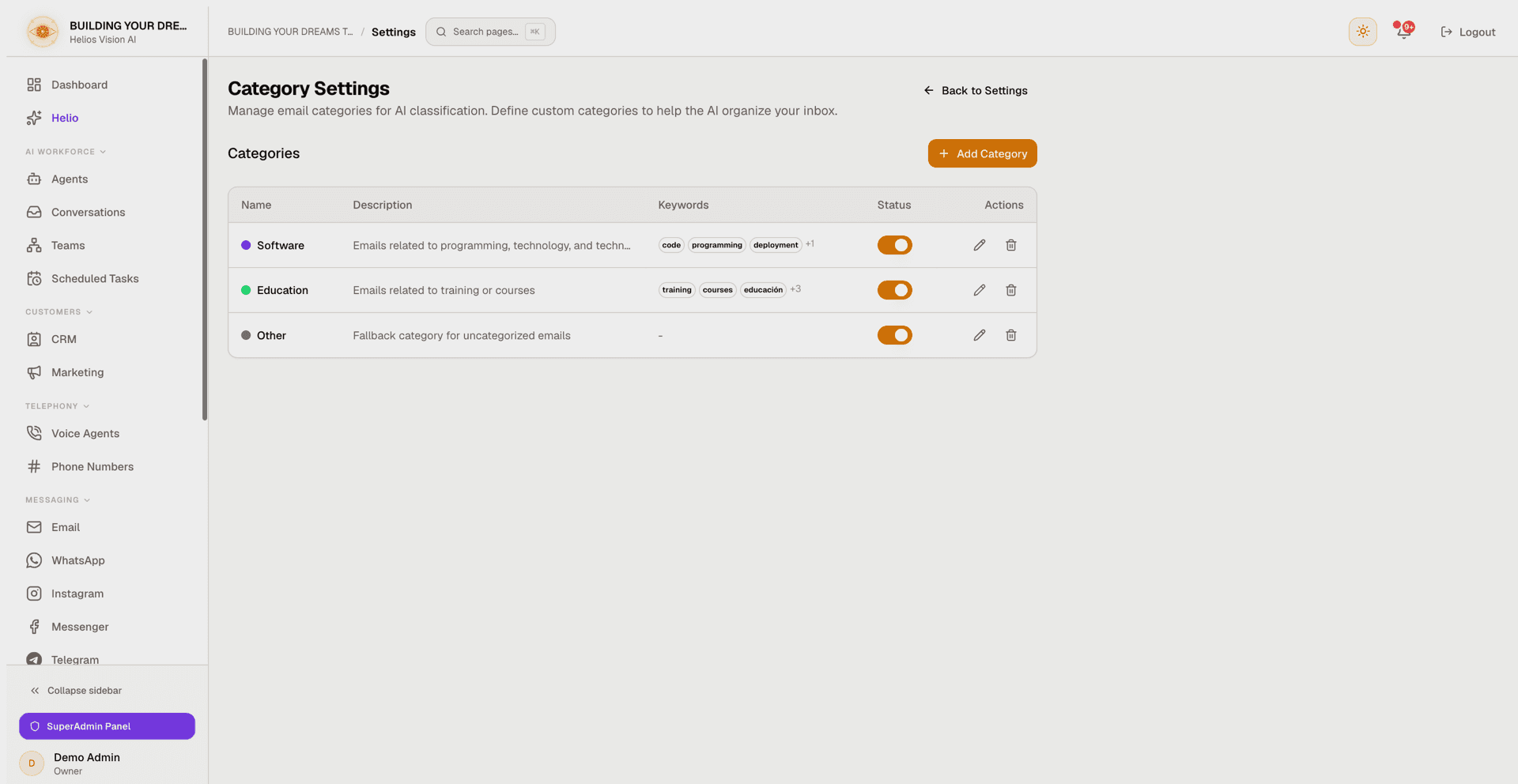
The page is titled Category Settings. When opened from Inbox, the URL carries a from=inbox parameter plus a config parameter with the account id, and the top-right button reads Back to Inbox Settings (it returns to that account's settings). Opened directly, the button reads Back to Settings.
Roles
- Any workspace member can open the page. Without a valid workspace, it redirects to /unauthorized.
- Creating, editing, deleting, or toggling a category requires a verified email address (see Prerequisites).
Prerequisites
- A verified email address. Restricted (unverified) accounts can view the list but every save is rejected with a toast.
- Optional: a connected email account, so the AI actually classifies inbound mail using these categories.
Category list
The Categories table shows every category in the workspace, sorted by internal priority (highest first) and then by creation date.
| Column | Content |
|---|---|
| Name | Category name, preceded by its color dot |
| Description | Optional context shown to the AI (or - when empty) |
| Keywords | First three keywords as chips, plus a +N counter when there are more (or - when empty) |
| Status | Active toggle (see Enable / disable) |
| Actions | Edit (pencil) and Delete (trash) buttons |
When no categories exist yet, the table shows: No categories found. Create one to get started.
Create category
- Click Add Category.
- Complete the New Category dialog.
- Click Save Category. A success toast confirms the creation.
Fields:
| Field | Mandatory | Format | Example | Note |
|---|---|---|---|---|
| Name | Yes | text | Technical Support | Category name; the AI reads it verbatim |
| Description | No | text | Brief description for AI context | Extra context for the classifier |
| Color | No | hex | #94a3b8 | Badge color; use the color picker or type the hex. Defaults to #94a3b8 |
| Keywords | No | comma-separated text | urgent, error, bug | Split on commas into individual keywords; blanks are dropped |
Edit category
- Click the Edit (pencil) icon on the row.
- The Edit Category dialog opens with the current values; adjust and click Save Category.
Enable / disable
- Toggle the Status switch on the row.
- The change saves immediately — the switch flips at once and reverts with an error toast if the save fails.
- Only active categories are offered to the AI classifier; inactive ones are kept but ignored.
Delete category
- Click the Delete (trash) icon and confirm in the Delete Category dialog.
- This action cannot be undone.
- Deleting a category clears it from any emails it was assigned to; the emails themselves are not deleted (they become uncategorized).
How the AI uses categories
- Only active categories are sent to the classifier, each with its description and keywords.
- The AI picks the best-fitting category for each incoming email; if none exist, mail is left uncategorized.
- Two optional fallbacks are configured per email account in Inbox settings (Email Categorization section), not on this page:
- Use the Other category when no clear match is found — on by default. If no category named Other exists when it is first needed, Helios creates one automatically (gray, marked as a fallback).
- Allow agent to suggest new categories automatically — off by default. When enabled, categories the AI creates appear in this list (gray, described as auto-generated) and can be edited or disabled like any other.
- Mailbox Label Sync is also per account: when its toggle is on for a connected Gmail or Outlook mailbox, an assigned category is mirrored as a Gmail label or an Outlook category.
Good practices
- Use short, clear names; the AI reads them verbatim.
- Add a Description and Keywords so the classifier has context beyond the name.
- Keep a broad catch-all (the Other fallback covers this) so unclear email still lands somewhere.
- Disable instead of deleting when unsure: past assignments stay intact and the category can be re-enabled later.
Common errors
- Save Category does nothing: the Name field is empty. Name is the only mandatory field.
- A save fails with "Please verify your email address...": the workspace email is unverified. Verify it first; no change is applied until then.
- A Status toggle flips back on its own: the save failed and the switch reverted. An error toast reports it; try again.
- Categories exist but inbound mail is not classified: check that the categories are active and that an email account is connected in Inbox.
Related
Settings — General
Configure your workspace: profile, organization, timezone, language, AI engine, branding, outbound policy, plan usage and account deactivation.
Notifications
Review workspace alerts from every channel: escalations, held replies, billing and integration warnings — filter, search, and mark as read.