
Analytics
Reports module: KPIs, quality metrics, smart insights, CSV and PDF export, and scheduled email digests across every channel.
Objective
Analytics is your organization's reporting hub. In the app it appears in the sidebar as Reports, and it turns activity across every channel — Email, WhatsApp, Web Chat, Instagram, Messenger, Telegram, and Voice — into KPIs, quality metrics, distribution charts, and downloadable reports.
Use it to answer two questions: how much happened in a period, and how well each interaction was handled.
Access
Sidebar -> Reports Routes:
- /app/{tenant}/reports (Overview tab)
- /app/{tenant}/reports/scheduled (Scheduled tab)
- /app/{tenant}/analytics redirects to /app/{tenant}/reports
The active report and comparison settings are kept in the URL (for example ?type=conversations&compare=1), so you can bookmark or share a specific view.
Roles
- owner, admin
Notes:
- agent and viewer roles do not see this module; they are redirected to the Dashboard.
Prerequisites
- Data appears as soon as your channels and agents are active; there is nothing to configure to start.
- The Email Performance report, the Email KPI cards, and the Email columns in other views only appear when your workspace has the email/inbox module enabled (gradual rollout — contact support if you need it).
- Conversation Trends (the opt-in AI panel) requires your own OpenAI API key set under Settings -> API keys.
Tabs
The module has two tabs:
| Tab | What it is |
|---|---|
| Overview | Ad-hoc analytics across all modules for a date range you choose. |
| Scheduled | Email digests that deliver a summary on a daily, weekly, or monthly schedule. |
Overview controls
The header of the Overview tab has these controls:
| Control | What it does |
|---|---|
| Date range picker | Chooses the period. Presets: Last 7 days, Last 14 days, Last 30 days (default), Last 90 days, This month, Last month. |
| Compare with previous period | A toggle. When on, each KPI shows how it moved versus a baseline. |
| Compare to | Appears when Compare is on. Options: Previous period, Same period last year, Custom range. Choosing Custom range shows a second range picker (same presets) for the comparison window. |
| Download PDF | Opens your browser's print dialog so you can save the current report as a PDF. |
| Configure Automatic Daily Reports | A link to the Scheduled tab. |
Trend badges next to a KPI show the percentage change versus the baseline. When there is no prior-period data to compare against, a neutral New chip is shown instead of a misleading percentage.
Report views
The Overview tab has a report selector with six views. Email Performance is hidden unless the inbox module is enabled.
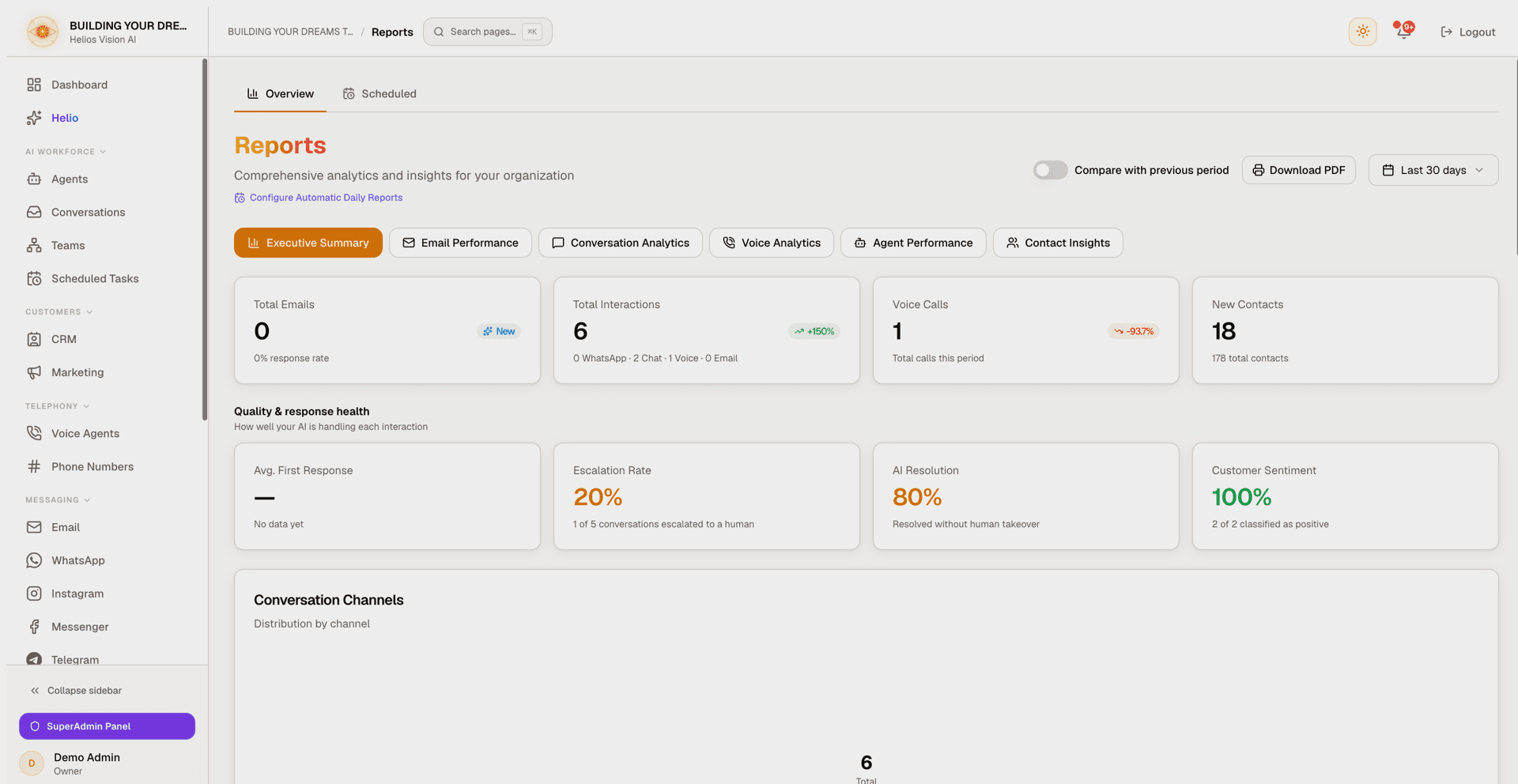
Executive Summary
The default view. It combines headline counts with quality metrics.
- KPI cards: Total Emails (inbox only), Total Interactions (conversations + completed voice calls + emails sent), Voice Calls, and New Contacts.
- A Needs attention now banner appears when conversations are currently flagged for a human across any channel; it links to Conversations when the inbox is enabled. This is a live count, not a period-scoped one.
- Quality & response health cards: First response (average time to first reply), Escalation rate, AI Resolution, and Customer Sentiment (% positive).
- Charts: Email status distribution (inbox only), Conversation channels (all channels, including Instagram, Messenger, and Telegram), and a Sentiment trend.
- Resource cards: AI Agents (total / active / inactive), Knowledge Base (Documents and SQL Tables), and an Email breakdown (inbox only).
- A Trends Over Time panel charts sentiment by week; it appears when the period spans at least two weeks.
Email Performance
Shown only when the inbox module is enabled.
- KPI cards: Total Emails, Sent, Pending Review, and Response Rate.
- Email status distribution chart.
- A Recent Activity list of the latest emails with subject, sender, status, and time.
Conversation Analytics
- KPI cards: Total Interactions, WhatsApp, Web Chat, Voice Calls, and Email AI Sent (inbox only).
- Quality KPIs: First response, Escalation rate, and Average resolution time.
- A Conversation channels distribution chart covering all channels.
- A Sentiment trend chart across all channels in the period.
Voice Analytics
- KPI cards: Total Calls, Completed, Failed / Unanswered, and Average Duration.
- Call Stats: Success rate, Total talk time, and In progress.
- A Call Breakdown showing Completed, Failed, and In progress as proportional bars.
Agent Performance
- KPI cards: Total Agents, Active Agents, and Inactive Agents.
- A per-agent breakdown table (top agents by total interactions in the selected period):
| Column | Meaning |
|---|---|
| Agent | The agent name. |
| Status | Active or Inactive. |
| Emails handled (inbox only). | |
| Web Chat | Web Chat conversations handled. |
| WhatsApp conversations handled. | |
| Voice | Voice calls handled. |
| Errors (30d) | Errors reported by the agent over the last 30 days — a rolling operational-health figure, not scoped to the selected date range. |
| Total | Combined activity. |
- A Knowledge Resources card with Documents and SQL Tables counts.
Contact Insights
- KPI cards: Total Contacts, New Contacts, and Growth Rate.
- Distribution charts: contacts By Status and By Source.
- A Top engaged contacts table (Contact, Status, Activities) for the selected period.
Smart Insights
Every report view ends with a Smart Insights panel. These are deterministic, rule-based observations generated from your own metrics — no AI provider key is needed and there is no cost. Each insight has a priority (High / Medium / Low) and a suggested next step. When nothing needs flagging, the panel confirms it ran with an "all clear" message.
Conversation Trends (opt-in)
On the Executive Summary view, Conversation Trends uses AI to read a sample of your real customer messages and surface emerging topics, friction points, and FAQ candidates — the analysis that metric rules cannot do.
- It is off by default. Enabling it shows a confirmation dialog first.
- It uses your own OpenAI API key (set under Settings -> API keys); the cost lands on your OpenAI bill.
- Personal identifiers (emails, phones, cards, URLs, long IDs) are redacted before any text is sent.
- Each run shows the sample size, how many identifiers were redacted, the provider and model, token count, and estimated cost — plus a running monthly total.
- Refresh is explicit — it does not re-run automatically when you change the date range.
Export to CSV
The Export Reports card at the bottom of the Overview tab has one download button per report view (Email is hidden when the inbox is off). Files are named \{tenant\}-\{type\}-\{date\}.csv.
| Export | Contents |
|---|---|
| Executive Summary | One row per day with email counts (total, sent, pending, for review) and conversation counts: total plus one column per channel (WhatsApp, Web Chat, Instagram, Messenger, Telegram). |
| Email Performance | One row per email: sender, subject, status, sentiment, intent, priority, received time, and summary. |
| Conversation Analytics | One row per conversation across WhatsApp, Web Chat, Instagram, Messenger, and Telegram: channel, contact, status, started, and last activity. |
| Voice Analytics | One row per call: agent, direction, caller, receiver, status, duration, sentiment, AI summary, and start/end times. |
| Agent Performance | One row per agent: name, active status, emails processed, conversations handled, WhatsApp handled, error count, and last error time. |
| Contact Insights | One row per contact: name, email, phone, company, source, tags, notes, and created date. |
Exports cover the selected date range, except Agent Performance and Contact Insights, which always cover everything. Large exports are paginated so no rows are silently dropped, and a failed export shows an error toast.
Download PDF
Download PDF opens your browser's print dialog. Choose "Save as PDF" to keep a snapshot of the current report. Interactive controls (the report selector, date picker, export buttons, and the Conversation Trends toggle) are hidden from the printed page.
Scheduled digests
The Scheduled tab (titled Daily Digests in the app) manages email digests that deliver an activity summary to an inbox on a schedule.
Each digest card shows its name, frequency (Daily / Weekly / Monthly) and send time, number of sections, source (when a specific account or phone was chosen), delivery email, and when it was last sent. You can pause or resume it with the switch (paused digests show a Paused badge), or use Edit and Delete from the menu.
Delivery behavior:
- A digest is only sent when its period had activity. Periods with zero activity are skipped — no "all quiet" email.
- The email subject includes the report date, so each delivery is a separate item in your inbox.
- The delivery address is restricted to your own login email or one of the workspace's connected email accounts.
Create a digest
Use Create New Digest (or Create First Digest when the list is empty) to open a three-step wizard:
- Choose a digest type: Multi-Channel, Inbox (inbox only), Voice, WhatsApp, or Web Chat.
- Source & schedule: for Inbox, pick an Email Account (a specific account or all); for Voice, pick a Phone Number (a specific phone or all). WhatsApp and Web Chat digests always cover every number/widget — there is no picker. Then set the Digest Name, the Send Digest To email, the Send Time, and the Timezone (defaults to your workspace timezone).
- Digest Sections: choose which sections the email includes. The available sections depend on the digest type.
New digests default to a daily frequency; open Edit to change the Digest Name, delivery email, Send Time, Frequency (Daily / Weekly / Monthly), Timezone, or sections.
Sections by digest type
| Digest type | Sections available |
|---|---|
| Inbox | Executive Summary, By Category, Agent Responses, Pending Review, Sentiment Analysis, Top Senders, AI Insights |
| Voice | Calls Summary, Recent Calls, Missed Calls, Caller Analytics, AI Summaries, Performance Metrics, Transcripts |
| Executive Summary, Conversations, AI Insights | |
| Web Chat | Executive Summary, Conversations, AI Insights |
| Multi-Channel | Executive Summary, By Category, Agent Responses, Pending Review, Sentiment Analysis, Voice Calls, Conversations, Top Senders, AI Insights, Quotations |
Good practices
- Turn on Compare with previous period to read every KPI as a change, not just a number.
- Treat the Executive Summary quality cards (First response, Escalation rate, AI Resolution, Customer Sentiment) as your Monday-morning health check.
- Act on the Needs attention now banner first — it is the live backlog waiting on a person.
- Schedule a Multi-Channel digest so the people who need the numbers get them without opening the app.
Common errors
- A digest did not arrive: check that it is not paused, and remember that periods with zero activity are skipped on purpose — no email is sent for an empty day.
- The address I want is not in "Send Digest To": the list is limited to your own login email and the workspace's connected email accounts, as an anti-exfiltration safeguard.
- Email Performance is missing: your workspace does not have the email/inbox module enabled yet.
- Conversation Trends shows an error: verify your OpenAI API key under Settings -> API keys; the panel uses your key, not a platform one.
- Recent-activity row samples were removed from Reports on purpose; for "what just happened" use the Dashboard, and for individual conversations use Conversations.
- Report data is cached briefly per workspace, so a just-completed interaction can take up to about a minute to appear. Requests are rate limited (exports more strictly than on-screen reports); if you refresh very rapidly you may be asked to slow down.
Related
Twilio Setup (Voice & Phone Numbers)
Connect Twilio to Helios for voice calls and phone numbers: save credentials once, link a number, and let Helios configure the webhooks.
Team
Invite teammates, assign admin, agent, or viewer roles, manage active seats against your plan, and track pending invitations.