
Messenger
Connect your Facebook Page so it answers Messenger conversations — with an AI agent or a fixed message — and turns post comments into private chats.
Objective
Connect your Facebook Page so it can answer its Messenger conversations, and optionally answer comments on your Page posts with a private DM. Answering can be done by an AI agent or by one fixed message you write, so a Page can go live even before you have an agent. The primary path is one-click Connect with Facebook (Facebook Login for Business); a Connect manually fallback lets you bring your own Meta app.
Access
Sidebar -> Messaging -> Messenger Routes:
- /app/{tenant}/messenger (connect and manage Pages)
- /app/{tenant}/conversations?channel=messenger (Messenger conversations in the unified inbox — this is where the View conversations button lands)
- /app/{tenant}/messenger/conversations/{id} (full view of a single conversation, opened from the inbox)
The module is enabled per workspace. If Messenger is not enabled for yours, the route sends you back to the dashboard instead of rendering.
The old channel-only conversation list was retired; Messenger conversations are supervised in the unified inbox alongside every other channel. Even when you open a conversation by its direct URL, Back returns you to the inbox filtered to Messenger.
Roles
- owner, admin: connect, assign, activate, edit, disconnect and delete Pages, choose how direct messages are answered, and configure Comments to DM.
- agent: can open the page, but every Messenger action is admin-gated on the server — including reading the connected Pages — so this role cannot change anything here. Where the comment settings do render, their controls are read-only with "Only admins can change this".
Prerequisites
- Your plan must include Messenger; the number of active Pages is capped by your plan plus the Social Accounts Pack add-on.
- A Facebook Page you manage.
- An agent only if you want the AI to answer: at least one active agent with Messenger ticked on its Channels tab. If you have none, set DM automation to a fixed message — that mode needs no agent and the Page can still go live.
- A verified email (connecting fails with "Please verify your email address before connecting this channel." otherwise).
Channel indicators
The header of the Messenger page shows the same stat strip as the other channel modules:
| Chip | What it shows |
|---|---|
| Needs you | Open Messenger conversations waiting for a human. Turns amber above zero. Clicking it opens the inbox filtered to exactly those conversations. |
| Conversations | Open Messenger conversations. Clicking it opens the inbox filtered to Messenger. |
| Pages | Active Pages in use. Turns amber when you reach the plan ceiling. |
| Comments answered | People who received the comment-to-DM private message. Only shown once at least one has been sent. |
| Started a conversation | People who answered that private message. Only shown alongside the previous chip. |
A closing line names your ceiling: "of 3 Pages in your plan", or "unlimited in your plan".
The counts come from the same source and the same filters as the inbox pages the chips link to, so a chip and its destination cannot contradict each other. The strip is hidden when your plan does not include Messenger, and it is not rendered when the counts cannot be loaded — it never shows made-up zeros.
Connect with Facebook (recommended)
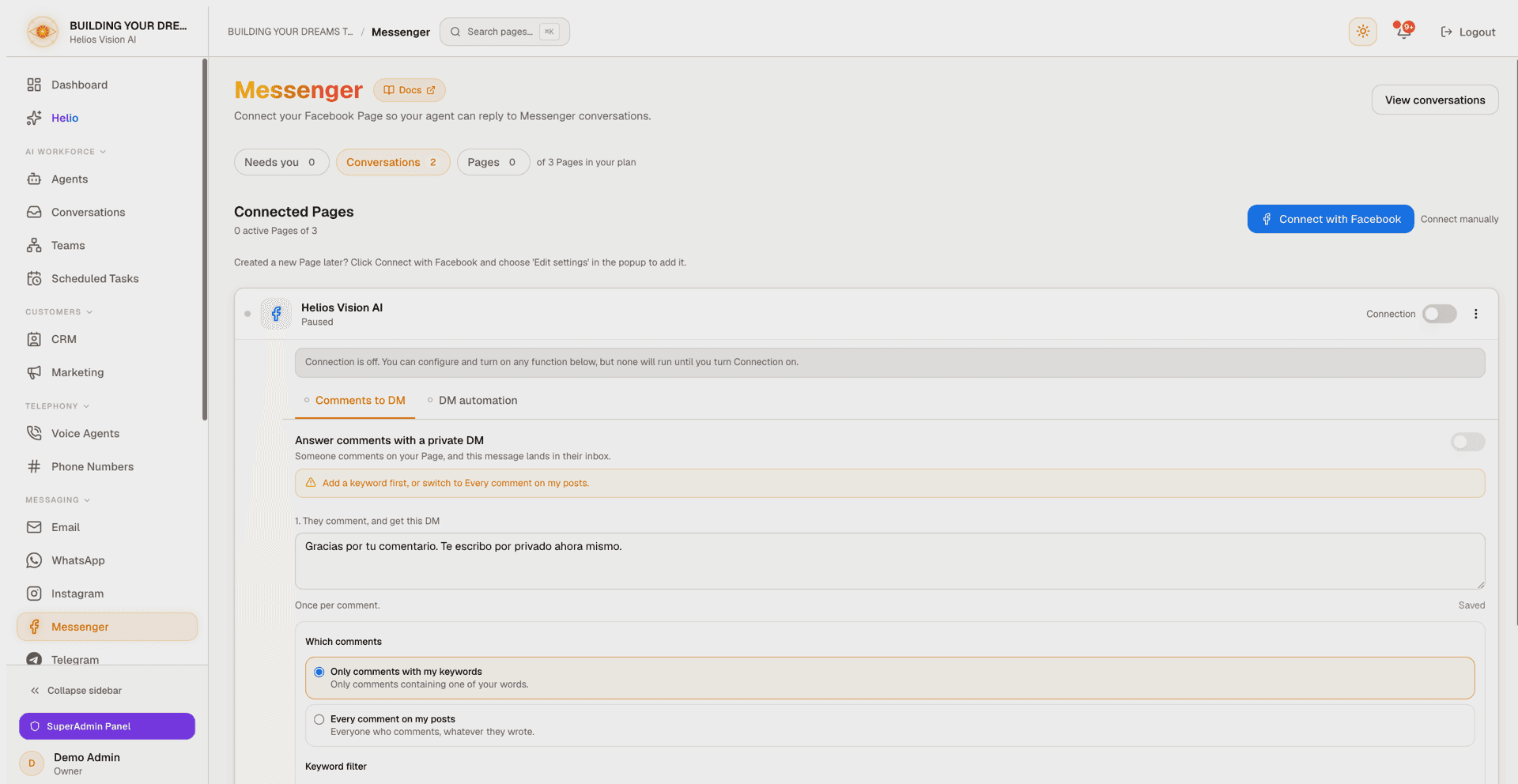
- Click Connect with Facebook.
- Complete the Facebook Login for Business flow and choose the Pages to grant.
- Every Page you grant is connected with Connection off and no agent (if your workspace has exactly one active agent, it is pre-assigned). An Instagram professional account linked to a granted Page is connected too and appears in the Instagram module.
- You will see the banner "Connected with Facebook. Configure the functions below, then turn Connection on when you are ready."
- For each Page: open it, set up the functions you want, then switch Connection on.
Created a new Page later? Click Connect with Facebook again and choose Edit settings in the Facebook popup to add it. If nothing new is found you will see "No new Pages were found. If you created a new Page, click Connect with Facebook and choose Edit access in the Facebook dialog."
Connect manually (bring your own Meta app)
Connect manually is a small text link next to the Facebook button (disabled once you reach your plan's Page cap). It opens the connect form; the technical fields live under Advanced (use your own Meta app), expanded by default when adding and collapsed when editing.
| Field | Notes |
|---|---|
| Page name | Optional label, shown in the dashboard. |
| Agent | A responder picker: a solo agent or a Team. Only agents that declare Messenger are offered. |
| Active | "Active (receive and reply to messages)". On a new connection this requires an agent. |
| Accept attachments | Belongs to the linked agent, not this connection — see DM automation below. It shows the picked agent's real stored policy and is only saved if you actually toggle it. |
| Facebook Page ID | Advanced. Required on add (numbers only). |
| Page access token | Advanced. Required on add. On edit, leave blank to keep the current token. |
| App secret | Advanced, optional. Only needed with your own Meta app. |
| Webhook verify token | Advanced, optional. Only needed with your own Meta app. |
A copyable webhook URL ({base}/api/messenger/webhook) is provided for your Meta app configuration. Tokens and secrets are stored encrypted and never shown again.
Manage connected Pages
Each Page appears as a row titled with its Page name (or its Page ID when no name is set). On the right sits one switch, labelled Connection, plus the kebab menu. Under the name, a one-line summary says what the Page is doing right now:
| Summary | Meaning |
|---|---|
| "Answering DMs" | DM automation is on, comments are not. |
| "Answering comments" | Comments to DM is on, DM automation is off. |
| "Answering DMs and comments" | Both functions are on. |
| "Connected; automated replies are off" | Connection is on, but no function is armed. |
| "No agent assigned yet" | A function needs the AI and no agent is assigned. |
| "Agent is paused" | The assigned agent is inactive, so it answers nothing. |
| "Paused" | Connection is off. |
| "Connection needs attention" | The Page token or its permissions are failing. |
| "Disconnected. Reconnect to resume." | The Page was disconnected and holds no credentials. |
Status badges: Solo / Team (N specialists), Needs reconnection, Linked agent inactive, and Paused by plan limit.
Expanding a row reveals its functions as tabs — Comments to DM first, then DM automation — each with its own dot: filled green when that function's switch is on, hollow when it is off. The dots mirror the switches only; Connection, health and agent availability are reported separately and never rewrite them. Where Comments to DM is not enabled for your workspace, the row expands straight into DM automation with no tab strip.
The kebab menu has Edit, Disconnect, and Delete connection (which appears only once Connection is off).
Notes:
- Connection is the runtime master switch, not a prerequisite. You can configure and arm each function while Connection is off; nothing runs until you turn it on. The expanded row says so: "Connection is off. You can configure and turn on any function below, but none will run until you turn Connection on."
- Connection can only be switched on when every enabled AI function has what it needs. Otherwise the switch is disabled with "Assign an active Messenger agent first. At least one enabled AI function needs it."
- A Page whose functions need no AI — DM automation set to a fixed message, or off — can be active with no agent at all.
- Clearing the agent pauses the Page only when an enabled function delegates its replies to AI.
- Assign a Team instead of a single agent to let a coordinator ask a specialist for help (requires the Teams plan and an approved specialist).
Agents this Page can use
The agent picker offers only agents that declare Messenger on their own Channels tab, and are active. An agent that never declared the channel is not offered, and the panel says what to do: "No agent is available for this channel yet. Open an agent, go to its Channels tab and turn this channel on — then it will show up here."
If the Page already has an agent that would now be filtered out, that agent stays in the picker so a save never clears an assignment you did not touch. It is labelled with which of the two problems it is — "Linked agent inactive" or "This channel is off on the agent" — because they are fixed on different screens.
DM automation
The DM automation tab answers people who write to the Page directly. It has one switch and, under it, two ways of answering.
Off is not silence. With the switch off, "Nothing automated answers. Messages still arrive and wait for someone on your team in the inbox."
| Option | What it does |
|---|---|
| With my AI agent (shown with the agent's name once one is assigned) | "It answers with everything it knows about your business, and your team can take over with one click." |
| With a fixed message | "Everyone who writes gets the one line you write. No AI is involved, and the account needs no agent." |
Configure first, arm second: the switch stays disabled until the mode you picked can actually answer someone, and says which piece is missing — "Pick an agent before turning this on." or "Write the message before turning this on." Switching to the AI option while no agent is assigned turns the function off rather than storing a mode that could answer nobody.
The fixed line is labelled "Someone writes you directly, without commenting: they get this", with the hint "The same line every time. Comment funnels have their own reply, in Comments to DM." It is capped at 800 characters, and picking the fixed mode with nothing written seeds a starting line for you to edit instead of refusing the click.
With the AI option chosen, the tab also holds:
- Agent — the responder picker, described as "The same one every function on this account uses."
- Accept attachments (images, voice notes, documents) — off by default on Messenger. When off, the agent replies to text only and ignores any media the customer sends. The setting belongs to the linked agent and is shared by every connection using that agent; it is disabled until an agent is assigned.
- Your agent's prologue — a card that names what the agent asks before it answers freely: "{agent} asks 2 questions before the AI takes over", or "{agent} answers straight away" when there is no prologue yet. It links to the agent's own Flow tab. The same prologue also runs on threads that started as a comment.
- When the connection is unhealthy, the cause in plain language plus a Reconnect button that restarts the Facebook flow.
The Page ID sits at the foot of the tab as technical reference (omitted when the row title is already showing it).
Comments to DM
Each Page can also answer comments on its posts: when someone comments, Helios writes to them by direct message in Messenger — privately, never as a public reply under the comment. Public replies under the comment and per-post targeting remain Instagram-only.
The Comments to DM tab configures it per Page, under the heading "Answer comments with a private DM" — "Someone comments on your Page, and this message lands in their inbox."
- On/off switch. Turning it on requires: a message written, either keywords added or "Every comment on my posts" chosen, and — only when DM automation is set to the AI — an assigned agent. The blocker is named beside the switch: "Choose an agent under DM automation first, or set it to answer with a fixed message.", "Write the message they receive first.", or "Add a keyword first, or switch to Every comment on my posts."
- Turning it off is always allowed, even if a prerequisite disappeared after you armed it. And Connection is deliberately not a prerequisite either way: you can set this up on a paused Page.
- "1. They comment, and get this DM" — this exact text is what they receive, once per comment. There is no Save button: it stores when you leave the field, and an indicator beside it reads Saving… / Saved / Not saved yet.
- Which comments. "Only comments with my keywords" answers only comments matching your keyword list — while that list is empty, nobody gets an answer. "Every comment on my posts" messages everyone who comments, and the panel warns you what that costs ("Answering everyone has a cost") before you choose it.
- Keyword filter. Add keywords with a match type each: Contains, Exact match, or Starts with. Up to 50 keywords, 100 characters each.
- Removing your last keyword switches the automation off, and says so rather than leaving it armed against nothing: "The last keyword is gone, so this automation was switched off — armed with no keywords it would answer nobody." If it is on with an empty list for any other reason, the panel says "This is on, but nothing can match it yet".
Who continues the conversation is not configured here. It follows DM automation: if that answers with your AI agent, the agent takes over the thread once the person replies; if it answers with a fixed message, that same line answers these threads too. One decision, one control.
Limits the automation always respects, listed under Limits we always respect (collapsed until you open it):
- One answer per comment, never two.
- At most one answer to the same person a day, counting all your posts.
- At most 150 private messages an hour from this account.
- Instagram and Facebook allow a single private reply, within 7 days of the comment — a platform rule, enforced by Meta.
Plan limits
A usage line shows "N active Pages of M" (or "N active Pages (unlimited)"). Without the entitlement the page shows "Messenger is not in your plan" with a View plans link to Settings -> Billing. Hitting the cap opens an upgrade dialog. The Social Accounts Pack adds one Page slot per unit, and the effective limit (plan plus add-on) is what the page enforces. Pages deactivated after a downgrade show Paused by plan limit; turning one back on by hand clears that flag.
Comments to DM is not sold separately: it is a capability of the channel module, gated only by whether the feature is enabled for your workspace.
Outbound message policy
Every autonomous AI reply on Messenger passes an outbound policy check before it reaches the customer:
- A reply containing a live credential or secret is always blocked. This rule cannot be relaxed.
- A reply that asks for credentials, commits your business financially (a price, discount, refund, or waiver), or makes a legal-shaped promise is held for human review instead of being sent.
A held reply is never silently dropped: the customer receives a short hand-off message in their own language, the conversation is escalated, your team is notified, and the held draft is preserved (with any secrets redacted) labeled Held for review in the inbox. Messenger accepts a human reply within 7 days of the customer's last message; if that window closes before someone reviews, the thread shows "Held: reply window closed". An owner or admin can relax each reviewable rule under Settings -> Outbound message policy; the credential rule stays on for every workspace.
Conversations
Open View conversations to reach the unified inbox filtered to Messenger. The list shows real customer identity, message previews, search, and the AI-status badges (AI active / Human / Escalated) plus "Needs attention" and "Opted out" flags.
Opening a conversation's full view shows the message thread with delivery ticks (sent, delivered, read), a Take over / Hand back to AI toggle, a Team-assisted badge when a team consultation helped, inbound attachments rendered inline, and a reply composer. A customer who opted out shows "They must send START to resume." instead of the composer.
Disconnect and delete
These are two different actions, in that order:
- Disconnect stops the Page and drops the connection, but keeps your work: "Disconnect {name}? Your agent will stop replying to its Messenger conversations and the connection is dropped. Your automation, keywords and history are kept, so reconnecting the same Page restores them." The row stays, showing "Disconnected. Reconnect to resume.", and Connection refuses to turn back on until you reconnect ("This Page was disconnected. Reconnect it before turning it back on.").
- Delete connection appears in the kebab menu only once Connection is off, and the action still refuses while the Page is active or still holds credentials ("Disconnect this Page first, then delete it."). It removes the Page and everything built on it — the comment automation, its keywords, its public reply texts, and the record of every message it sent. The confirm button is Delete permanently, and it cannot be undone.
Good practices
- Configure the functions first and turn Connection on last. The module is built for that order and each switch tells you what it still needs.
- No agent yet, or none with Messenger enabled? Set DM automation to a fixed message so the Page answers everyone instead of leaving them waiting.
- Before you look for an agent here, tick Messenger on that agent's Channels tab — the picker only offers agents that declared the channel.
- If replies stop, look for Needs reconnection or "Disconnected. Reconnect to resume." and use Reconnect to refresh the Facebook permissions.
- Start the comment automation with keywords rather than "Every comment on my posts": answering everyone spends your hourly DM budget on people who were not asking anything, and unwanted DMs get reported.
- Use a Team responder for Pages that need more than one area of expertise.
- When in doubt, disconnect rather than delete — disconnecting keeps the automation and history so reconnecting restores them; deleting destroys them.
Common errors
| Message | What it means |
|---|---|
| "At least one enabled AI function needs an assigned agent before Connection can turn on." | You tried to turn Connection on (or save the Page as Active) while a function delegates to AI and no agent is assigned. |
| "Assign an active Messenger agent first. At least one enabled AI function needs it." | Same situation, shown on the disabled Connection switch. |
| "The selected agent is inactive. Activate it first or choose another." | The agent exists but is paused. |
| "Enable Messenger on the selected agent before turning Connection on." | Open that agent, go to its Channels tab and tick Messenger. |
| "Write the line people get before turning the AI off." | The fixed-message mode needs its line before it can be stored. |
| "That line is too long." | The fixed DM reply is capped at 800 characters. |
| "Assign an agent to this Page before changing its attachments setting." | Accept attachments belongs to the linked agent; there is nothing to set without one. |
| "This Facebook Page is already connected to an account." | A Page can be connected to only one workspace. |
| "One or more of these accounts is already connected to another workspace. ..." | The Facebook flow found a Page or Instagram account owned by a different workspace; disconnect it there first. |
| "No Facebook Pages were found on your account. Make sure you manage at least one Page." | The Facebook login completed but the account manages no Pages. |
| "The permission request was declined, so nothing was connected." | The Facebook dialog was cancelled or the permissions were refused. |
| "Please verify your email address before connecting this channel." | Verify your email, then retry. |
| "You've reached your plan's Messenger Page limit." | Upgrade or add Social Accounts Pack units for more Page slots. |
| "This Page was disconnected. Reconnect it before turning it back on." | A disconnected Page holds no credentials; use Connect with Facebook to restore it. |
| "Disconnect this Page first, then delete it." | Delete is the second step by design; it refuses while the connection is live. |
| "The token or permissions for this Page were revoked. Please reconnect." | Facebook invalidated the Page token (password change, permission removal); use Reconnect. |
| "We could not verify your plan limits. Please try again." | A transient check failed; nothing was changed — retry. |