TikTok
Connect a TikTok Business account so an AI agent posts public keyword-triggered replies to comments on your own videos.
Objective
Connect a TikTok Business account so an AI agent automatically posts public replies to comments on your own videos. You decide which comments get an answer: only the ones that match your keyword triggers (the default), or — only if you explicitly choose it — every comment on your videos.
This channel is different from your messaging channels: replies here are public comment replies on your own videos, so there is no private conversation and no human take-over, and TikTok activity does not appear in Conversations. For private one-to-one chats use WhatsApp, Instagram, or Messenger. TikTok direct messages are on the roadmap.
Access
Sidebar -> Messaging -> TikTok Route:
- /app/{tenant}/tiktok (connect and manage TikTok accounts)
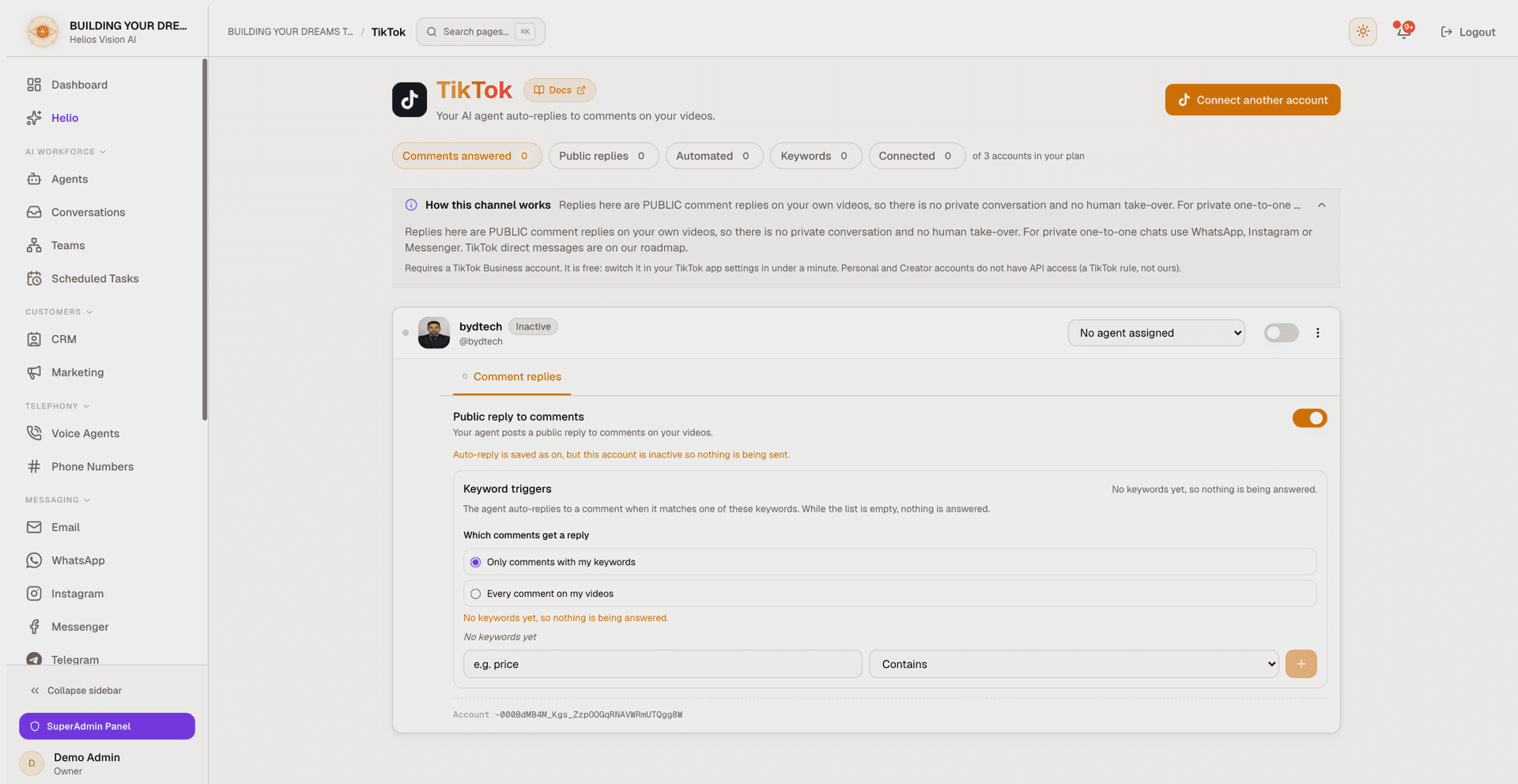
The page header shows the channel's live chips: Comments answered, Public replies, Automated (accounts currently answering), Keywords, and Connected (accounts used out of your plan's limit). A dismissible How this channel works strip explains the public-reply model and the Business-account requirement.
Roles
- owner, admin: connect, assign an agent, activate/deactivate, turn public replies on or off, choose which comments get a reply, manage keyword triggers, and disconnect.
- agent: can open the page, but connected accounts and their settings are only listed for owners and admins.
Prerequisites
- Your plan must include TikTok; the number of active accounts is capped by your plan plus the Social Accounts Pack add-on.
- A TikTok Business account (it is free — switch it in your TikTok app settings in under a minute). Personal and Creator accounts do not have API access; this is a TikTok rule.
- At least one active agent that serves TikTok. Every channel page only offers the agents ticked for that channel, so open the agent, go to its Channels tab and turn TikTok on before you come back here. An account cannot go Active without an assigned, active agent.
- A verified email (an unverified workspace cannot connect a channel).
Connect a TikTok account
Connecting uses TikTok's own sign-in (OAuth); you do not paste any tokens.
- On the TikTok page, click Connect TikTok account (or Connect another account in the header once one is connected).
- Complete TikTok's authorization dialog and grant the requested permissions.
- You return to the TikTok page and the account is added Inactive and unassigned, with Public reply to comments off.
- Assign an agent, switch the account Active, then turn on Public reply to comments.
Notes:
- To connect a second or different account, use Connect another account — TikTok shows its login/account picker instead of silently reusing the current session.
- Reconnecting the same account refreshes its tokens and clears a "Needs attention" state while preserving its Active state, assigned agent, and reply settings.
- Tokens are stored encrypted and never shown again.
- A TikTok account can be connected to only one workspace at a time.
- A new account never arrives armed: the reply switch is off and the reply scope starts on Only comments with my keywords, so nothing is published until you choose it.
- The agent never digs into your historic comments. The first check after connecting only marks the starting point and publishes nothing, so replies begin with comments posted after it — not on old threads.
Manage connected accounts
Each connected account appears as a row showing its avatar, display name, and @username, with an Active/Inactive badge (and a Needs attention badge when the connection is unhealthy). The row has an Active toggle and an inline agent picker; expand it to reach the Comment replies tab, which holds the reply switch, the reply scope, and the keyword triggers. The actions menu has Disconnect.
| Control | Notes |
|---|---|
| Agent | The agent that composes replies to this account's comments. The picker lists your active agents that have TikTok ticked on their Channels tab, plus "No agent assigned". |
| Active | Turns the account on. Requires an assigned, active agent, and is subject to your plan's account limit. |
| Public reply to comments | Master switch for this account's comment replies. When off, the agent stops replying even while the account is Active. |
| Which comments get a reply | The account's reply scope: only comments matching your keywords, or every comment (see below). |
| Keyword triggers | The keyword filters used by the keyword scope. While the list is empty, nothing is answered. |
| Disconnect | Permanently deletes the connection; comment replies stop for the account. This cannot be undone. |
If Public reply to comments is on while the account is Inactive, the page says so: "Auto-reply is saved as on, but this account is inactive so nothing is being sent." The setting resumes the moment the account is reactivated.
Which agents the picker offers
Eligibility is declared on the agent, not on the account, so one agent can serve several TikTok accounts. When the picker has nothing to offer, the hint under it names which problem you are looking at, because they are fixed on different screens:
| Hint | What it means |
|---|---|
| You have no active agents. Activate or create one first. | The workspace has no active agent at all. |
| No agent is available for this channel yet. Open an agent, go to its Channels tab and turn this channel on — then it will show up here. | You have active agents, but none of them serves TikTok. |
| The agent linked here cannot serve this channel. Open an agent, go to its Channels tab and tick this channel — or pick another agent. | The only entry left in the list is the agent already assigned to this account. |
An agent that is already assigned stays in its own account's picker even when the filter would drop it, with the reason appended to its name — (This agent is inactive) or (This channel is off on the agent). That is deliberate: it keeps an unrelated change from silently reassigning the account to a different agent.
Which comments get a reply
Every account has an explicit reply scope. It is a deliberate choice — never inferred from how many keywords you have:
- Only comments with my keywords (default): the agent answers a comment only when its text matches one of the account's keyword triggers. While the keyword list is empty, nothing is answered.
- Every comment on my videos: the agent posts a public reply under every comment, whatever it says. The page shows a warning when you pick this — a public comment cannot be taken back from anyone who already read it.
Turning Public reply to comments on with the keyword scope and an empty keyword list is refused: "Add at least one keyword, or choose to reply to every comment, before turning this on." Removing the last keyword of an account that is already on does not switch anything off — the account simply stops answering until you add a keyword again, and the Keywords chip flags this idle state.
Keyword triggers
To add one, expand the account's Comment replies tab, type a keyword under Keyword triggers, choose a match type, and press Enter or click the + button. Each account can hold up to 50 keywords, and a keyword can be up to 100 characters.
| Match type | Behavior |
|---|---|
| Contains | The comment text contains the keyword anywhere (default). |
| Exact match | The whole comment equals the keyword. |
| Starts with | The comment begins with the keyword. |
Matching is case-insensitive. Remove a keyword with the x on its chip.
How comment replies work
- Replies are public and posted only on your own videos — there is no private conversation and no human take-over.
- The agent checks your most recent videos for new comments about every 10 minutes (comment activity on TikTok can trigger a faster check). Every comment is answered at most once, so re-checks never double-reply.
- Only an Active account with Public reply to comments on and an assigned, active agent answers.
- The agent never replies to the account's own comments, including its own published replies.
- Replies fit TikTok's comment length (up to 150 characters; longer drafts are trimmed) and are capped per check to stay within TikTok's API limits; anything left over is picked up on the next check.
- Every reply passes your workspace's outbound content review before it is posted; a reply that does not pass is held for review and never published.
- Comment reply settings live here, on the account they configure — Marketing's Automations tab does not hold them, because a single central row could only ever configure one of your accounts.
Plan limits
- Activating an account is gated by your plan's TikTok account limit; hitting the limit opens an upgrade dialog.
- Without the TikTok entitlement, activation shows "Your plan does not include TikTok. Upgrade to enable it."
- The Social Accounts Pack adds one account slot per unit on top of your plan.
Good practices
- Start with a handful of high-intent keywords ("price", "shipping", "link") instead of the every-comment scope: the open scope publishes a reply under everything, including comments better left alone.
- Give the assigned agent instructions that fit a short public comment — TikTok caps replies at 150 characters, so long answers get trimmed.
- If the agent picker is empty, the fix is on the agent, not here: open it, go to its Channels tab and turn TikTok on.
- Watch the Needs attention badge: reconnecting refreshes the connection without losing your Active state, agent, or keywords.
- Check the header chips after arming an account: Automated with zero Keywords means the account is on but answering nobody.
Common errors
| Message | What it means |
|---|---|
| Your plan does not include TikTok. Upgrade to enable it. | The workspace plan has no TikTok entitlement. |
| You have reached your plan's TikTok account limit. | Deactivate another account or add a slot to activate this one. |
| Assign an active agent before activating this account. | An account needs an assigned, active agent to go Active. |
| That agent is inactive. Activate it first. | The chosen agent is paused; activate it, then retry. |
| Add at least one keyword, or choose to reply to every comment, before turning this on. | The keyword scope with an empty list could never match anything, so the switch stays off until the account can actually answer. |
| You have reached the maximum number of keywords. | Each account holds up to 50 keywords; remove one to add another. |
| Enter a keyword (up to 100 characters). | The keyword is empty or too long. |
| That TikTok account is already connected to another workspace. | The same TikTok account cannot be connected in two workspaces. |
| Verify your email before connecting a TikTok account. | Confirm your workspace email first. |
| TikTok connection was cancelled. | You dismissed TikTok's authorization dialog. |
| Could not complete the TikTok connection. Please try again. | The sign-in did not finish; start the connect flow again. |
| The connection request expired. Please start again. | The sign-in took too long; restart it. |
Related
Messenger
Connect your Facebook Page so it answers Messenger conversations — with an AI agent or a fixed message — and turns post comments into private chats.
Marketing
Send WhatsApp and Telegram broadcasts, drip sequences and A/B tests, and run always-on automations like Shopify cart recovery, with consent enforced.