
Marketing
Send WhatsApp and Telegram broadcasts, drip sequences and A/B tests, and run always-on automations like Shopify cart recovery, with consent enforced.
Objective
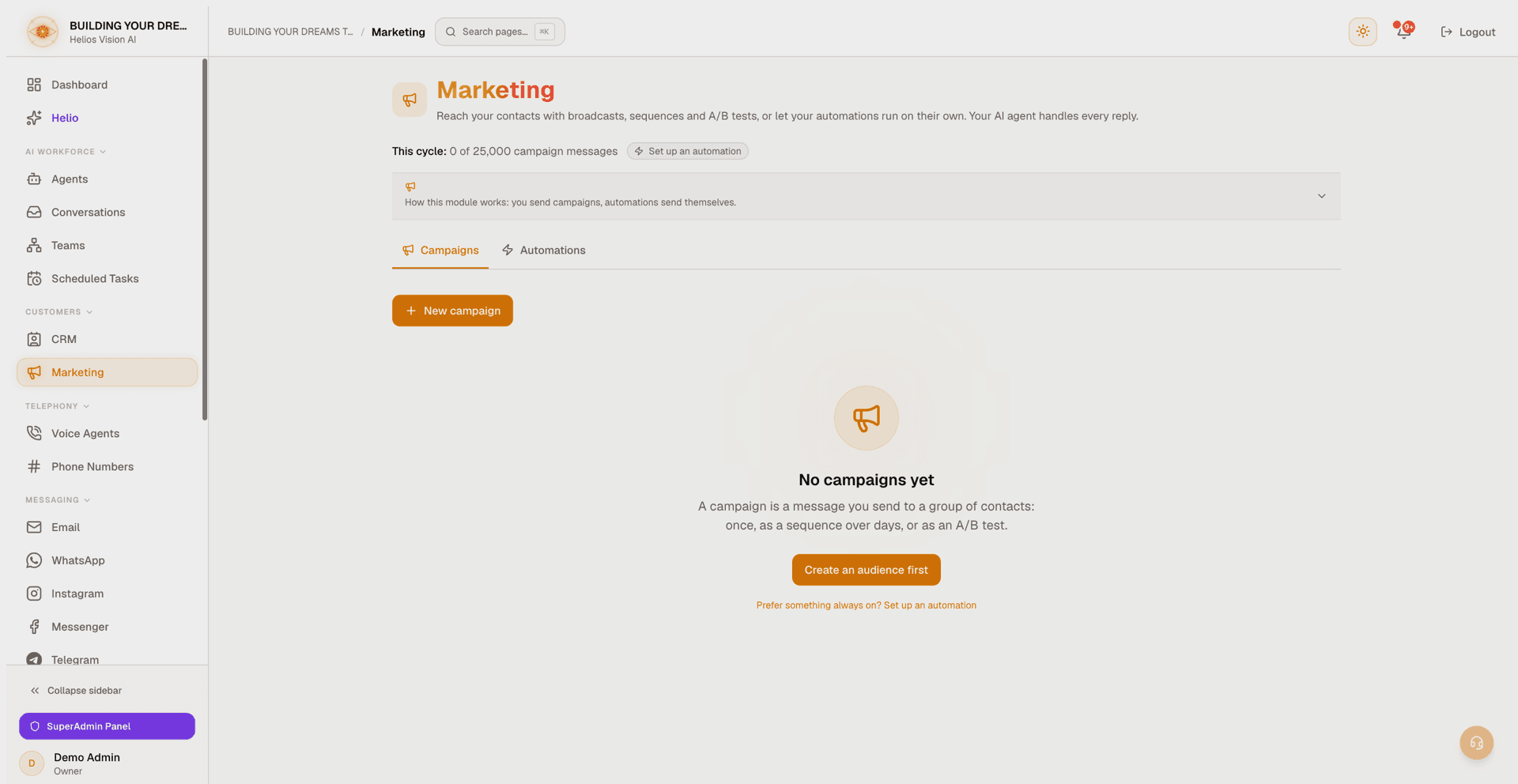
Reach your contacts at scale, then let your AI agent handle the replies. The Marketing module has two halves, shown as two tabs on one page:
- Campaigns — messages you decide to send: one-off broadcasts, multi-step drip sequences, and A/B tests over WhatsApp and Telegram, aimed at a saved audience.
- Automations — messages your customer's behavior triggers: today, Shopify cart recovery, which messages shoppers who abandoned a cart and lets your AI agent close the sale.
Consent and frequency rules are enforced automatically before anything goes out, on both halves.
Access
Sidebar -> Customers -> Marketing
Route:
- Marketing: /app/{tenant}/campaigns (tabs: Campaigns and Automations)
Related setup lives in other modules:
- Audiences (segments) and consent: /app/{tenant}/contacts/audiences
- WhatsApp message templates: /app/{tenant}/whatsapp
A collapsible strip at the top of the page (How this module works: you send campaigns, automations send themselves.) summarizes the split and the consent rules.
Roles
- owner, admin — full access: create, schedule, pause, resume, cancel, retry, retarget, and manage automations and the Shopify connection.
- agent, viewer — no access. Marketing does not appear in the sidebar and its actions are blocked server-side.
- This module is part of a gradual rollout. If it is not yet enabled for your workspace, contact support.
Prerequisites
- A paid plan that includes campaigns. Without it, the Campaigns tab shows an upgrade panel (Marketing tools are on paid plans -> See plans), and campaign-sending automations such as cart recovery are hidden.
- owner or admin role.
- At least one active sender for your chosen channel:
- WhatsApp: a number connected through the Meta Cloud API (Twilio numbers are not supported for campaigns). See WhatsApp.
- Telegram: an active Telegram account. See Telegram.
- At least one saved Audience (segment), created in Contacts -> Audiences and consent.
- For WhatsApp: at least one APPROVED marketing or utility template in the WhatsApp module. Authentication templates cannot be broadcast.
- For marketing sends: contacts with a recorded marketing opt-in. Consent is captured and managed in Contacts -> Audiences and consent.
Plan and usage
Above the tabs, a meta row scopes the whole module:
- Your usage this cycle against the monthly cap (for example, This cycle: 120 of 5,000 campaign messages, or Unlimited campaign messages). The cap is per calendar month; sends that would exceed it are blocked at preview and at schedule time. This counter is hidden if your plan does not include campaigns.
- If conversations have arrived from click-to-WhatsApp ads, a strip shows how many (N conversations from ads), so you can build an audience or retarget those people.
- An always-present automation status pill — Set up an automation, Your automations are off, An automation needs attention, or a live count such as 3 carts recovered — that jumps to the Automations tab when clicked. The Automations tab itself carries a matching indicator (Off, Attention, or the live count).
Create a campaign
On the Campaigns tab, press New campaign to open the composer, fill in the fields, then press Save as draft. Nothing is sent until you review the draft and press Schedule & send from the list.
| Field | Channel | Notes |
|---|---|---|
| Campaign name | Both | Internal name only; never shown to recipients. |
| Channel | Both | WhatsApp or Telegram. |
| Send from | Both | An active sender for the channel. If none appears, connect one first. |
| Audience (segment) | Both | A saved segment. If none appears, create one in Contacts first. |
| Template | Pick an approved template. Each option shows its name, language, and type (Marketing or Utility). | |
| Personalize the template variables | Map each numbered placeholder ({{1}}, {{2}}, ...) to Contact name, Contact company, Contact email, Contact phone, or Fixed text. | |
| Message | Telegram | Free text up to 3,800 characters. |
Template name, language, and type are always chosen from your approved list, never typed by hand — so a template's type cannot be changed to dodge the consent gate. Telegram messages have no template type and are treated as marketing for consent purposes.
Preview audience
Press Preview audience in the composer to see, for the selected segment and message type:
- how many contacts are sendable out of the total,
- how many are skipped, no marketing opt-in,
- how many are skipped by policy or frequency cap,
- an estimated WhatsApp cost (billed by Meta), and
- a warning if the send would exceed your plan's monthly limit.
The preview resolves the saved segment's real rules on the server, so the numbers match exactly what scheduling will enqueue.
Schedule and send
From the campaign list, press Schedule & send on a draft. This materializes the recipient list, applies consent and frequency checks, and moves the campaign to Scheduled. Messages then send in the background at a throttled rate.
A/B testing
In the composer, enable A/B test two versions to send two variants:
- Provide a second variant (Variant B template name for WhatsApp, or Variant B message for Telegram). WhatsApp variant B is picked from the same approved list, filtered to the same type and language as variant A.
- Set Pick winner after (minutes) — at least 30.
- The audience is split 50/50. After the window, the higher-performing variant is sent to the rest. The winning metric is reply for marketing and read for utility.
A/B and drip cannot be combined in one campaign.
Drip sequences
In the composer, enable Add follow-up steps (drip) to send a sequence:
- Add up to 10 steps.
- For each step, set Send after (minutes) — between 5 minutes and 30 days — and choose a template (WhatsApp) or write a message (Telegram).
- Each step sends only if the contact has not replied yet. A reply cancels the remaining steps.
Drip and A/B cannot be combined in one campaign.
Manage campaigns
The list shows the 200 most recent campaigns (with Showing X of N campaigns when there are more). You can search by name (Search campaigns) and filter by status with chips (All, Drafts, Scheduled, Sending, Paused, Finished, Failed, Canceled) — only statuses you actually have appear as chips, and filters apply to the loaded page.
Each row shows the campaign name, status, channel, type, and a delivery funnel: queued, sent, delivered, read, replied, plus counts of skipped and failed recipients. One primary action appears inline; everything else lives in the More actions menu on the row.
Statuses
| Status | Meaning |
|---|---|
| Draft | Saved but not yet scheduled. |
| Scheduled | Recipients enqueued; sending is about to begin. |
| Sending | Messages are going out at the throttled rate. |
| Paused | Sending is stopped and can be resumed. |
| Completed | All recipients processed. |
| Failed | The campaign could not continue (for example, a sender credential problem). |
| Canceled | Stopped manually; remaining recipients are not sent. |
Actions by status
| Status | Available actions |
|---|---|
| Draft | Schedule & send, or Delete draft. |
| Scheduled / Sending | Pause, or Cancel campaign. |
| Paused | Resume, or Cancel campaign. |
| Completed / Failed / Sending (with failures) | Retry failed — re-queue recipients that failed. |
| Any (with quota skips) | Retry (quota) — re-queue recipients skipped for the monthly limit. |
| Completed (with sends) | Retarget: unread and Retarget: no reply. |
Retargeting
After a broadcast completes, Retarget: unread and Retarget: no reply each create a ready-to-review draft aimed at that campaign's unengaged contacts (delivered-but-not-read, or read-but-not-replied). The new draft reuses the source campaign's channel, sender, and message, so retargeting is two clicks: create the draft, then Schedule & send.
Consent and frequency caps
Consent is enforced automatically at send time and cannot be bypassed:
- Marketing messages go only to contacts with an explicit marketing opt-in on that channel. Anyone else is skipped as no marketing opt-in.
- Utility messages go to everyone except contacts who have opted out.
- A tenant-side frequency cap allows at most 3 marketing messages per contact, per channel, per 7 days, counted across all your campaigns. Utility messages are never capped.
Opt-ins and opt-outs are recorded and managed in Contacts -> Audiences and consent (from keyword replies, manual entry, or an opt-in CSV import).
Automations tab
The Automations tab lists always-on automations as rows. Each row shows a trigger chip (for example, When a cart is abandoned), a state chip (Off, Running, Attention needed, or Finish setup), an on/off switch, and a Settings panel. More automations are on the way.
Two things to know:
- If you have used all the campaign messages in your plan this cycle, a notice explains that automations that send campaign messages are paused; they resume when the cycle resets or you upgrade.
- Comment automations are not configured here. Auto-replying to comments on your posts (and DM-ing the commenter) is configured per connected account inside each channel module — see Instagram, Messenger, and TikTok.
Shopify cart recovery
The Shopify cart recovery row connects a store and sends one consent-gated WhatsApp message when a cart is abandoned. The reply lands on your AI agent, which closes the sale.
Connect a store
Press Connect store on the row. The Connect your Shopify store dialog walks you through creating a custom app in your own Shopify admin — no app review or waiting:
- In your Shopify admin open Settings, then Apps and sales channels, then Develop apps.
- Create an app and give it the read_checkouts and read_orders permissions.
- Install it, then copy the Admin API access token and the API secret key.
Paste into the dialog your Store domain (the myshopify.com domain), the Admin API access token, and the API secret key, then press Connect store. Both secrets are encrypted at rest and never returned to the browser. The number of connected stores is limited by your plan.
Configure and arm recovery
Open Settings on the row and set:
| Setting | Notes |
|---|---|
| Wait (minutes) | Delay before the message is sent — between 15 minutes and 3 days. |
| Template | A marketing WhatsApp template (Meta classifies cart recovery as marketing). Only marketing templates are offered. |
| Send from | The WhatsApp number to send from. |
Press Save, then use the row's switch to turn recovery on or off in one click. Until a store, template, and sender are all in place, the switch is disabled and names what is missing (Connect your store first, Choose a recovery template first, or Choose the sending number first).
Monitor it
The row always shows the funnel once data exists: recovered (the headline), recoveries sent, carts watching, plus skipped and failed. Before the first abandoned cart, it shows a waiting message instead. If the connection degrades, the row shows Attention needed; use Check connection in the row menu to re-test it, or Disconnect store to remove the connection. Only one message is ever sent per cart, and marketing consent still applies.
Good practices
- Build and reuse audiences in Contacts, and keep marketing opt-ins current so more contacts are sendable.
- Reserve utility templates for genuinely transactional messages; use marketing for promotions.
- Always Preview audience before scheduling — especially after editing a segment — to catch consent, frequency, and quota issues.
- Use A/B to test copy on a 50/50 split; use drip for gentle follow-ups that stop as soon as someone replies.
- After a broadcast completes, retarget unread or no-reply contacts in two clicks.
- Turn on Shopify cart recovery once and let it run — the funnel on the row shows what it is earning.
Common errors
- Marketing tools are on paid plans — the Campaigns tab is locked; press See plans to upgrade.
- No active sender yet. Connect one first. — connect a Meta Cloud API WhatsApp number or an active Telegram account.
- Campaigns support Meta Cloud API numbers only for now. — Twilio-connected numbers cannot send campaigns.
- No audiences yet. Create one in Contacts first. — create a saved audience in Contacts -> Audiences and consent.
- This segment has no matching contacts. — widen the segment's rules.
- This send would exceed your monthly campaign message limit. — wait for the next cycle or upgrade your plan.
- Only draft campaigns can be scheduled. / Only draft campaigns can be deleted. — the campaign already left the draft state.
- No approved templates yet. Create one in the WhatsApp module. / The template must already be approved in your WhatsApp Business account. — get the template approved in the WhatsApp module first.
- Could not load your templates. You can try again in a moment. — a temporary problem; try again.
- Enter your store's myshopify.com domain. / Shopify rejected the token. Check the custom app credentials. — check the custom app domain and credentials.
- The wait must be between 15 minutes and 3 days. — adjust the recovery delay.
- Cart recovery uses marketing templates (Meta classifies it as marketing). — pick a marketing template for recovery.
- You've reached your plan's connected-store limit. Upgrade for more. — disconnect a store or upgrade your plan.