
Phone Numbers
Buy a US phone number through Helios, name it, and use it for a voice agent or WhatsApp, with E911 address and a guided buy wizard.
Objective
Buy a US phone number provisioned directly through Helios, give it a name, and put it to work: assign it to a voice agent, or use it to connect WhatsApp. The buy wizard walks you through choosing a number, registering the legally required emergency (911) address, and confirming the purchase. Numbers are ready to receive calls the moment the purchase completes.
This is the managed alternative to the Bring-Your-Own-Twilio path used in Voice Agents: with a Helios number you do not manage a separate carrier account.
Access
Sidebar -> Telephony -> Phone Numbers Route: /app/{tenant}/phone-numbers
Roles
- owner, admin — full access (view the list, search, buy, rename, release).
- agent — no access. The page is owner/admin only; agents do not see it in the sidebar, and a direct visit shows "Only owners and admins can manage phone numbers."
Every action (search, purchase, rename, release) is re-checked server-side, so only owners and admins can provision, rename or release a number regardless of how the page is reached.
Availability and prerequisites
- Managed numbers must be enabled in your workspace. If the module is not turned on for your environment you will see a quiet "Phone numbers are not available yet." card instead of the manager.
- Owner or admin role (see Roles above).
- A verified email. Searching is open, but purchasing is blocked until your workspace email is verified ("Please verify your email address before purchasing a phone number.").
- A plan that includes a phone number slot to complete a purchase. Searching is always free on every plan, including free — only the final purchase step is plan-gated. See Plan limits and billing below.
Your numbers
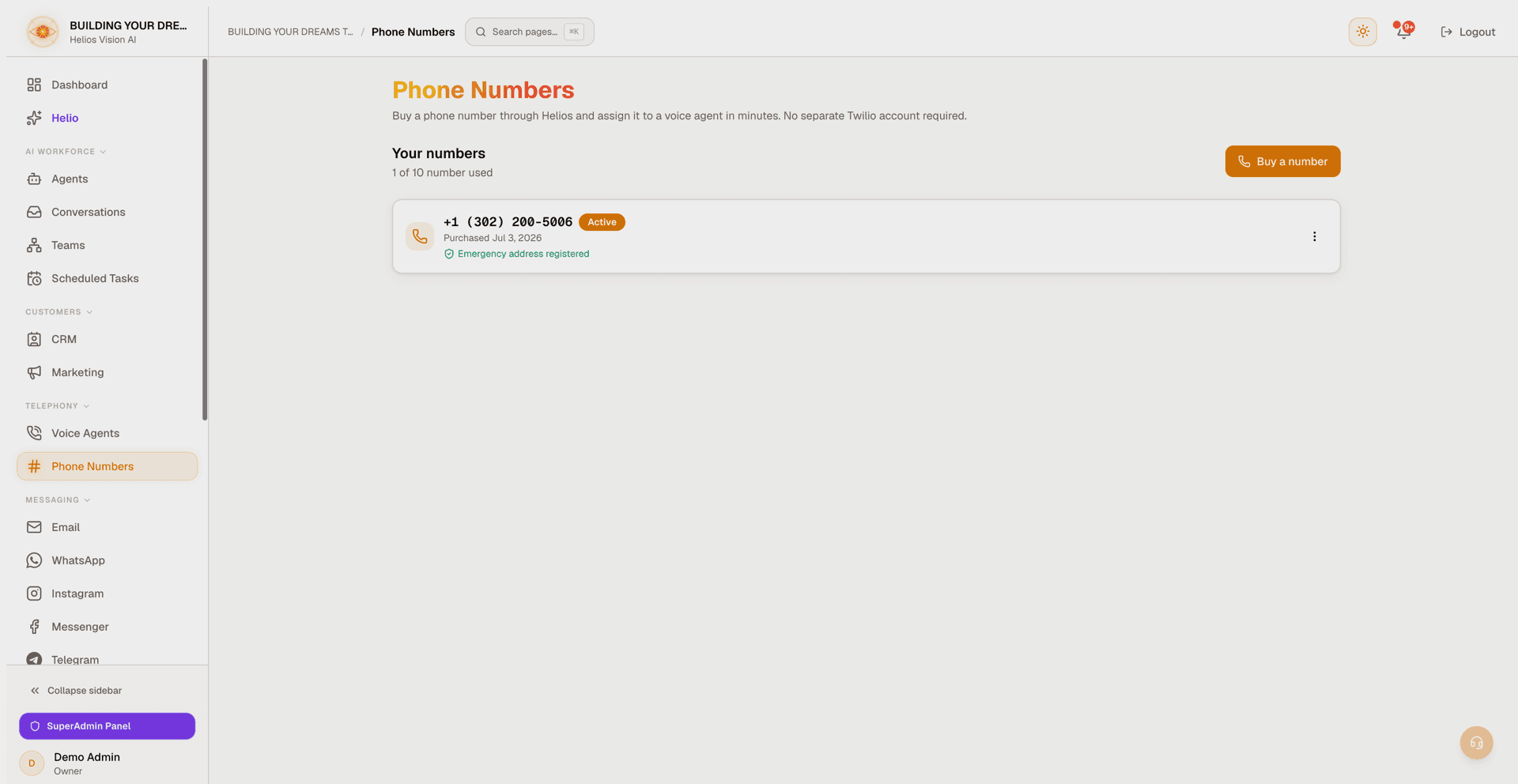
The manager lists the numbers your workspace owns.
- A usage line shows how many numbers are in use, for example "N of M numbers used" (or an unlimited count when your plan has no cap).
- Each active number is shown as a card with:
| Element | Meaning |
|---|---|
| Name | The reference name you gave the number, shown first. A number with no name shows the number itself instead. |
| Phone number | The number, formatted for display (for example +1 (302) 555-1234). Shown under the name when a name is set. |
| Active badge | The number is live and can receive calls. |
| Purchased date | When the number was bought. |
| Emergency address registered | Confirms the E911 address is on file (every active Helios number has one). |
| Reserved badge | Shown instead of the active state when a plan change left you above your plan's number allowance. The number is not billed and does not answer calls; the card gives the date it will be released. See Reserved numbers below. |
| Number options (three-dot menu) | Edit name opens the rename dialog; Release opens the release confirmation. |
Released numbers move to a collapsible released numbers history at the bottom of the page, each showing a Released badge and the release date.
Buy a number
Click Buy a number to open the buy wizard. It has three steps plus a success screen; the header shows "Step 1 of 3", "Step 2 of 3", and so on.
Step 1: Choose a number
Search Helios's live inventory of US local, voice-enabled numbers.
| Field | Mandatory | Format | Example | Note |
|---|---|---|---|---|
| Area code | No | 3 digits | 302 | Leave blank to see numbers from any US area code. |
| Contains | No | 2-10 letters, digits or * | 2020, CAFE | Filters for memorable numbers; letters map to the phone keypad. |
- Leave both fields blank to browse numbers from any US area code.
- Only US numbers are available. A non-US area code (like +1 809) returns no results.
- Results appear as a selectable list with a live count ("N numbers available"). Pick one, or use Show more to re-roll a fresh set of available numbers.
- If nothing matches, you get a "No available numbers matched your search." message — try a different area code.
Step 2: Emergency address
This step also names the number and registers its emergency address.
| Field | Mandatory | Format | Example | Note |
|---|---|---|---|---|
| Name for this number | No | text, up to 60 characters | Sales line | A reference so you can tell your numbers apart. Left blank, the number is named "Helios number". You can change it later. |
| Business or full name | Yes | text | Building Your Dreams Tech LLC | The name the emergency address is registered under. |
| Street address | Yes | street + unit only | 123 Main St, STE 100 | Do not include city, state or ZIP here. |
| City | Yes | text | Wilmington | |
| State | Yes | selection | DE | Chosen from a list of the 50 states plus DC and Puerto Rico. |
| ZIP code | Yes | 5 digits or ZIP+4 | 19801 |
US law requires every phone number to have an address on file for emergency (911) calls. This address is used only for emergency dispatch and is never shared with callers.
The form validates as you go: it flags a street field that looks like a full address, an unselected state, and an invalid ZIP, so mistakes are caught here rather than failing later.
Step 3: Confirm purchase
The confirm step shows the selected number and the emergency address you entered.
- If your plan includes a number slot: a price line shows how much the number adds to your monthly billing (when a price is configured), and you must check the box agreeing to the Phone Number Terms and Acceptable Use Policy before the Purchase button becomes active. In short: numbers are for inbound voice AI only, no spam or robocalls, you are responsible for lawful use, and a number may be suspended for abuse. The full terms open in a new tab.
- If your plan does not include a number slot: instead of a purchase button you see "Upgrade your plan to buy this number" with a View plans link to billing. Searching stays free; only the purchase is gated.
Use Back to revise a previous step or Cancel to close the wizard.
Success
After a successful purchase you see "Your new number is ready" with the new number and an Assign it to a voice agent button that takes you to Voice Agents. The number is already configured to receive calls; assign it to a voice agent to start answering.
Name a number
Every Helios number carries a reference name that identifies it across the app — in the phone numbers list, in the voice-agent picker, and when connecting WhatsApp.
- At purchase: set the name in the buy wizard's Step 2 ("Name for this number"). Left blank, the number is named "Helios number".
- After purchase: open the number's three-dot menu and choose Edit name. The "Name this number" dialog shows a Name field (up to 60 characters, for example "Sales line"). Save applies it immediately ("Name updated.").
- Clearing the name is allowed: save an empty name and the card shows the bare phone number instead.
Use a number for WhatsApp
An active Helios number can also power WhatsApp. In the WhatsApp section, choose Use a Helios number when connecting: Meta sends its phone-verification code by SMS to the number, and Helios receives and enters the code automatically — you never read or type it. This works for every active Helios number, including numbers bought before this option existed.
- If you have no numbers yet, the WhatsApp flow tells you: "You do not have a Helios number yet. Buy one first, then connect it to WhatsApp."
- A number connected to WhatsApp cannot be released until you disconnect it there first (see Release a number below).
- A reserved number cannot be connected to WhatsApp, and WhatsApp already connected to it is paused (see Reserved numbers below).
See WhatsApp for the full connection flow.
Release a number
To give up a number, open its three-dot menu, choose Release, and confirm ("Release this number?"). Releasing:
- Stops the number working immediately and cannot be undone — "{number} will stop working immediately and cannot be recovered. You will need to buy a new number to replace it."
- Frees the plan slot and stops the number's monthly charge.
- Moves the number into the released history.
A number connected to WhatsApp cannot be released. You get "This number is connected to WhatsApp. Disconnect it in the WhatsApp section first, then release it here." Disconnect WhatsApp, then release.
You would need to buy a new number to replace a released one; the same number is not guaranteed to be available again.
Reserved numbers
When a plan change takes effect and leaves you with more numbers than your plan allows, the extra numbers are reserved for your workspace for 30 days and then released. The change can be a downgrade to a lower paid plan or the end of a cancelled subscription, which moves the workspace to Free. Only owners and admins see this page, and only they receive the notices.
- What you see: a reserved number shows a Reserved badge and the line "Not billed. Released on {date} unless before then you move to a plan that includes it." A notice at the top of the page counts the reserved numbers and repeats the rules.
- What changes while a number is reserved: it is not billed, it does not answer calls, and WhatsApp connected to it receives and sends no messages. The WhatsApp connection itself is not changed; it is only paused.
- Which numbers stay in service: first the numbers a voice agent that is on answers on, then the numbers with a WhatsApp connection that is on, then the most recently bought. The rest are reserved. A number that is already reserved is not swapped for another one later.
- Choose a plan that includes them before the date: the reservation is lifted for as many numbers as the plan allows, they are billed again, and calls and the same WhatsApp connection resume on their own.
- Keep this number: when your plan has room for a reserved number again, for example because you released another one, its card shows Keep this number. The confirmation says "Your plan has room for this number again. Keeping it ends its reservation, and it is billed again from today at {price} a month, like your other numbers." and you confirm with Keep it and bill it. It needs an active subscription. Without this step, a free slot alone does not lift a reservation, and the number is released on its date.
- On the release date: any WhatsApp connection still on the number is disconnected and the number is released. Once released, a number may not be available again, and WhatsApp has to be connected to a number your plan includes.
- Notices: an in-app notification when the reservation starts (Phone numbers reserved), another 7 days before the release and another 1 day before (Phone number release reminder), and, if WhatsApp was connected, one when it is disconnected at the release (WhatsApp disconnected from a released number). Each names the numbers and the exact release date. See Notifications.
Plan limits and billing
- Searching is free on every plan, including free — it never counts against a limit.
- Purchasing is plan-gated. Your available slots are your plan's phone-number allowance plus any phone-number add-on you have purchased. Some plans grant none; some are unlimited.
- Each active number adds a recurring monthly charge to your subscription, shown on the confirm step when a price is configured. Releasing a number removes that charge.
- At your limit: the Buy a number button is disabled with a tooltip explaining you have reached your plan's maximum. Release a number or upgrade to buy more.
- While an upgrade is waiting for your bank, numbers are not held back, because their billing is on its own subscription; if the billing of your numbers is on the same subscription as your plan, a number is still bought or released, but the new quantity is not applied to your billing while the upgrade waits, and the purchase receipt says "Your number is purchased and saved in your account. Billing could not be verified yet: it is reconciled automatically and does not need another purchase." See Billing & Usage.
- After a downgrade to a lower paid plan or a cancellation: if you now own more numbers than your new plan allows (Free allows none), the extra numbers are not deleted. Each one is reserved for 30 days at no charge and then released automatically, and you cannot buy more numbers until you are within the limit. See Reserved numbers below, and Billing & Usage for how the preview shows it before you confirm.
Good practices
- Verify your workspace email before you try to buy, so the purchase is not blocked.
- Name each number for its job ("Sales line", "Support desk") so it is easy to pick in the voice-agent and WhatsApp flows; you can rename at any time.
- Enter the street and unit only in the Street address field; put city, state and ZIP in their own fields to pass emergency-address validation.
- Use the Contains filter to find a memorable number (digits or keypad letters).
- Assign a new number to a voice agent right away so it starts answering calls.
- Release numbers you no longer use to stop their monthly charge — after disconnecting WhatsApp if the number is connected there.
Common notes
- "Phone numbers are not available yet." — managed numbers are not enabled in your workspace yet.
- No results when searching — the area code may be exhausted, or you searched a non-US area code (only US numbers are offered).
- Purchase blocked with an upgrade prompt — your current plan grants no number slots; upgrade from the View plans link.
- "Please verify your email address before purchasing a phone number." — verify your workspace email, then retry.
- Buy button disabled — you are at your plan's number limit; release a number or upgrade.
- A number shows Reserved: your plan no longer includes it. It is not billed and does not answer calls until the date shown; choose a plan that includes it, or use Keep this number when your plan has room.
- "This number is connected to WhatsApp. Disconnect it in the WhatsApp section first, then release it here." — release is blocked while the number backs a live WhatsApp connection; disconnect WhatsApp first.
- "Number not found." when renaming — the number no longer exists in your workspace or was already released.