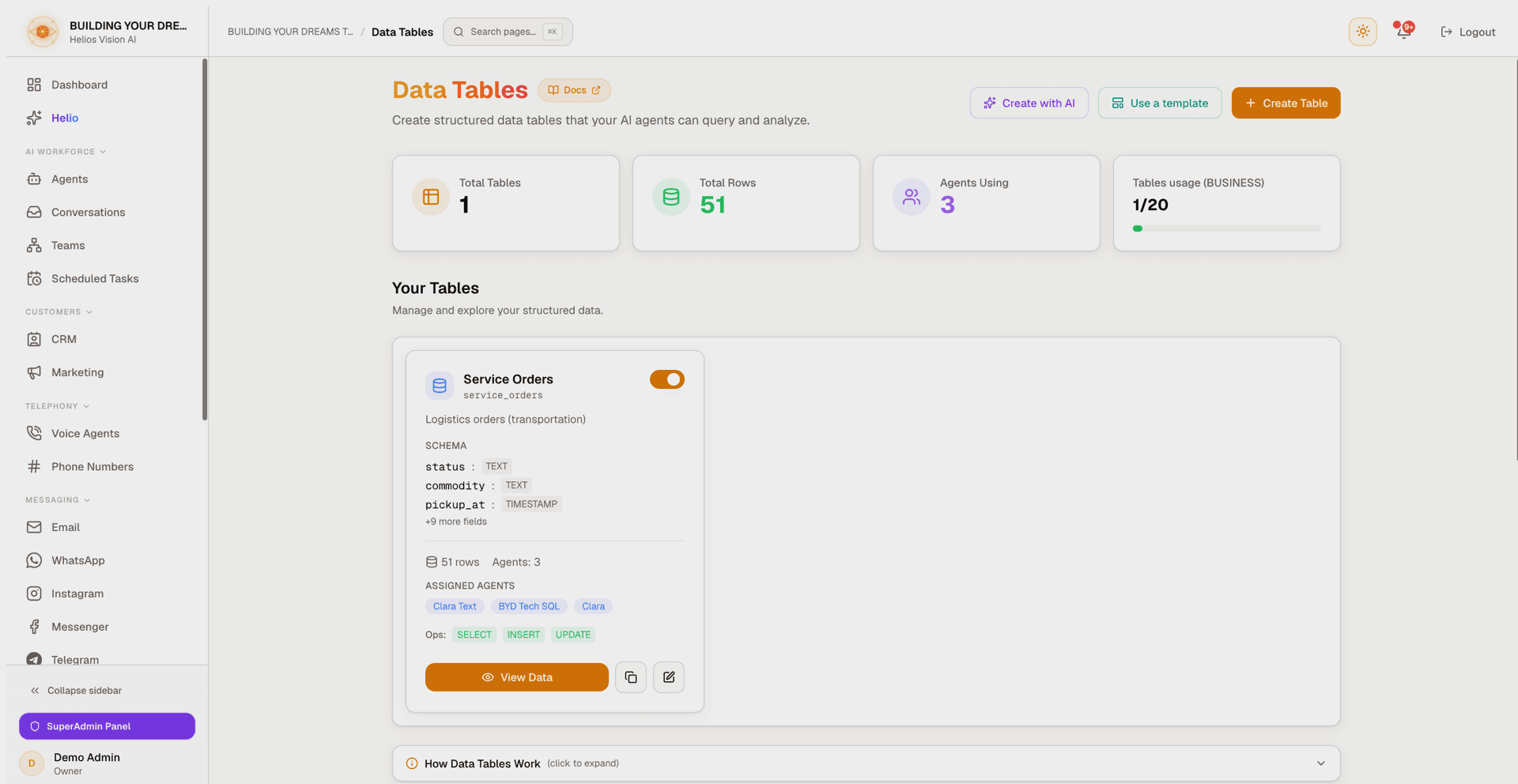
Data Tables
Create structured data tables your AI agents can query in plain language, with templates, CSV import/export, and row webhooks.
Objective
Store your structured business data (customers, orders, inventory, appointments and more) in tables your AI agents can read and answer questions about. You can build a table by hand, start from a ready-made template, or describe it and let AI design it. Once a table is assigned to an agent, the agent can answer questions about it in chat, email or voice conversations.
Access
Sidebar -> Data Tables
Route(s): /app/\{tenant\}/sql-tables (table list) and /app/\{tenant\}/sql-tables/\{id\} (table detail).
The list page also shows four stat cards (Total Tables, Total Rows, Agents Using, and a Tables usage gauge for your plan), a Docs shortcut to this page, and a Recent Activity feed with the latest inserts and updates across your tables.
Roles
- owner, admin — full access: create, edit, duplicate and delete tables; add, edit, import and delete rows; run natural-language queries; manage webhooks.
- Other workspace members can view a table's rows and download its CSV export (read-only).
Creating and editing tables, changing rows, importing data, running natural-language queries and managing webhooks are all restricted to owners and admins.
Prerequisites
- Creating a table (by any of the three paths) requires a verified email and an active subscription.
- To answer questions in a conversation, an AI agent must have data access enabled and this table assigned to it (see Assign tables to agents).
- The Create with AI and Natural Language Query features use your configured AI provider.
- A table must be Active and include the SELECT operation to be queryable.
Limits per plan
| Plan | Tables | Maximum rows | Queries per minute |
|---|---|---|---|
| Free | 1 | 100 | 30 |
| Starter | 5 | 5,000 | 60 |
| Growth | 10 | 20,000 | 120 |
| Business | 20 | 50,000 | 240 |
| Enterprise | Unlimited | Unlimited | 600 |
Notes:
- The row limit applies both per table and across all your tables combined. CSV imports count against it too.
- "Queries per minute" is the rate limit for natural-language queries.
- The plan gauge on the list page counts active tables only. A suspended table keeps its data but does not count against your table limit.
Create a table
The list page header offers three ways to create a table.
| Button | What it does |
|---|---|
| Create with AI | Describe the data you need and let AI design the schema. |
| Use a template | Start from a ready-made schema. |
| Create Table | Build the schema by hand, field by field. |
Create Table (manual)
- Press Create Table.
- Complete the form.
- Press Create Table.
Form fields
| Field | Required | Format | Example | Note |
|---|---|---|---|---|
| Table Name (Internal) | Yes | lowercase letters, numbers and underscores; must start with a letter or underscore | customer_orders | Internal identifier, cannot be changed later |
| Display Name | Yes | text | Customer Orders | Shown in the interface |
| Description | No | text | Customer orders and status | Helps agents understand the table |
| Schema | Yes | one or more fields | order_id (TEXT) | Defines the structure |
| Allowed Operations | Yes | one or more of SELECT, INSERT, UPDATE, DELETE | SELECT, INSERT | Controls what agents may do |
Each schema field has a field name, an optional friendly label, a type, and an Optional checkbox. Mark a field Optional to allow it to be left empty; otherwise it is required when adding a row. SELECT is preselected under Allowed Operations.
Available field types
| Type | Description | Example |
|---|---|---|
| TEXT | Free text | "John Smith", "ABC123" |
| NUMBER | Whole numbers or decimals | 100, 99.99 |
| BOOLEAN | True / False | true, false |
| DATE | Date only | 2024-01-15 |
| TIMESTAMP | Date and time | 2024-01-15T14:30:00 |
Use a template
Press Use a template, pick a template card, review its fields, adjust the display name, table name and description (all prefilled — the internal table name is suggested from the display name until you edit it yourself), then press Create table. Available templates:
| Template | Purpose | Allowed operations |
|---|---|---|
| Contacts / CRM | Track customers and leads with contact info and status. | SELECT, INSERT, UPDATE |
| Support Tickets | Log and track customer support requests. | SELECT, INSERT, UPDATE |
| Inventory | Manage products, stock levels and pricing. | SELECT, INSERT, UPDATE |
| Appointments | Schedule and track customer appointments. | SELECT, INSERT, UPDATE, DELETE |
| Orders | Track customer orders and their status. | SELECT, INSERT, UPDATE |
| Simple Leads | Capture and qualify incoming leads. | SELECT, INSERT, UPDATE |
| Properties | Property listings your agent can search: price, location, features, and availability. | SELECT |
Notes:
- Properties is deliberately read-only (SELECT): agents can search listings but never modify them. You load and edit listings through the table's own screens and CSV import.
- The field list in the picker is a read-only preview. To change a template's fields, create the table first and then use Edit Table.
- A table created from a template counts against your plan's table limit exactly like the other two paths.
Create with AI
- Press Create with AI.
- Describe the data you want to store, for example: "I need a table for shipping rates with origin, destination, weight ranges and prices."
- Review the suggested table schema cards. You can edit fields and types, or send a follow-up message to refine them.
- Press Create on a card, or Create All when more than one table is suggested.
View and manage data
Route: /app/\{tenant\}/sql-tables/\{id\}
Open a table from the list (View Data) to see its rows and the actions available in the header.
Header actions
| Action | Description |
|---|---|
| Edit Table | Change display info, schema and allowed operations. |
| Export CSV | Download every row as a CSV file. |
| Import CSV | Upload rows from a CSV file. |
| Webhooks | Notify an external endpoint on row changes (owner/admin only). |
| Add Row | Add a single record. |
The header also shows the row count, the table's allowed operations, and an expandable Schema view listing every field and its type.
Row browser
| Feature | Description |
|---|---|
| Search | Filter rows by text with the search box. |
| Sort | Click a column header to sort ascending or descending. |
| Pagination | Choose 25, 50 or 100 rows per page (default 50). |
| Select and bulk delete | Select rows with the checkboxes and delete them together. |
| Edit / Delete row | Edit or delete individual records. |
Add or edit a row
The form generates one field per column of the schema. Behavior by type:
- NUMBER: accepts decimals (e.g. 99.99).
- BOOLEAN: Yes / No selector.
- DATE: date picker.
- TIMESTAMP: date and time selector.
Fields marked Optional may be left empty. Editing a row saves your changes; deleting a row is permanent.
Import CSV
Import rows from a spreadsheet export in four steps: Upload, Map columns, Preview, Import complete.
- Upload — choose a
.csvfile. A header row is required. Maximum file size 4 MB; up to 50,000 rows per file. The rows travel in a single import, so a file whose converted data comes out larger than that is refused with "This file has more data than one import can send (4 MB). Split it into smaller files and import each one." - Map columns — the wizard auto-matches your file's columns to table fields. Adjust any mapping, or set a field to Don't import. Columns you don't map are ignored. A required field left unmapped causes every row to be skipped, so map all required fields.
- Preview — see the first rows with a valid / skipped status. Rows with invalid values (for example, non-numeric text in a NUMBER field) are skipped.
- Import complete — a summary of imported and skipped rows.
Value handling during import:
| Field type | Accepted input | Empty cell |
|---|---|---|
| NUMBER | Any numeric value; non-numeric cells are rejected | Stored as empty |
| BOOLEAN | true / false / 1 / 0 / yes / no (case-insensitive) | Stored as empty |
| TEXT, DATE, TIMESTAMP | Text as-is | Stored as empty |
Imports respect your plan's row limit: if importing the file would exceed it, the import is rejected before any row is inserted.
Export CSV
Press Export CSV to download all rows of the table as a UTF-8 CSV file, ready to open in Excel or Google Sheets. Column headers are the raw field names (not the friendly labels), so an exported file can be re-imported and mapped back 1:1.
Row webhooks
Owners and admins can notify an external system whenever a row changes. Press Webhooks on the table detail page.
| Setting | Detail |
|---|---|
| Endpoint URL | Must start with https://. Requests to private or internal networks are blocked. |
| Events | Row created, Row updated, Row deleted (choose one or more). |
| Description | Optional note about what the webhook is for. |
| Limit | Up to 10 webhooks per table. |
| Test | Send a test request and see the last delivery status and time. |
| Pause / resume | Toggle a webhook without deleting it. |
When you create a webhook, a signing secret is shown once and never again — store it immediately. Every request carries an X-Helios-Signature header (sha256= plus an HMAC-SHA256 hex digest of the raw body) and an X-Helios-Timestamp header, so your endpoint can verify authenticity.
Delivery notes:
- Deliveries are best-effort: requests time out after 5 seconds and are not retried automatically. Row changes are never blocked or slowed down by a webhook.
- The webhook list shows only the scheme and host of each URL; the full URL is visible while you create it.
Natural Language Queries
On the table detail page, write a question in English or Spanish and Data Tables answers it. Each query runs against a single table.
Questions that work well
| Type | Sample question |
|---|---|
| Count records | "How many records are there?" |
| Sum (SUM) | "What is the total amount?" |
| Average (AVG) | "What is the average price?" |
| Maximum / Minimum | "What is the maximum/minimum value?" |
| Group by a field | "How many orders are there per status?" |
| Group by period | "What are the total sales by month?" |
| Filter by value | "Find orders where amount > 100" |
| Filter by date | "Orders from January 2024" |
| Sort results | "Show latest orders ordered by date" |
Notes
- Results are limited to 100 rows per query.
- Counts, sums, averages and groupings are computed in the database across all of the table's rows for standard questions; a few complex shapes (for example, grouping by a calculated period like month) are computed over up to 5,000 rows.
- Dates should use ISO format (YYYY-MM-DD).
- Each query runs against one table at a time; tables cannot be related to one another.
- The query box remembers your recent questions and answers for the current browser session, so follow-up questions ("and only the pending ones?") work.
- Queries are rate limited per minute according to your plan (see Limits per plan).
Manage tables from the list
Each table card offers quick actions:
| Action | Description |
|---|---|
| Active switch | Suspend or reactivate the table. A suspended table keeps its data, can't be queried by agents, and does not count against your plan limit. |
| Edit Table | Open the edit form (also the place to delete the table). |
| Duplicate table | Create a copy of the table's structure (schema, description and operations); rows are not copied. |
| View Data | Open the table detail page. |
The card also lists which agents are assigned to the table.
Editing the schema
When you change the schema in Edit Table, a confirmation dialog first summarizes the impact ("N rows will be migrated to match"), then existing rows are migrated automatically:
- Rename a field — values move to the new field name.
- Change a field's type — values that can't be converted are kept as-is, and you are warned how many could not be converted.
- Remove a field — its data is lost.
Changing only a field's friendly label or its Optional flag never touches row data and needs no confirmation.
Deleting a table (from the Danger Zone in Edit Table) removes all rows and cannot be undone.
Assign tables to agents
For an agent to answer questions about a table:
- Go to Agents and select the agent.
- Enable data access in the agent's tools.
- Select the tables the agent may use.
- Save changes.
The agent can then answer questions about those tables in chat, email or voice conversations.
Good practices
- Descriptive names: use clear display names and field names so agents understand the data.
- Field names in English: keep internal field names in English for best compatibility (use the friendly label for display).
- Limit operations: only enable INSERT / UPDATE / DELETE when an agent genuinely needs to write; keep read-only tables on SELECT.
- Useful descriptions: add a description that explains what the table is for.
- Correct types: use NUMBER for numeric values and DATE / TIMESTAMP for dates so aggregates and filters work.
- Suspend instead of delete: turn off the Active switch to pause a table without losing its data.
- Map every required field on import: rows missing a required value are skipped.
Common errors
"No results found"
- Confirm the table has data.
- Check the spelling of the values you searched for.
- Try a simpler question first.
"We couldn't run that query"
- Rephrase the question and make sure the fields you mention exist in the schema.
- If you ran many queries in a row, wait a minute — natural-language queries are rate limited per plan.
The agent does not answer about the table
- Confirm the table is assigned to the agent.
- Confirm the agent has data access enabled.
- Confirm the table is Active and its Allowed Operations include SELECT.
CSV rows were skipped
- A header row is required, and files are limited to 4 MB and 50,000 rows.
- Check that column mappings are correct, that every required field is mapped, and that NUMBER / BOOLEAN columns contain valid values.
"Plan limit reached" when importing
- The import would push you past your plan's row limit. Delete rows you no longer need or upgrade your plan; nothing is imported until the whole file fits.
Screenshot