
Integrations
Connect AI providers, Twilio voice, Gmail, Outlook, and Google and Microsoft calendars from one marketplace with live health badges.
Objective
Connect the external services your agents depend on: AI providers (chat, text-to-speech, web search), Twilio for voice calls and phone numbers, email accounts (Gmail, Outlook), and calendars (Google, Microsoft). Everything is presented as a marketplace of cards you connect, manage, and disconnect from one page — each card carries a live health badge so a broken connection is never invisible.
WhatsApp is not connected here: it has its own guided flow (see Connect WhatsApp with Meta).
Access
Sidebar -> Integrations Route: /app/{tenant}/integrations
Provider detail pages (opened from the cards):
- /app/{tenant}/integrations/gmail
- /app/{tenant}/integrations/outlook
- /app/{tenant}/integrations/calendar?provider=google
- /app/{tenant}/integrations/calendar?provider=microsoft
The calendar page always shows a single provider. There is no combined calendars view anymore — the Integrations marketplace is the overview, and an old bookmark without a provider is forwarded back to it.
Roles
- View the page: owner, admin, agent
- Save keys, connect accounts, disconnect: owner, admin
Prerequisites
- A verified email. Accounts pending verification are asked to confirm their email before any integration can be saved or connected.
- To connect Gmail or Outlook for sending email you need at least one agent with the Email channel enabled — you assign that agent while connecting the account.
- ElevenLabs and Deepgram keys only take effect once you select that provider in Voice Agents.
How the page works
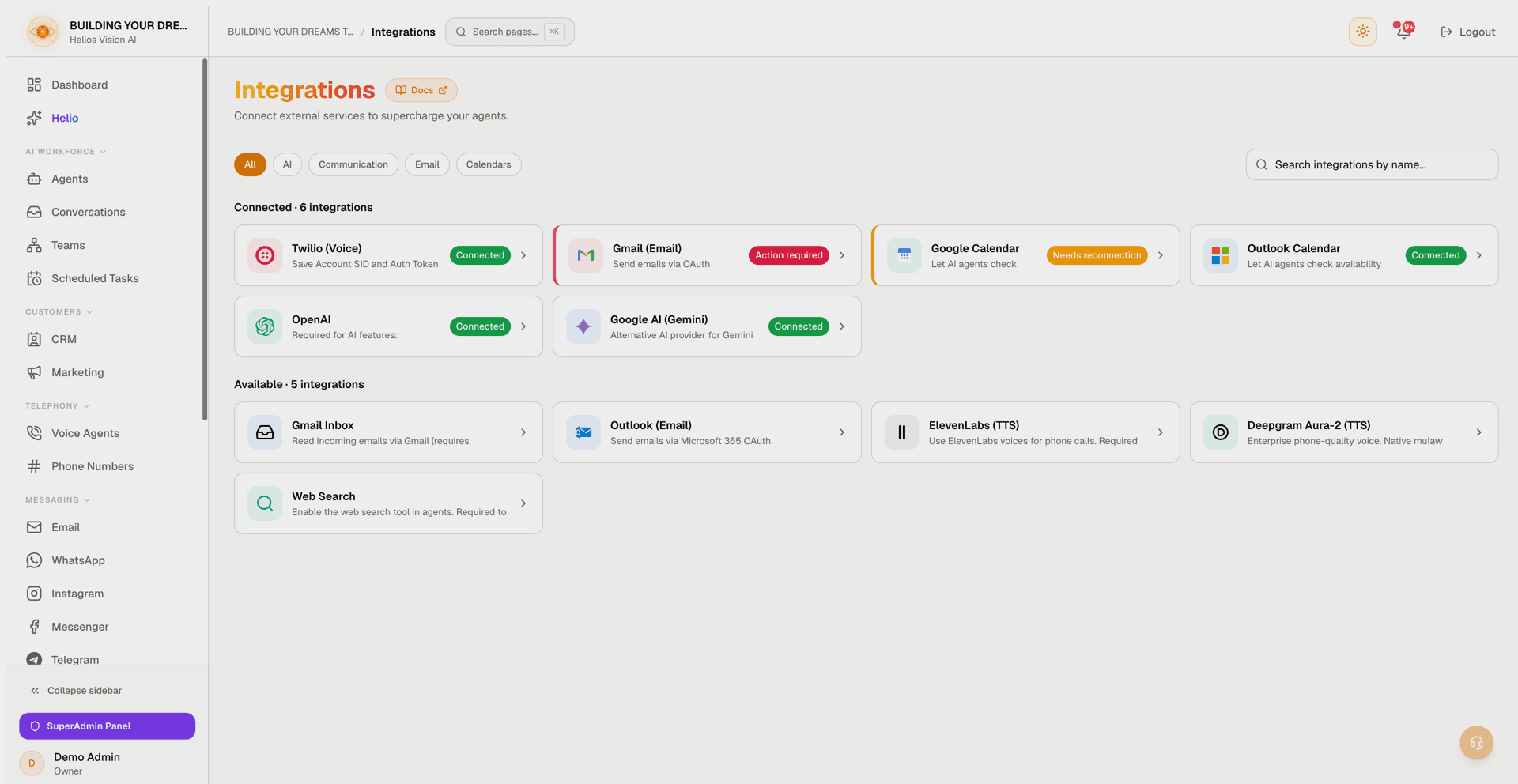
The page lists every integration as a card, split into two sections that show their counts:
- Connected — integrations already set up, with a status badge.
- Available — integrations you can still connect.
Use the category chips and the search box to narrow the list. Category and search combine together.
| Control | Values | Note |
|---|---|---|
| Category chips | All, AI, Communication, Email, Calendars | Filters the cards by type |
| Search | free text | Matches integration name and description |
Click any card to open its detail dialog, where you enter the key, connect the account, or disconnect.
Status badges
| Badge | Meaning | What to do |
|---|---|---|
| Connected | Set up and working | Nothing |
| Action required | Connected but failing at runtime (for example, an AI account out of credit, or a mailbox that stopped receiving email) | Fix the account, then re-check |
| Needs reconnection | Connected, but an account's sign-in expired or was disabled after repeated failures | Reconnect the account |
| Not verified | Connected, but the health check has not confirmed the key works yet | Open the card and use Re-check |
Cards with Action required or Needs reconnection also get a colored left edge so they stand out at a glance. An account the platform disabled after repeated sign-in failures stays visible in Connected with a warning badge — it never silently drops back to "not connected". A deliberate disconnect by you leaves no badge.
AI providers
OpenAI
Powers chat responses and AI features (sentiment analysis, summaries, response generation). When the workspace runs on its own key, it also indexes your Documents and runs knowledge searches.
| Field | Mandatory | Format | Note |
|---|---|---|---|
| OpenAI API Key | Yes | sk-... | From the OpenAI Platform |
Actions: Save OpenAI Key; once connected, removal is the small Remove OpenAI Key link at the bottom of the dialog.
When you save, the key is verified live with OpenAI:
- A key OpenAI rejects (invalid, revoked, or lacking chat permission) is not saved — fix it and try again.
- A valid key on an account with no funds is saved, but the card shows Action required and warns that AI features will fail silently until you add funds.
After that, the key's health is checked automatically every time the page loads. The card's detail shows the result with the last-checked time and, when something is wrong, explains it in plain terms (no funds, rejected key, permission denied, rate limited, or the check could not reach OpenAI) with direct links: Re-check, Add funds in OpenAI, and Manage your OpenAI keys. If the check could not run, the badge shows Not verified instead of pretending the key works.
Google AI (Gemini)
Alternative AI provider for Gemini models with large context windows.
| Field | Mandatory | Format | Note |
|---|---|---|---|
| Google AI API Key | Yes | AIza... | From Google AI Studio |
Actions: Save Google AI Key, Remove Google AI Key.
ElevenLabs (TTS)
Premium voices for phone calls. Required when you select ElevenLabs as the voice provider in Voice Agents.
| Field | Mandatory | Format | Note |
|---|---|---|---|
| ElevenLabs API Key | Yes | elevenlabs_... | From the ElevenLabs Dashboard |
Actions: Save ElevenLabs Key, Remove ElevenLabs Key.
Deepgram Aura-2 (TTS)
Enterprise phone-quality voice (native 8kHz). Required when you select Deepgram as the voice provider. If removed, Voice Agents using Deepgram voices fall back to OpenAI.
| Field | Mandatory | Format | Note |
|---|---|---|---|
| Deepgram API Key | Yes | Project API Key | From the Deepgram Console |
Actions: Save Deepgram Key, Remove Deepgram Key.
Web Search
Enables the web search tool so agents can answer with fresh results from the web.
| Field | Mandatory | Format | Note |
|---|---|---|---|
| Web Search API Key | Yes | tvly-... | From Tavily |
Actions: Save Key, Remove Key.
The key is verified live before it is saved; a rejected key is not stored.
Communication
Twilio (Voice)
Save your Twilio credentials once; they are used for phone calls and phone numbers.
| Field | Mandatory | Format | Note |
|---|---|---|---|
| Twilio Account SID | Yes | Starts with AC, 34 characters | From the Twilio Console (Account Info panel) |
| Twilio Auth Token | Yes | 32 characters | From the Twilio Console (Account Info panel) |
Actions: Save Twilio Credentials, Disconnect Twilio.
The dialog includes a "Where do I find these?" walkthrough, and both fields validate their format as you type, so a mistyped SID or token is flagged before you save.
The Auth Token (not an API Key) is required because it is used to verify that incoming webhook requests really come from Twilio.
Gmail (Email)
Send emails through Gmail via OAuth (Google Workspace compatible). You can connect multiple accounts.
- Opens /app/{tenant}/integrations/gmail.
- When connecting, choose the agent that will send email from this account (the agent must have the Email channel enabled). If you have no eligible agent yet, you are prompted to create one first.
- Card actions: Connect (when none connected), or Manage and Go to Inbox (when connected).
- If a connected mailbox stops receiving email, the card turns Action required and shows the affected addresses with a Fix in Email button that takes you to the Email settings to reconnect.
- If an account is missing the newer permission needed to sync labels and sent mail, the card shows a Reconnect required notice with a Reconnect Gmail action.
The number of email accounts you can connect depends on your plan. Reaching the limit shows a plan-limit prompt with an upgrade path.
Gmail Inbox
Reads incoming emails via Gmail so agents can work an inbox, not just send. This is an early-access feature rolled out gradually; the card only appears once it is enabled for your workspace — contact support if you want access.
Card actions: Connect Inbox (when not connected), or Go to Inbox and Reconnect (when connected).
Outlook (Email)
Send emails through Microsoft 365 / Outlook via OAuth. You can connect multiple accounts.
- Opens /app/{tenant}/integrations/outlook.
- When connecting, choose the agent that will send email from this account (the agent must have the Email channel enabled).
- Card actions: Connect (when none connected) or Manage (when connected).
- Just like Gmail, an Outlook mailbox that stops receiving email turns this card Action required — the alert appears on the provider it belongs to.
The plan-based email-account limit applies here too.
Calendars
Google Calendar
Let AI agents check availability and create events on Google Calendar. You can connect multiple accounts.
- Opens /app/{tenant}/integrations/calendar?provider=google.
- Card action: Connect (when none connected), then a single button that reads Manage while at least one account is healthy, or Reconnect when reconnecting is the next step (no working account, or a sign-in expired).
Outlook Calendar
Let AI agents check availability and create events on Microsoft Calendar. You can connect multiple accounts.
- Opens /app/{tenant}/integrations/calendar?provider=microsoft.
- Card action: Connect, Manage, or Reconnect, same rules as Google Calendar.
On the calendar page each connected account shows its status (Active, Expired - reconnect, or Disconnected) with its own Reconnect button and disconnect control. Reconnect always targets that specific account.
Good practices
- If your workspace runs on its own key, connect an OpenAI key before creating agents, so responses and document indexing work from the first message. On managed AI credits no key is needed.
- After adding funds to a flagged OpenAI account, use Re-check instead of re-entering the key.
- Assign the right agent when connecting an email account — that agent is the one that will send on your behalf.
- Treat an amber or rose badge as a to-do: the card names the exact account that needs attention and the button takes you to the fix.
Common errors
- A wrong OpenAI or Web Search key is rejected on save and never stored.
- Twilio rejects an Account SID that does not start with AC and have 34 characters, or an Auth Token that is not 32 characters — the form flags both while you type.
- Reaching your plan's email-account limit during an OAuth connect shows the plan-limit dialog instead of adding the account.
- Restricted accounts (email not verified) cannot save keys or connect accounts — verify your email first.
- Disconnecting a provider also removes any agent tools that depended on it; the confirmation reports how many were removed.
- Credentials are encrypted and stored securely; API keys are never shown back after saving.