
Inbox (Email)
Connect Outlook or Gmail, let AI draft and send replies with human review, and work your mail as conversations with health and performance insight.
Objective
Manage inbound and outbound email with AI assistance and human approval (human-in-the-loop). An assigned agent analyzes each incoming email, drafts a reply, categorizes it, and either sends automatically or holds it for your review. The inbox groups mail into conversations, tells you honestly who replied (the AI, you, or your mail app), and warns you the moment a mailbox stops receiving email.
Access
Sidebar -> Email (in the Messaging section)
Routes:
- /app/{tenant}/inbox (connect screen when no accounts exist; redirects to All Accounts otherwise)
- /app/{tenant}/inbox?view=settings (account management — the Manage Accounts button)
- /app/{tenant}/inbox/all (all accounts)
- /app/{tenant}/inbox/{credentialId} (one account)
- /app/{tenant}/inbox/message/{id} (email details)
If accounts already exist, /app/{tenant}/inbox redirects to /app/{tenant}/inbox/all. To manage accounts from there, use Manage Accounts.
Roles
- owner, admin: full access — connect, configure, verify, test, and delete accounts, plus review and send replies.
- agent: review, draft, reassign, and Approve & Send replies. Cannot connect, configure, or delete accounts.
- viewer: no access (the Email module is hidden).
Prerequisites
- The Email module is rolled out gradually. If you do not see Email in the sidebar, contact support to request access.
- Providers: Outlook / Microsoft 365 is available to every workspace with the module. Gmail / Google Workspace requires additional approval from Google — until your workspace is approved, the Gmail option appears disabled with a Request Gmail access button that sends the request for you.
- Your Helios account email must be verified. Connecting a mailbox is blocked until you verify it.
- At least one active agent with the Email channel enabled. If none exists, a prompt sends you to the Agents module.
- AI features (drafts, summaries, sentiment, categorization) require model access — through your plan's included credits or your own provider key configured in Integrations. Processed email counts toward your plan quota; when the limit is reached, emails show the Quota Exceeded status.
Connect an email account
In Email, click Connect Email Account (first account) or Connect New Account. A dialog opens with the available providers.
If you have no eligible agent, an Agent required dialog appears — create an agent with the Email / Inbox channel enabled first. If your account email is unverified, you are prompted to verify it before continuing.
Outlook (OAuth)
- In the dialog, find Outlook / Microsoft 365.
- Choose an agent in the Select agent dropdown.
- Click Connect and complete Microsoft's consent screen.
- You return to Email with the mailbox connected. Outlook syncs the inbox, sent items, and categories.
Outlook mailboxes update in near real time: Microsoft notifies Helios when new mail arrives, so the agent can start working within seconds. A periodic sync every few minutes remains as a safety net.
Gmail (OAuth)
Available once your workspace holds Gmail approval (see Prerequisites). Before that, the option is disabled and shows Request Gmail access instead.
- In the dialog, find Gmail / Google Workspace.
- Choose an agent in the Select agent dropdown.
- Click Connect and complete Google's consent screen.
- You return to Email with the mailbox connected. Gmail mailboxes sync every few minutes.
Manage connected accounts
Each connected account appears as a compact row with a provider icon, inline badges, a visible Active / Inactive switch, and a menu; hints and warnings show in an always-visible band under the row.
- Active / Inactive switch. If the account's linked agent is inactive, turning the account on opens a Choose an active agent to reactivate dialog so you can swap to an active agent.
- Open mailbox: opens this account's inbox list.
- Menu — Verify: tests connectivity (shown while the account is unverified). Test email: sends a test message to confirm delivery. Edit: opens Email Account Configuration.
- The row shows the assigned agent and the last sync time or a plain-language sync status.
Account badges:
| Badge | Meaning |
|---|---|
| Verified / Unverified | Whether connectivity has been confirmed |
| AI | The agent generates draft replies for this account |
| Auto-reply | The agent sends replies automatically |
| Solo / Team | Whether a single agent or a team responds |
| Linked agent inactive | The assigned agent is inactive; swap to an active one to activate |
| Health badge | Shown when the account is not healthy (see Account health below) |
Raw provider errors are never shown. Sync problems appear as plain-language statuses, for example "Connection expired. Reconnect this account."
Account health
Helios continuously checks that every connected mailbox is actually receiving email, and names the problem instead of failing silently:
| State | Meaning |
|---|---|
| Disconnected | The connection expired; nothing new arrives until you reconnect |
| Not syncing | No sync has completed in several hours |
| Sync failing | The last import failed; recent email may be missing |
| Never synced | Connected but never imported anything |
| No agent | Email is not imported until an agent is assigned |
| Paused by plan | Your plan allows fewer active accounts than you have connected |
| Paused | You paused this account yourself |
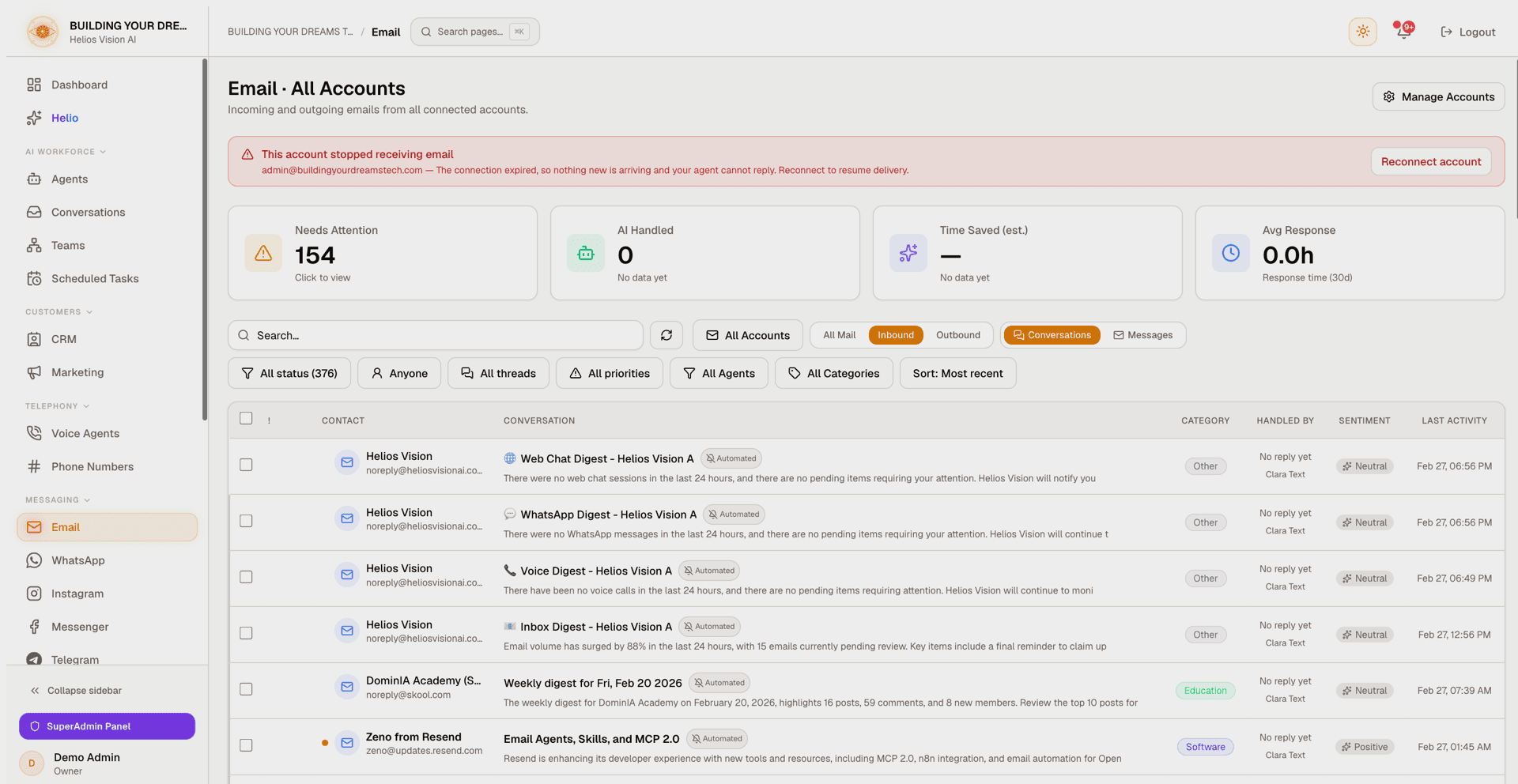
Unhealthy accounts surface in four places: a banner above the inbox stats, a badge on the account row with a direct action (for example Reconnect account), an alert on the dashboard, and a notification. Health notifications are persistent: if you mark one as read and the problem remains, it comes back — reading an alert never silences an ongoing outage.
Email Account Configuration (per account)
Quick route: Email -> account row menu -> Edit.
Account Configuration
| Field | Required | Notes |
|---|---|---|
| Assigned Agent | Yes | A single agent (Solo) or a Team when teams are enabled. Only active agents with the Email channel are listed. |
| Sender Name | No | Used as the From name. If empty, the agent's name is used. |
| Account Signature | No | Applied when sending; draft responses stay clean. Supports the variables below. |
Available signature variables:
- {sender_name}
- {agent_name}
- {tenant_name}
- {account_email}
- {sender_role}
AI Response Settings
These options appear once an agent is assigned.
- Generate AI Responses: the agent drafts suggested replies. Summaries, sentiment, and categorization always run when an agent is assigned, even if this is off.
- Send Automatically (shown when Generate AI Responses is on): replies are sent without waiting for approval. When off, all replies remain drafts. Auto-replies to no-reply / system senders are always blocked.
The following appear when Send Automatically is on:
- Agent Signature (optional): a signature applied when auto-sending.
- Auto-Reply Language: Auto (mirror the sender's language) or a specific language.
- Require Manual Review For: High and Urgent — emails at these priorities always wait for your approval before sending.
- Auto-Reply Guard (see below).
Even with Send Automatically on, an outbound safety policy checks every automatic reply before it leaves. A draft that asks for credentials or access, commits money, or makes a legal promise is not sent — it is held for your review instead (see Held for review below).
Auto-Reply Guard
Controls which senders receive automatic replies. System and no-reply senders are blocked by default.
| Control | What it does |
|---|---|
| Always blocked tokens / domains | Built-in no-reply and system patterns that are always blocked (shown for reference) |
| Additional blocked sender tokens | Block senders whose address contains a token (e.g. invoice, billing). Token-based, not substring |
| Additional blocked domains | Block a domain and its subdomains |
| Allowed reply domains | If set, auto-replies only go to these domains |
| Header blocks | Toggle blocking on Auto-Submitted, Precedence (bulk / list / junk), X-Auto-Response-Suppress, and X-AutoReply / X-Autorespond |
| Additional blocked headers | Block when a given header is present (e.g. List-Unsubscribe) |
When an automatic reply was blocked, the email shows a plain-language notice of the reason — an unattended no-reply mailbox, bulk or mailing-list mail, loop prevention, or your own safety rules.
Email Categorization
These options appear once an agent is assigned.
- Current categories are listed. Manage Categories opens the Categories settings.
- Allow agent to suggest new categories automatically.
- Use the Other category when no clear match is found.
- Mailbox Label Sync: sync Helios categories to Gmail labels or Outlook categories (Gmail or Outlook only). Messages stay in the inbox unless you enable the archive option; archive availability depends on the provider.
Daily Summary Email
Sends a recurring summary of email activity. Configured once for your workspace.
| Field | Required | Notes |
|---|---|---|
| Enable Daily Summary | No | Turns the summary on |
| Send Time | Yes (if enabled) | HH:MM, in the selected timezone |
| Timezone | Yes (if enabled) | Choose from the list |
| Report sections | No | Choose which sections the summary includes |
Delete an account
In Email Account Configuration, the Danger Zone -> Delete email account removes the configuration and disconnects the mailbox. This cannot be undone. (owner / admin only.)
Inbox: Conversations and Messages
Available as All Accounts (/app/{tenant}/inbox/all) and per account (/app/{tenant}/inbox/{credentialId}). Both show stats, a health banner when a mailbox needs attention, and a filterable list.
The list has two views, switched with a toggle:
- Conversations (default): one row per email thread. Each row shows the contact, the subject, a message count, one status chip (Processing / Needs Review / Approved / Sending / Failed / Quota Exceeded), who handled it (AI / You / Mail app), and the last activity. An unread dot marks conversations no person has opened yet — the agent replying does not clear it; opening the conversation does, for the whole thread. A Waiting for you marker flags conversations that need a human, and an Automated badge marks mail sent by a machine (no-reply addresses, mailing lists, delivery notifications). On small screens, conversations render as stacked cards.
- Messages: one row per email, with From / To, Subject and a short preview, Category, Status, Sentiment, Agent, and Date. A shield icon marks emails where the auto-reply guard blocked a reply.
Filters (all counts are computed on the server, so they reflect the whole mailbox, not just the rows on screen):
- Search: sender, subject, agent, category, and more.
- Refresh: reloads the list; in a single-account view it also pulls the latest messages from the provider.
- Account: switch account or view All Accounts.
- Direction: All Mail / Inbound / Outbound.
- Status: All status / Needs attention / Pending or Processing / Needs Review / Approved / Sent / Reviewed / Failed / Quota Exceeded.
- Sender: Anyone / From a person / Automated — separates real people from bounces and platform notifications.
- Conversation type (Conversations view only): All threads / Real exchanges / Never answered.
- Priority: All priorities / Urgent / High / Normal / Low — the priority the agent assigns to each incoming email.
- Handled by (outbound mail): Anyone / AI replied / Approved by you / Sent from your mail app.
- Agent: All Agents / Unassigned / a specific agent.
- Category: All Categories / Uncategorized / Not analyzed / a specific category.
- Sort: Most recent / Needs attention first / Priority / Category (the last two in the Conversations view).
- Clear filters: one click back to the full list.
Bulk actions
Selecting rows opens a bulk action bar (up to 200 at a time):
- Send approved: sends the selected drafts that are waiting to go out, after a confirmation dialog — replies go to real recipients exactly as drafted.
- Mark as reviewed: clears the selected items from the attention queue.
- Dismiss: marks the selected emails as needing no reply.
Selecting a conversation acts on the message that is waiting for you, not on the newest message (which is often the agent's own reply).
Status values
| Status | Meaning |
|---|---|
| New / Pending | Received, awaiting analysis or review |
| Processing | Being analyzed by the agent |
| Needs Review | A draft is ready for your approval |
| Approved | Approved and queued to send |
| Sending | Being sent |
| Sent | Delivered |
| Reviewed | Read or handled; no reply required |
| Failed | Processing or sending failed |
| Quota Exceeded | Plan limit reached; upgrade or wait for the next cycle |
A banner appears when emails are blocked by the plan limit. Failed and unresolved emails are automatically removed after 30 days.
Held for review
A reply stopped by the outbound safety policy is labeled Held for review — it is not a failure. The agent wrote the reply, but it matched a safety rule (asking for credentials or access, committing money, or making a legal promise), so a person must look at it first. Open the email to send, edit, or dismiss it. Held replies also get their own row in the performance panel so they are never invisible.
Stats and AI performance
All Accounts shows four cards: Needs Attention (click to open that queue), AI Handled (replies the agent actually sent on its own — emails imported from your mail app never count), Time Saved (labeled as an estimate), and Avg Response. The per-account view shows Inbound (30d), Outbound (30d), Pending Review, and Avg Response Time.
Below the cards, the How your agent performed panel covers the last 30 days:
- Handled alone: conversations the agent resolved with no human involved.
- Passed to you: incoming emails it handed over instead of answering.
- You rewrote it: how often you changed the draft before sending — a low number means drafts were good enough to send as written.
- Contact replied back: conversations that continued after the agent's reply.
- Replies held for your review, when any exist.
Email details
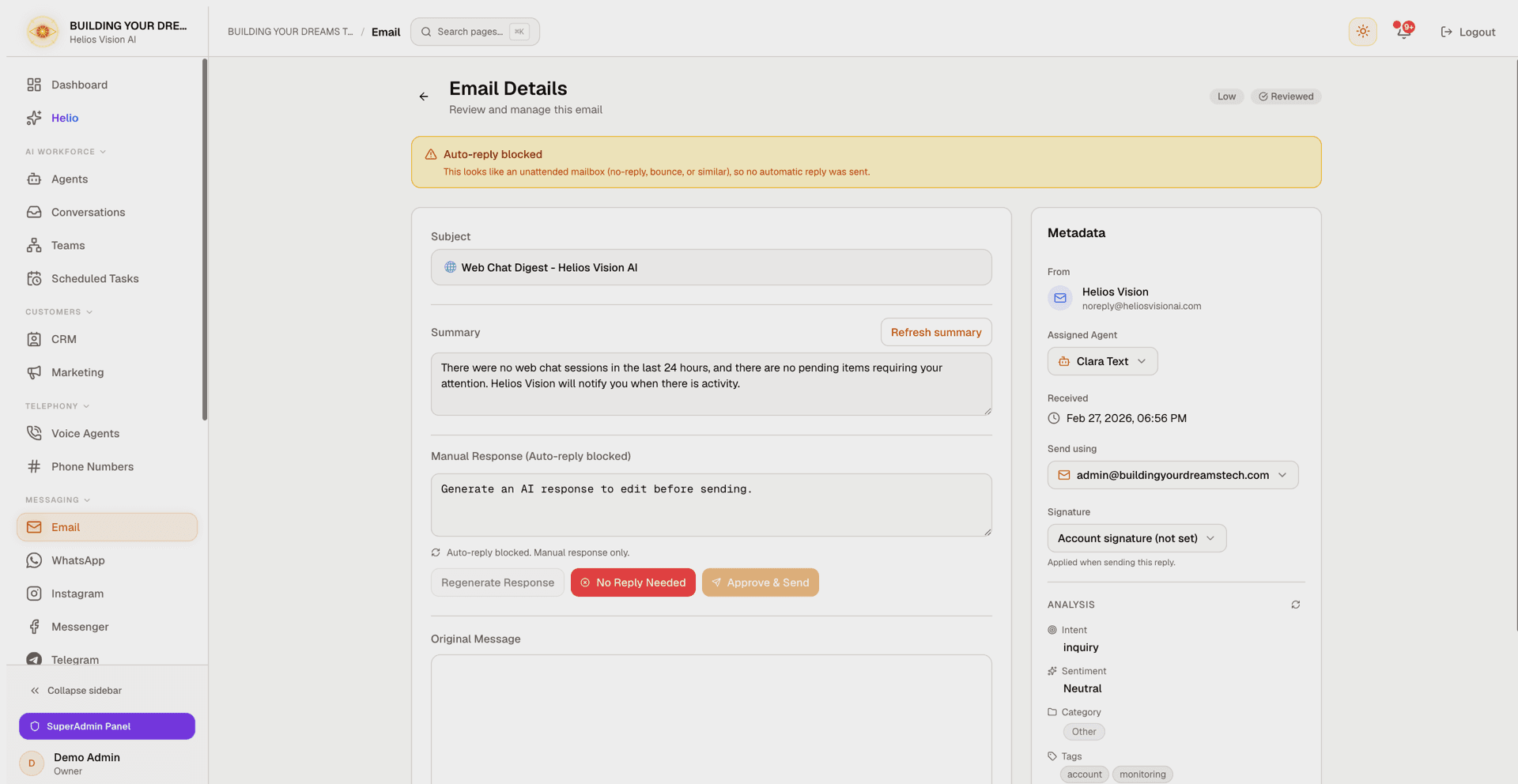
Route: /app/{tenant}/inbox/message/{id}. Opening an inbound email marks the whole conversation as reviewed and clears its unread dot.
When the email belongs to a conversation with more than one message, a timeline renders above it: oldest first, each message labeled by who sent it (the contact, your agent on its own, you after approving, or your mail app), collapsed except the one you opened — marked You are here — with Expand all / Collapse all and a shortcut to open any other message. The timeline shows plain text; the full formatted email is always the message below it.
Inbound layout:
- Header: priority and status badges, plus a delivery or auto-reply-blocked notice when relevant.
- Subject.
- Summary: Generate or Refresh a short summary to speed up review.
- AI-Generated Response (editable): edit the draft, then Regenerate Response, No Reply Needed, or Approve & Send.
- Original Message: the incoming email, rendered safely.
- Sidebar Metadata: From; Assigned Agent (reassign via dropdown); Received; Send using (choose which connected account sends the reply); Signature (My / Agent / Account / None); Analysis (Intent, Sentiment, Category, Tags) with a refresh action.
Outbound emails open in a read-only Sent Email view with Subject, From, To, Sent, Agent, and the message body. Show quoted text expands the quoted history embedded in the email body.
Important notes:
- To send, the response field must not be empty.
- If auto-reply is blocked for the sender, AI generation is disabled and you write a manual reply; a confirmation dialog appears before sending.
- Approved, sent, reviewed, failed, and quota-exceeded emails are read-only.
Escalation email alerts
When an agent asks your team to take over a conversation — on any channel, email included — Helios emails your workspace's active owners and admins. The email names the channel, states the kind of escalation, and links straight into the app. It deliberately carries no conversation content: no customer text, no summary. The why lives in the in-app notification (which also reaches agent-role users in real time) and in the conversation itself.
Good practices
- Assign an active agent to each account before turning on AI responses.
- Work the queue with Needs attention plus the Needs attention first sort, and use the From a person filter to skip bounces and platform notifications.
- Start with drafts (Send Automatically off) and enable auto-send once you trust the replies; keep High and Urgent under manual review.
- Check replies held for review promptly — each one is a customer waiting on a human decision.
- Use bulk actions to clear a backlog instead of opening emails one by one.
- Keep clear categories so classification and label sync stay useful, and write signatures with variables so every account and agent stays consistent.
- Act on the health banner the day it appears: a disconnected mailbox receives nothing until reconnected.
Common errors
- Gmail option disabled: your workspace does not have Gmail approval yet. Use Request Gmail access in the connect dialog; Outlook works without approval.
- Connection expired / Disconnected: reconnect the account (re-run the Gmail or Outlook OAuth from the account row).
- Not syncing / Never synced: open the account from the health banner and follow the suggested action; if it persists, reconnect.
- Verify fails: disconnect and reconnect the mailbox via OAuth.
- Linked agent inactive: the account only sends a polite unavailable auto-reply until you swap to an active agent through the reactivation dialog.
- No AI response appears: confirm an agent is assigned, Generate AI Responses is on, and model access is available.
- Held for review is not an error: the reply matched a safety rule and waits for a person. Open it to send, edit, or dismiss.
- Quota Exceeded: the plan limit was reached; upgrade your plan or wait for the next billing cycle.
Related
Conversations
Supervise every conversation across every channel from one unified inbox: filter, reply, take over from the AI, and see CRM context in one place.
Connect WhatsApp Business numbers with Meta's guided signup or a Helios number, manage templates, and handle conversations in real time.